

Prerequisites
- Install and open Cursor.
- Create an API Key in the AIHubMix Console.
- Prepare the model ID you want to use. Copy it from the AIHubMix model list to avoid typing mistakes.
Configure AIHubMix
1. Open Models settings
Click the settings button in the upper-right corner of Cursor, then open Models.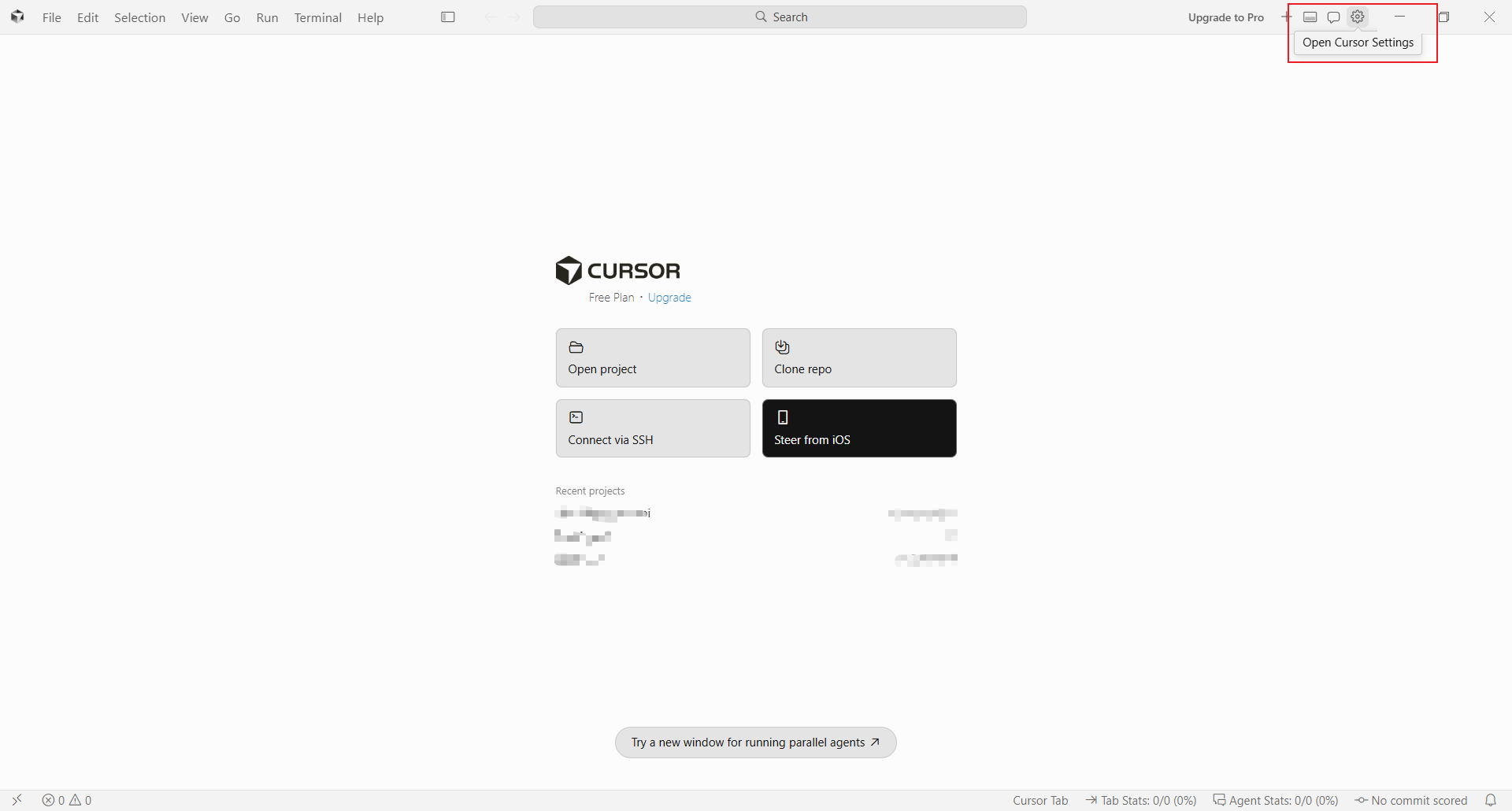
2. Enter the API Key and Base URL
Enter the API Key created in the AIHubMix Console under OpenAI API Key. Turn on Override OpenAI Base URL, then enter: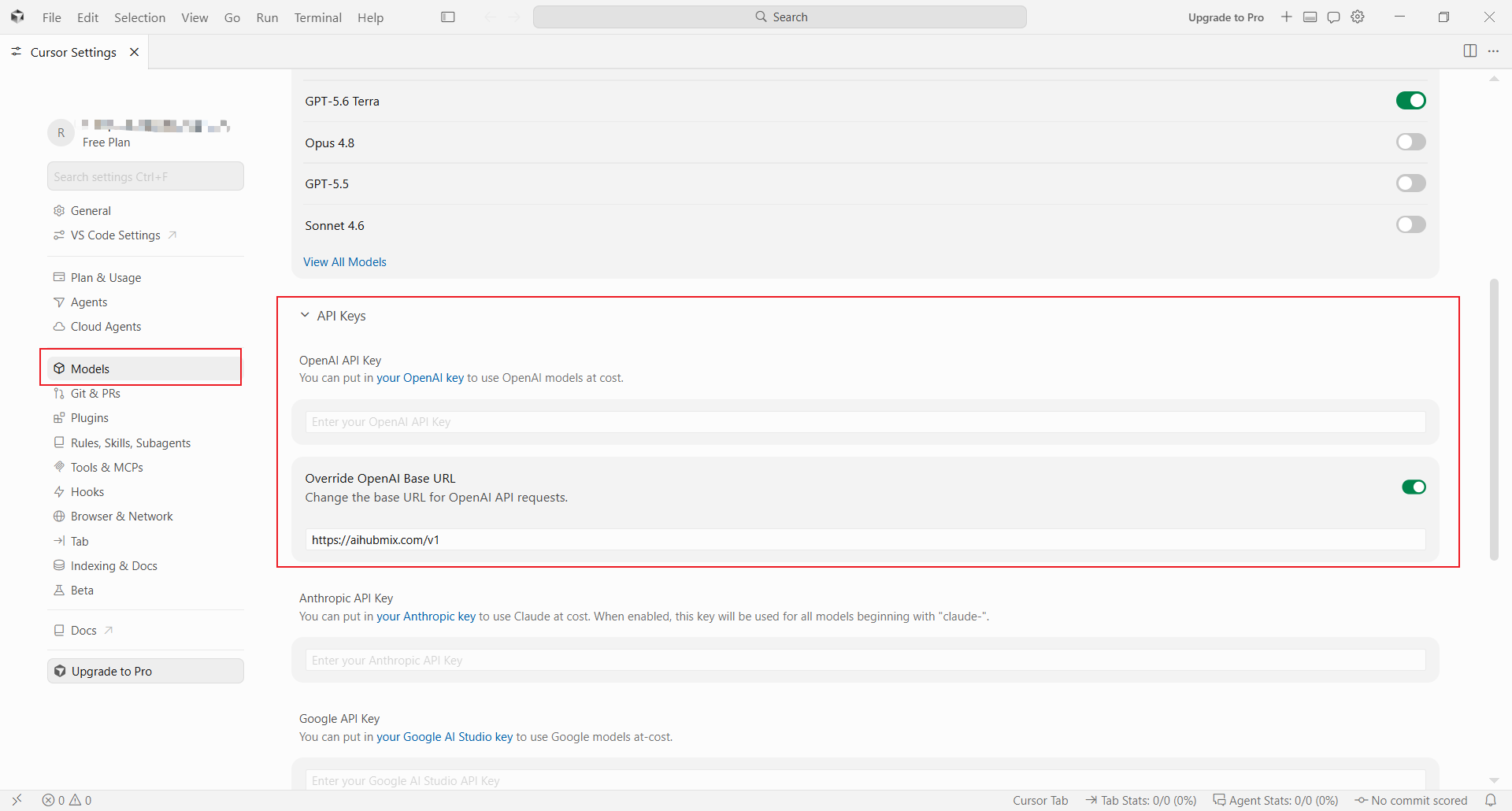
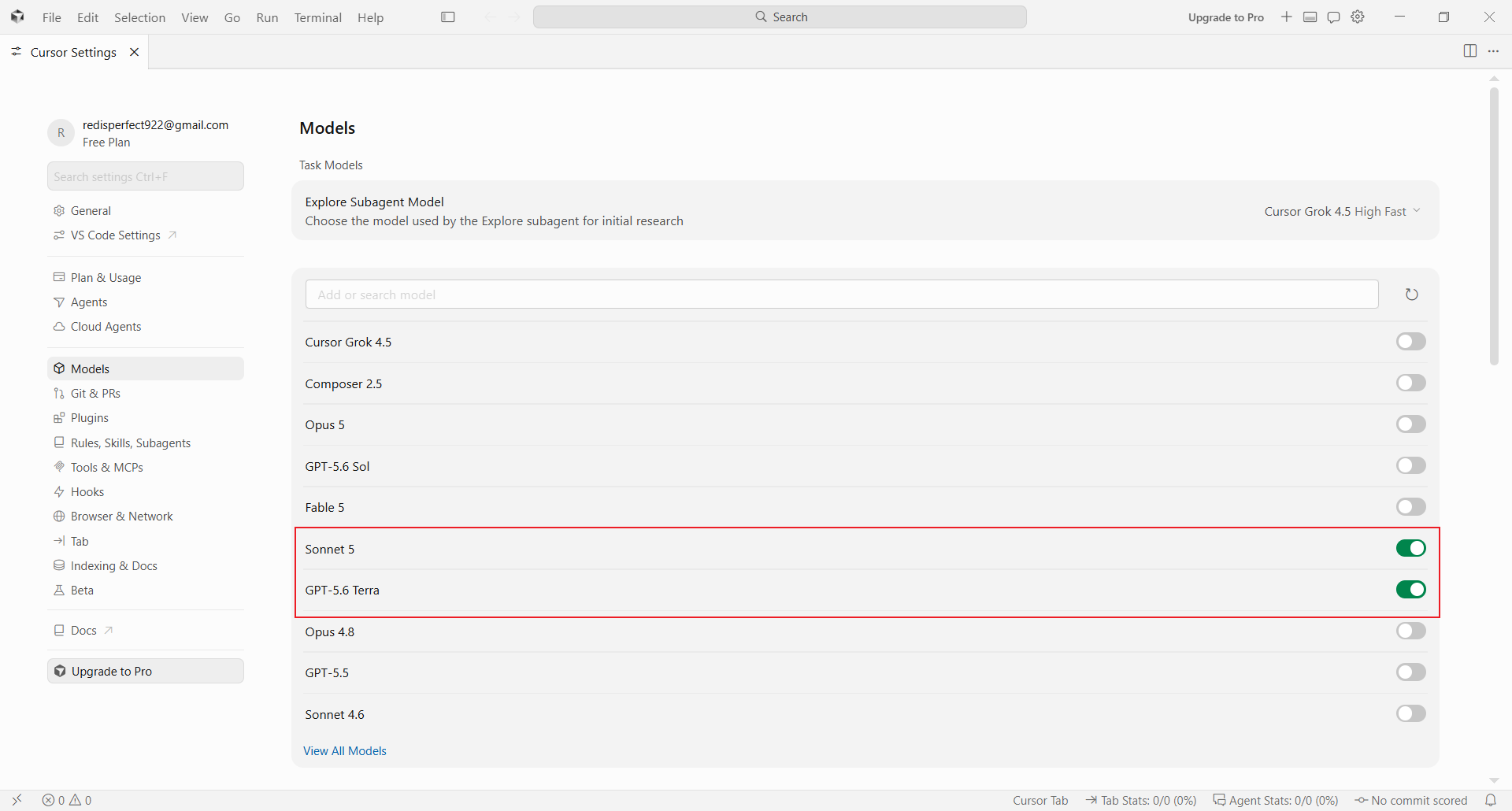
3. Add a model
Add the model ID you want to use in the model settings area, for examplegpt-5.6-terra. The model ID must match the name in the AIHubMix model list.
Use and verify
Return to Cursor, select the model you added in the chat or Agent panel, and send a simple request. If Cursor returns a normal response, the configuration is working.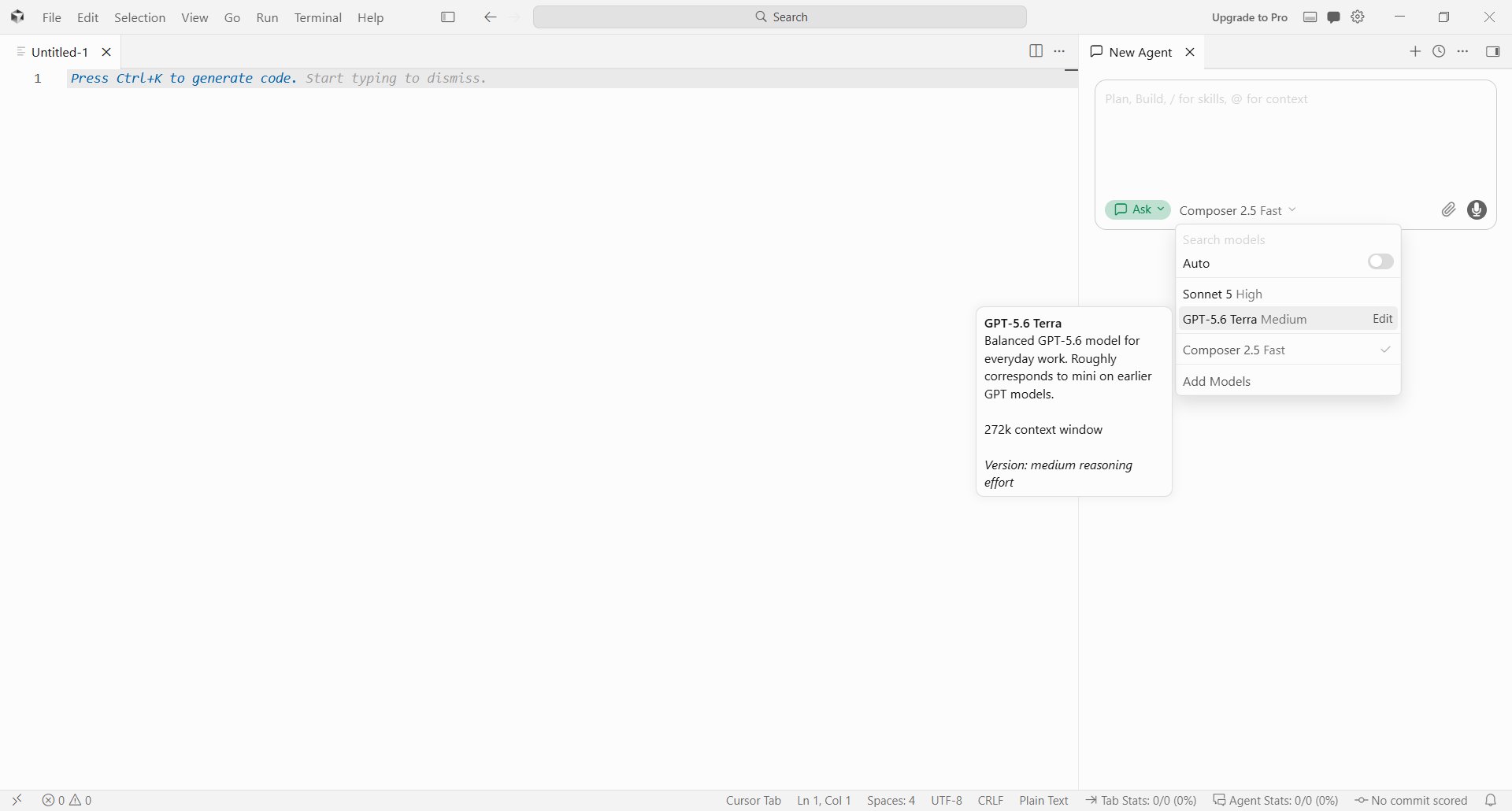
FAQ
What should I do if Verify fails? Check that the API Key is complete, the Base URL includes/v1, and your network can access the configured address. If the primary endpoint is temporarily unavailable, change Override OpenAI Base URL to https://api.inferera.com/v1 and verify again.
Why is Cursor not using AIHubMix after I select a model?
Make sure you selected the AIHubMix model ID you added to the model list, not Cursor’s built-in official model entry. With this setup, Cursor sends OpenAI-compatible requests to the Base URL you configured.
Last updated: 2026-08-04