

General Usage
-
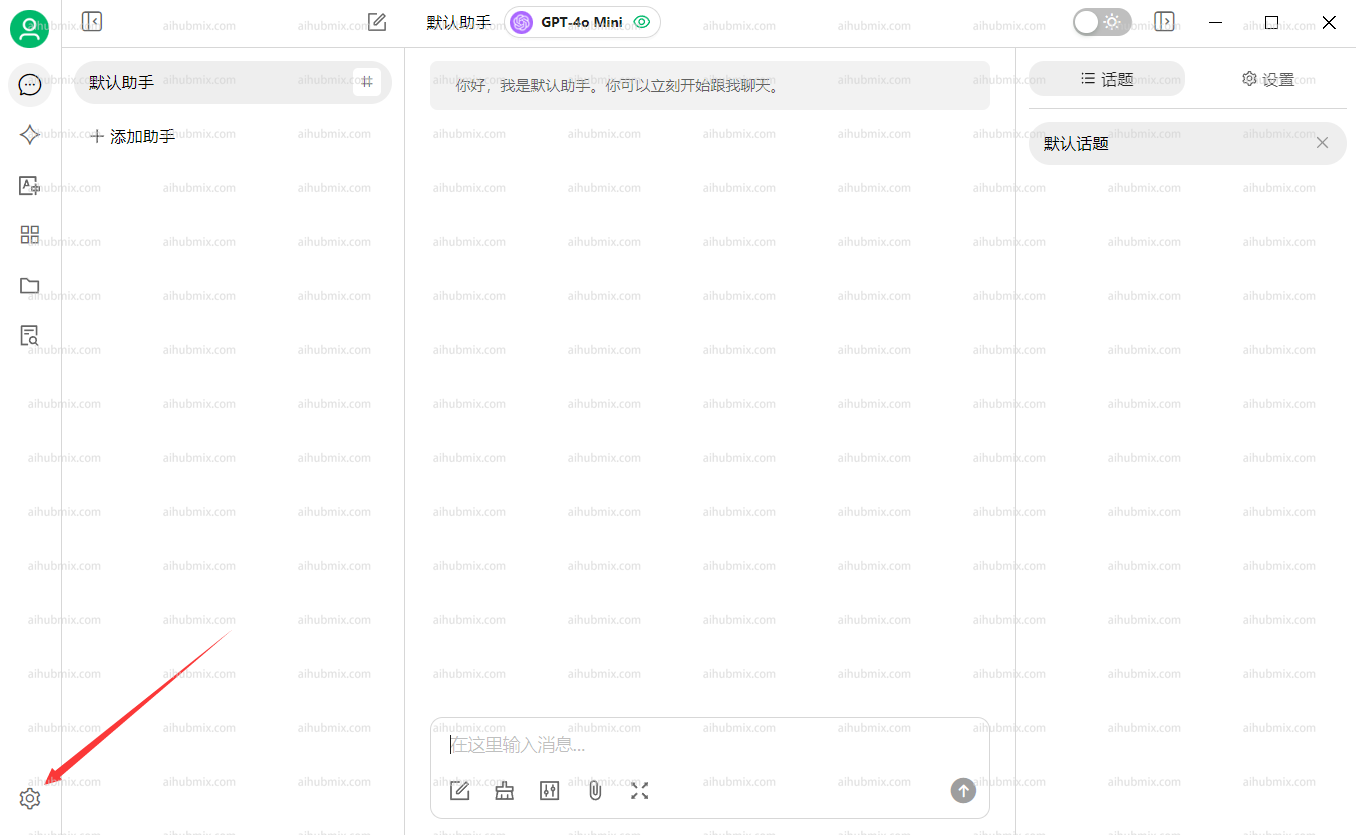
Open Settings from the bottom-left corner of the app.
- In the Model Providers section, select AiHubMix and click the button in the top-right corner to enable it.
-
In the API Key field, enter the Key from this site.
Leave the API Base URL unchanged.
Note: If the connection check fails, try disabling your VPN.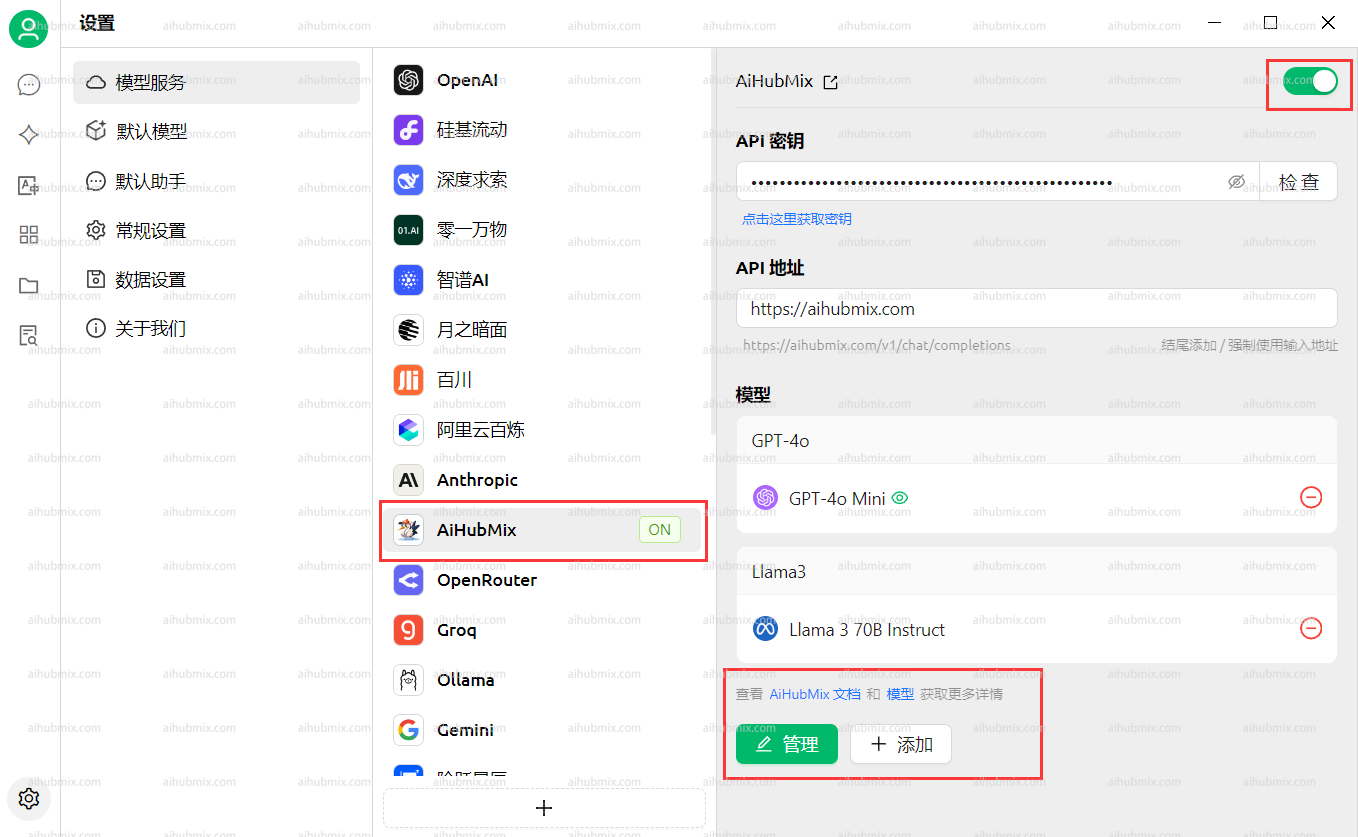
-
Click Add Model at the bottom.
For the Model ID, go to the settings page on this website, select the model you want to use, and copy-paste its name.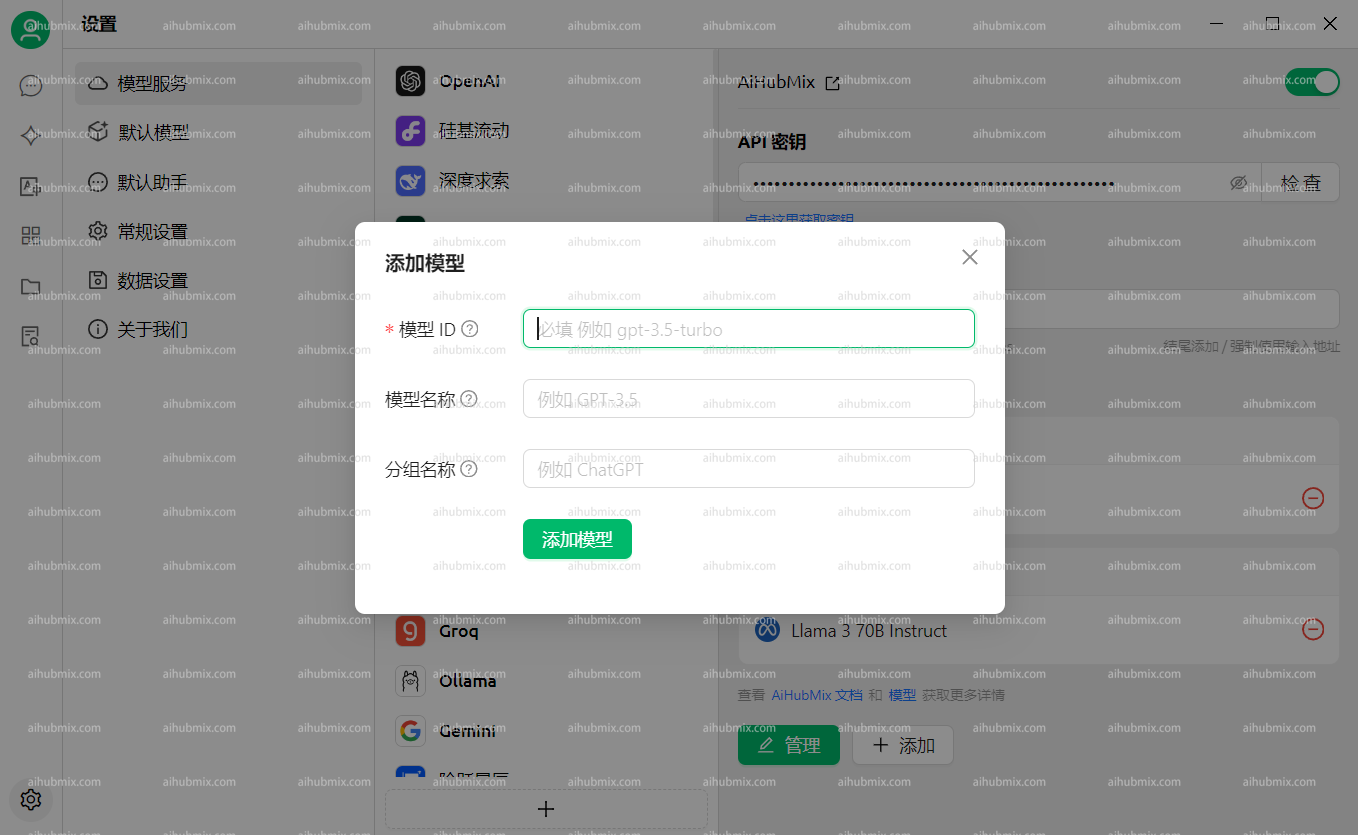
FAQ
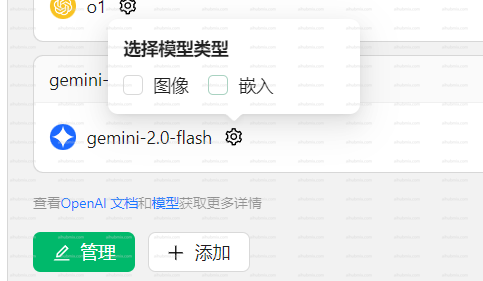
The model indicates it cannot see images
Some newer models may not recognize images after they are uploaded.In this case, you need to manually enable the Image option on the settings page.
The
Please disable streaming output when using this model.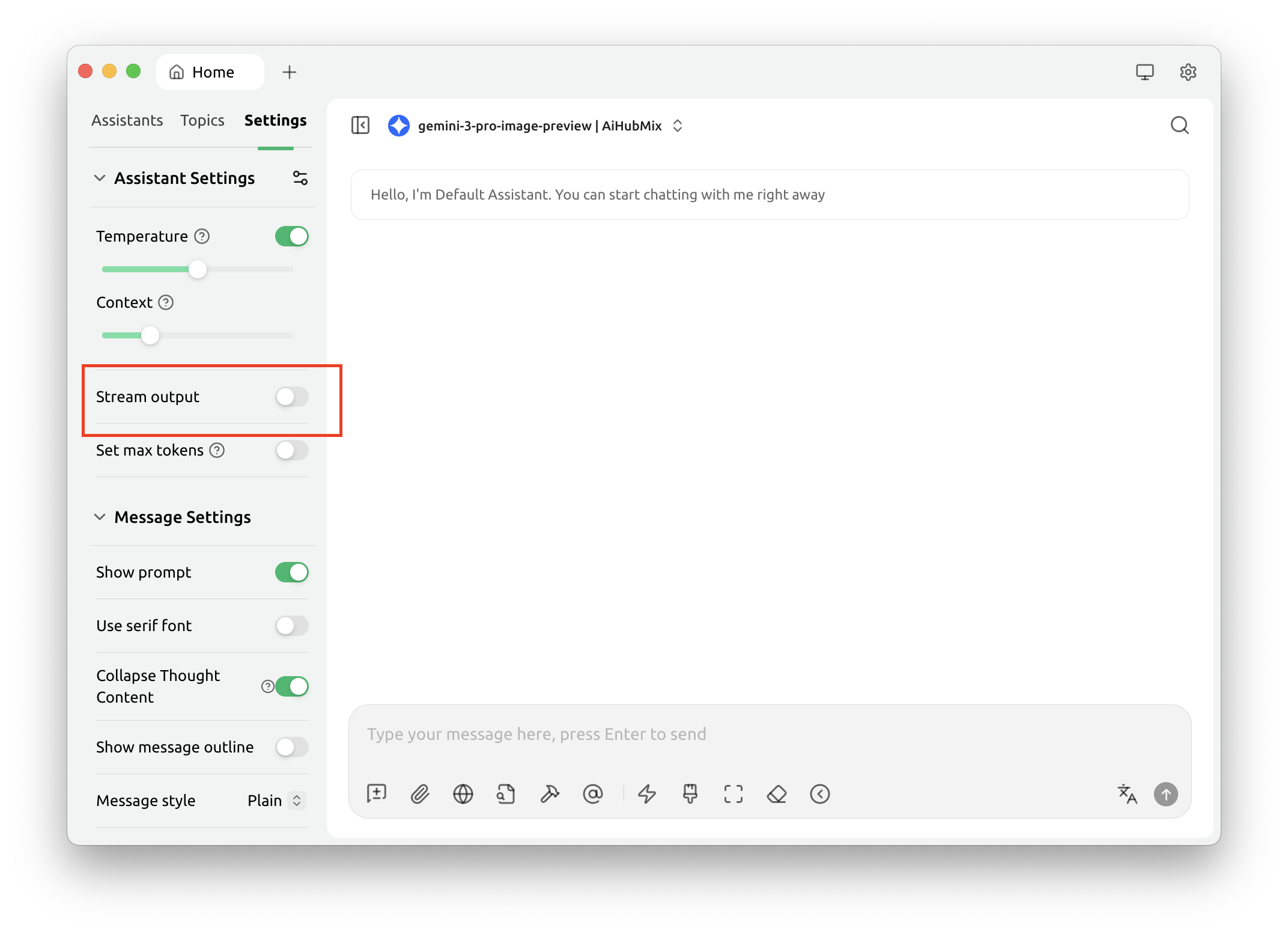
gemini-3-pro-image-preview model cannot return images when streaming output is enabled.Please disable streaming output when using this model.
Calling Claude models returns AI_APICallError
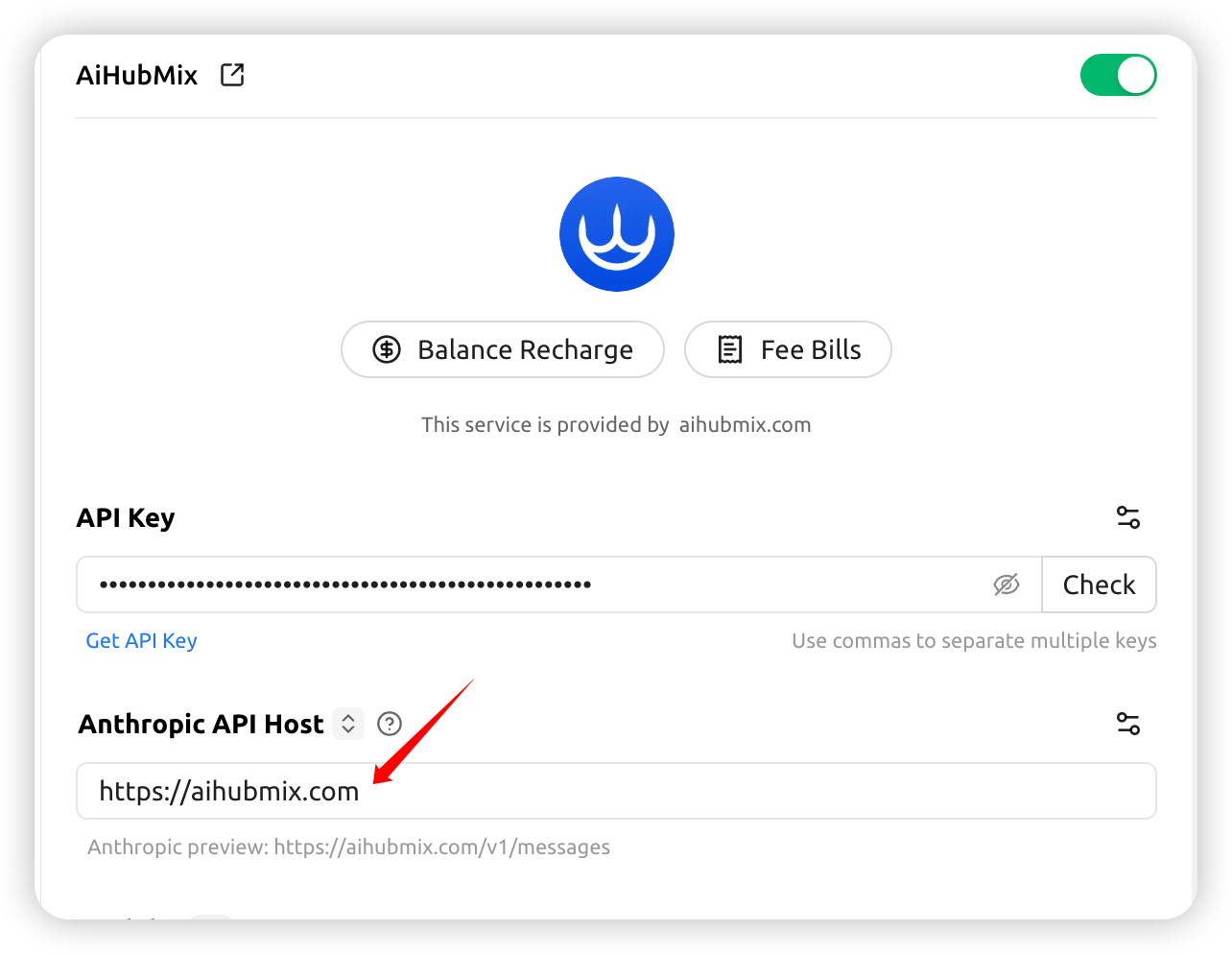
Check whether the request URL shown in the error message ishttps://aihubmix.com/anthropic/v1/messages.
If so, go to Settings and change the Anthropic API Host to: https://aihubmix.com
Enabling Claude prompt caching
In the Aihubmix provider’s “API Settings” (the gear to the right of the provider name), configure “Cache Token Threshold”, “Cache System Message”, and “Cache Last N Messages” to automatically injectcache_control for Claude models. For what each option means and cache-hit tips, see Claude Prompt Caching.
Last updated: 2026-06-01