

Before you start
- Install and open CodeBuddy.
- Create an API key in the AIHubMix Console. It usually starts with
sk-***. - Copy the model ID you want to use, such as
gpt-5.5,gemini-3.5-flash, ordeepseek-v4.1-flash, from the AIHubMix model list.
Configure AIHubMix in the interface
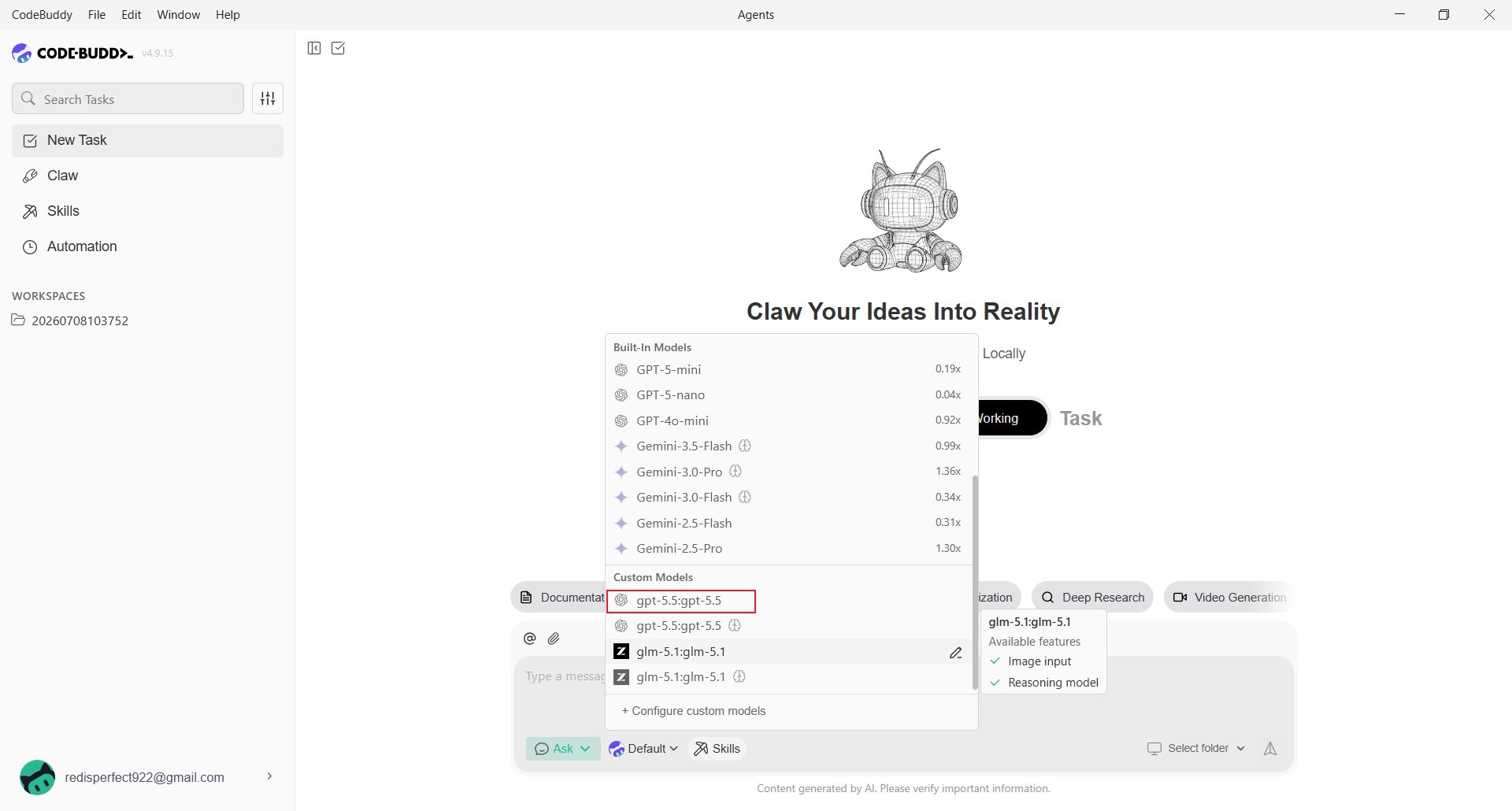
Open CodeBuddy and click the current model name below the input box, for example Default.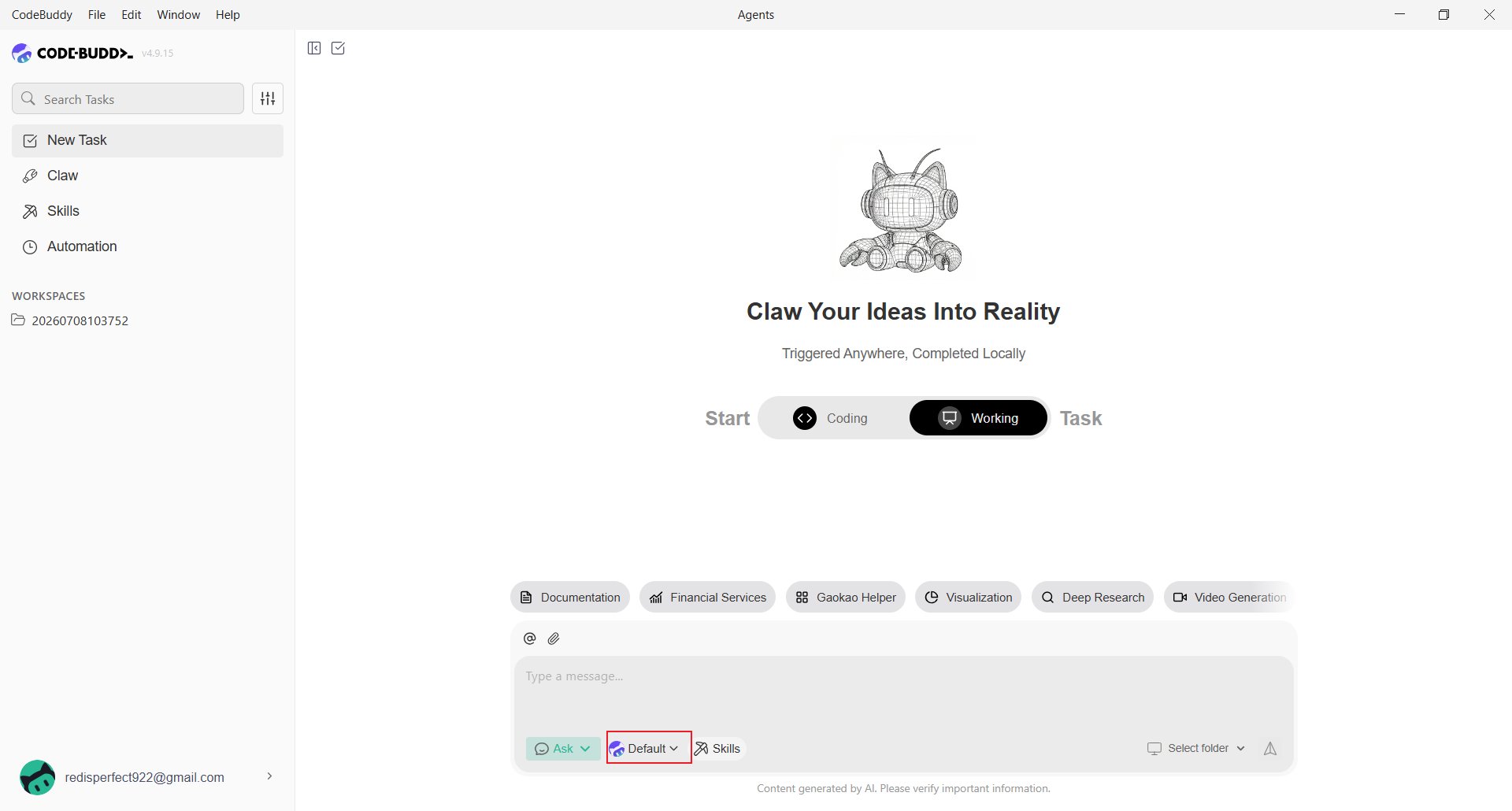
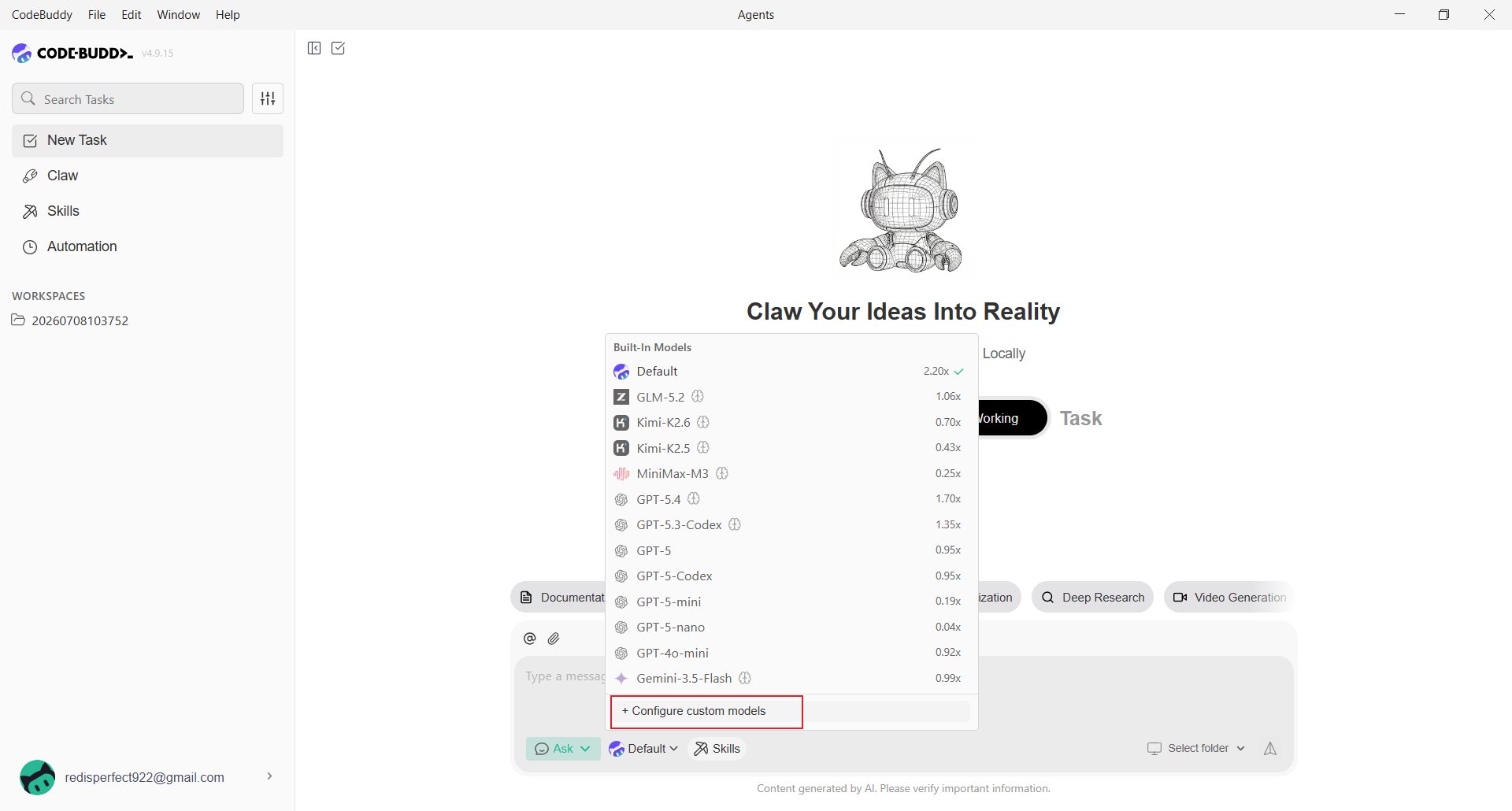
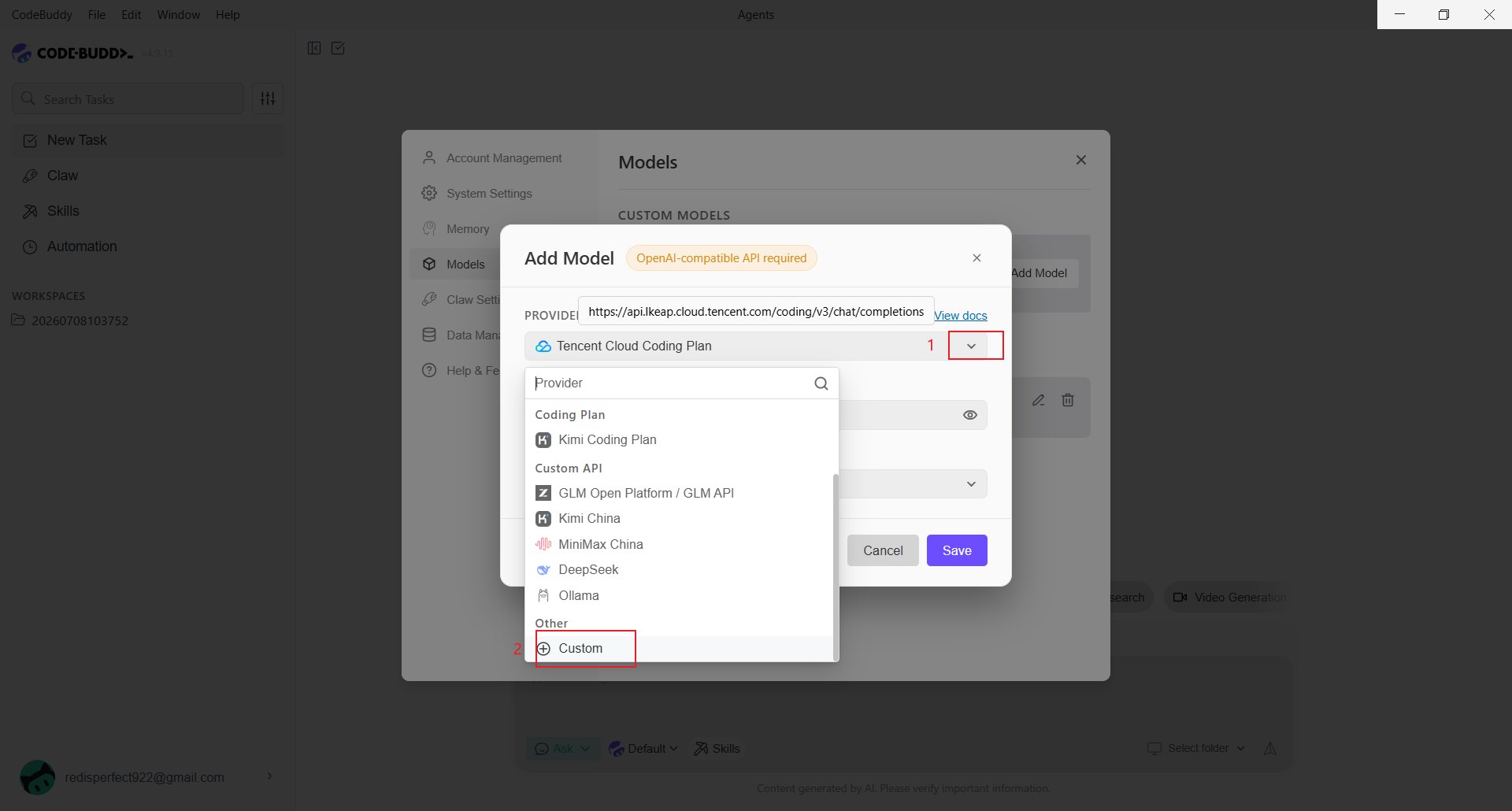
- Endpoint: Use
https://aihubmix.com/v1. If it is temporarily unavailable, use the backup endpointhttps://api.inferera.com/v1. - API Key: Enter the key created in the AIHubMix Console.
- Model Name: Enter the model ID, such as
gpt-5.5. - Advanced Settings: Enable Tool Calling, Image Input, or Reasoning only when the selected model supports that capability.
Add a model through a configuration file
CodeBuddy stores custom models locally. Edit the following file when configuring through the interface is inconvenient:~/.codebuddy/models.json.
You can also set a project-level configuration here:
models.json, use the full Chat Completions URL:
availableModels limits which models appear in the model picker, so only the listed models are shown. A project-level configuration replaces the user-level configuration entirely.
If the primary endpoint is unavailable, change url to:
/v1 endpoint; models.json needs the complete /chat/completions path. models.json reloads automatically, so changes take effect after you save. You can also reopen the model picker to check. To avoid storing the key in plain text, use an environment variable:
CodeBuddy CLI
The command-line version is called CodeBuddy Code and requires Node.js 18.0 or later. Install it with npm, then runcodebuddy to start it:
codebuddy --version to confirm that it works.
Set the API key, endpoint, and default model with environment variables. The CLI uses the OpenAI-compatible protocol and sends requests to <CODEBUDDY_BASE_URL>/chat/completions. For AIHubMix, set CODEBUDDY_BASE_URL to https://aihubmix.com/v1:
%USERPROFILE%\.codebuddy\settings.json (on macOS and Linux, ~/.codebuddy/settings.json):
CODEBUDDY_BASE_URL includes /v1. The CLI adds /chat/completions automatically, so do not include it in CODEBUDDY_BASE_URL.
Verify the setup
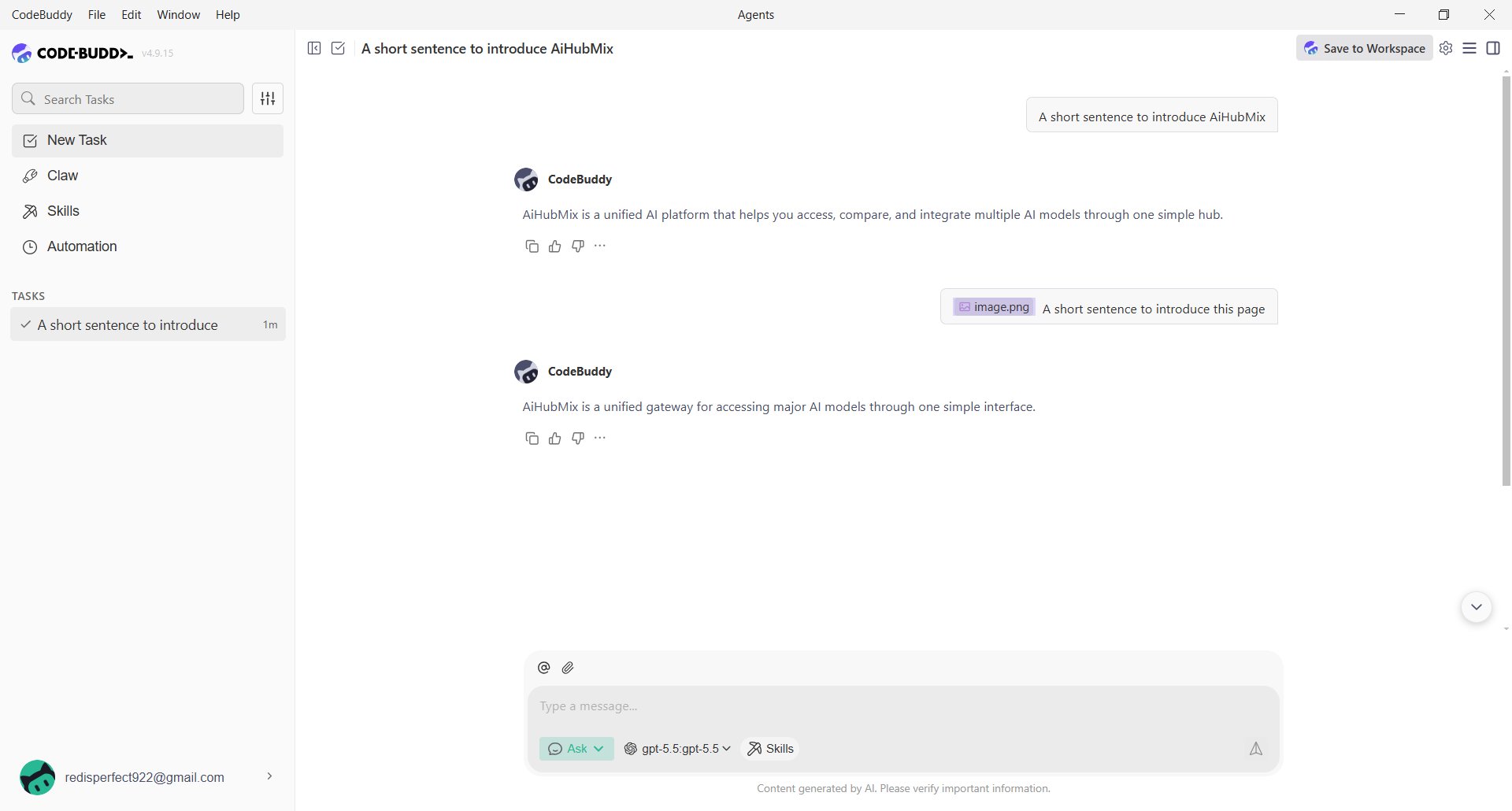
Select the custom model and send a short message, such as asking CodeBuddy to introduce AIHubMix. A successful reply confirms the configuration.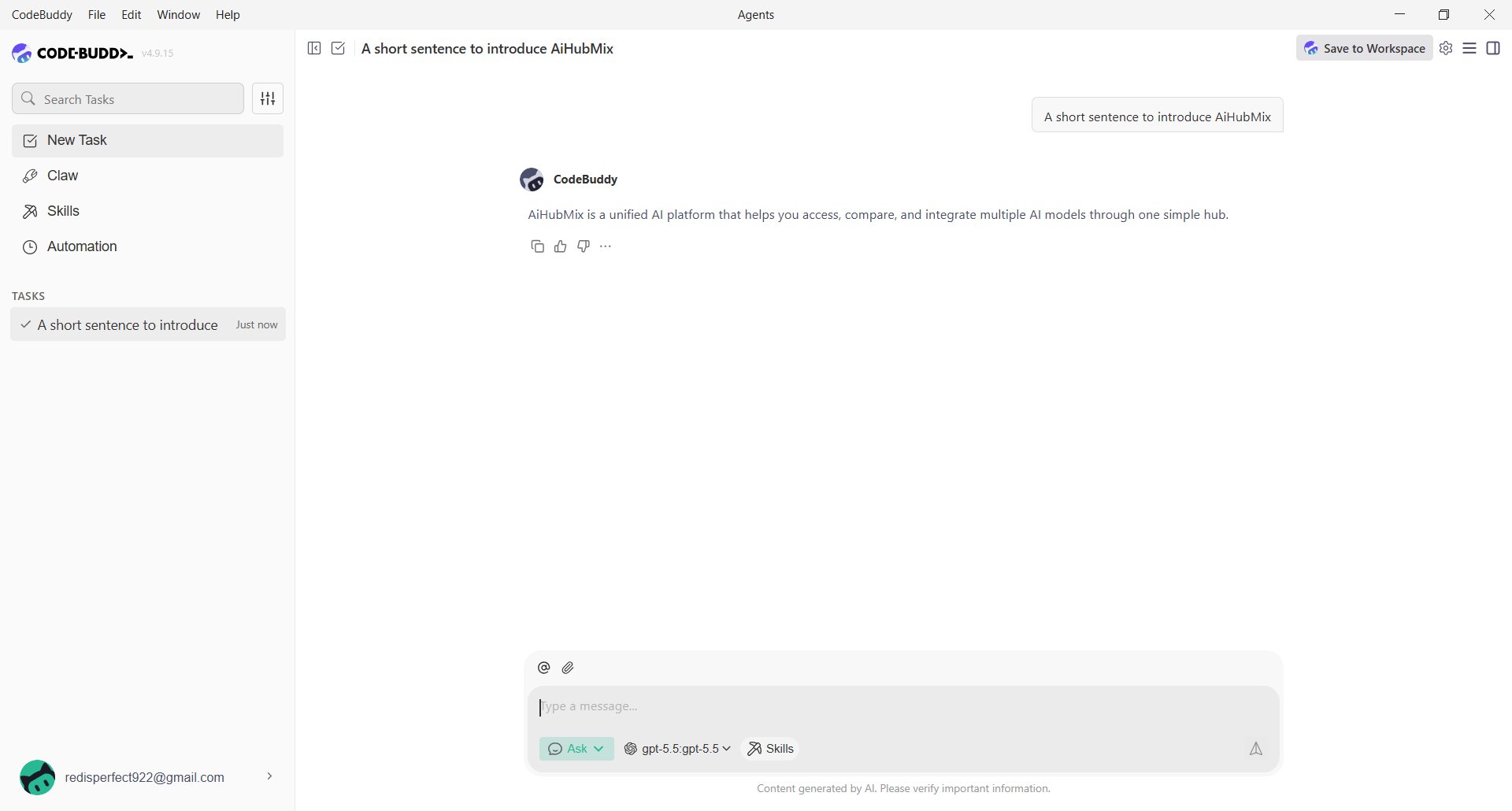
FAQ
The model is unavailable after saving. What should I check? Confirm that the endpoint includes/v1, the API key is complete, and the model name matches the AIHubMix model ID. For models.json, also confirm that url includes /chat/completions.
Why are two similar model names shown?
CodeBuddy may display a custom model as model-name:model-name. This is normal as long as it responds correctly.
Do the CLI and desktop app use the same settings?
Both read models.json: the user-level file is ~/.codebuddy/models.json, and the project-level file is .codebuddy/models.json. The CLI can also set the key and endpoint with environment variables or the env object in settings.json.
Last updated: 2026-10-17