

Prerequisites
- Install and open Obsidian.
- Create an API Key in the AIHubMix Console.
Install Text Generator
1. Turn on community plugins
Click the settings button in the bottom-left corner of Obsidian.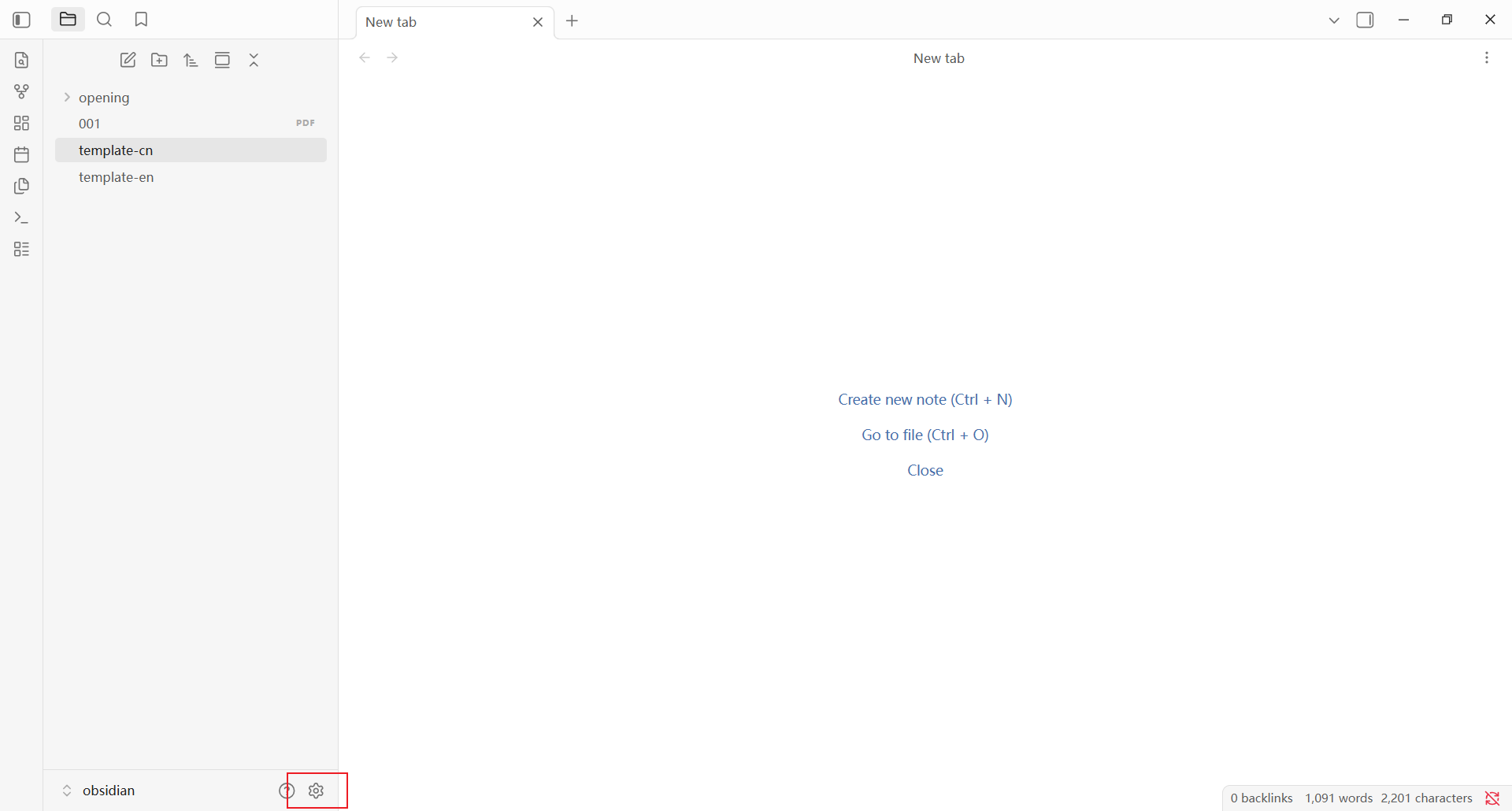
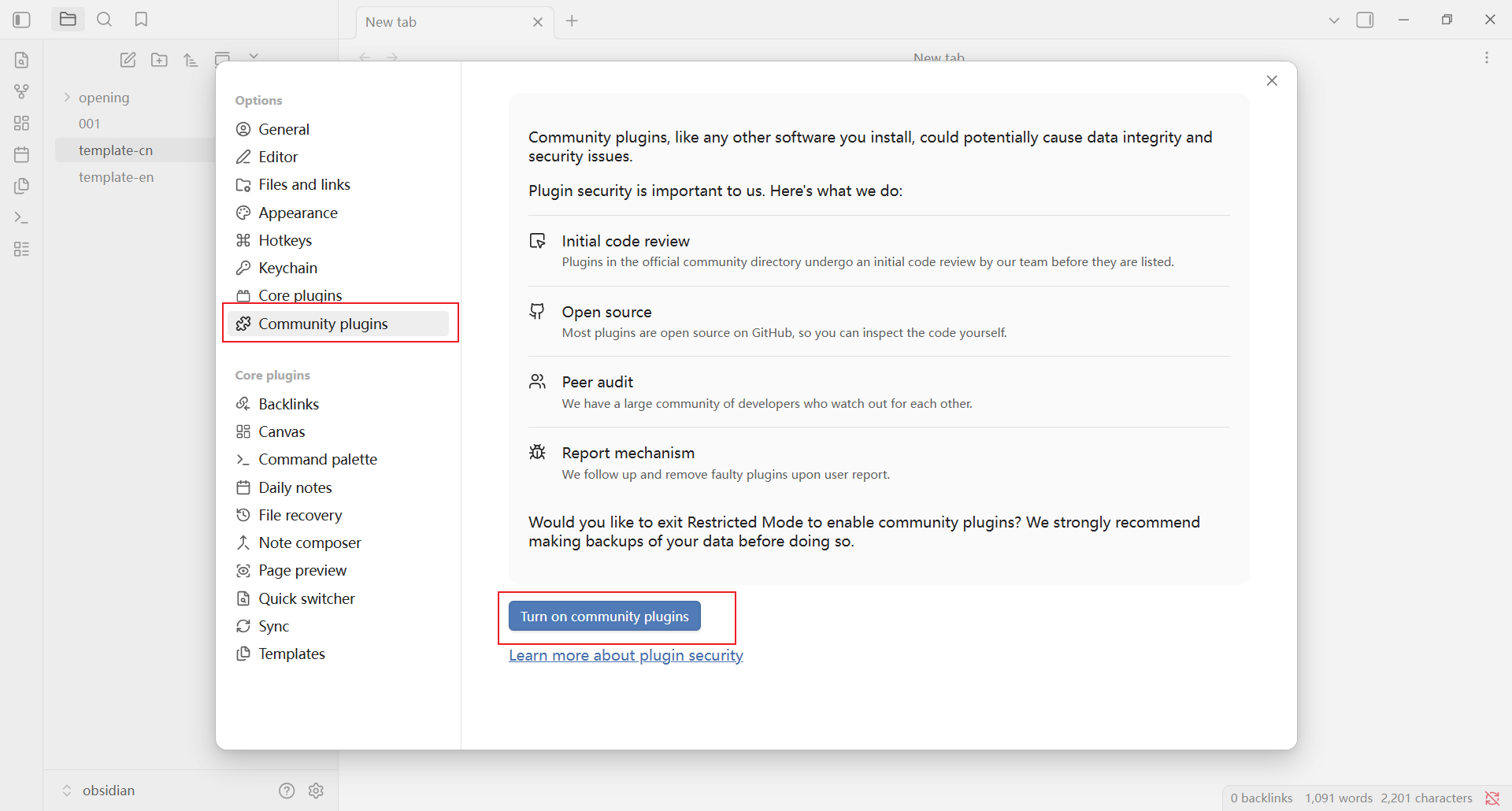
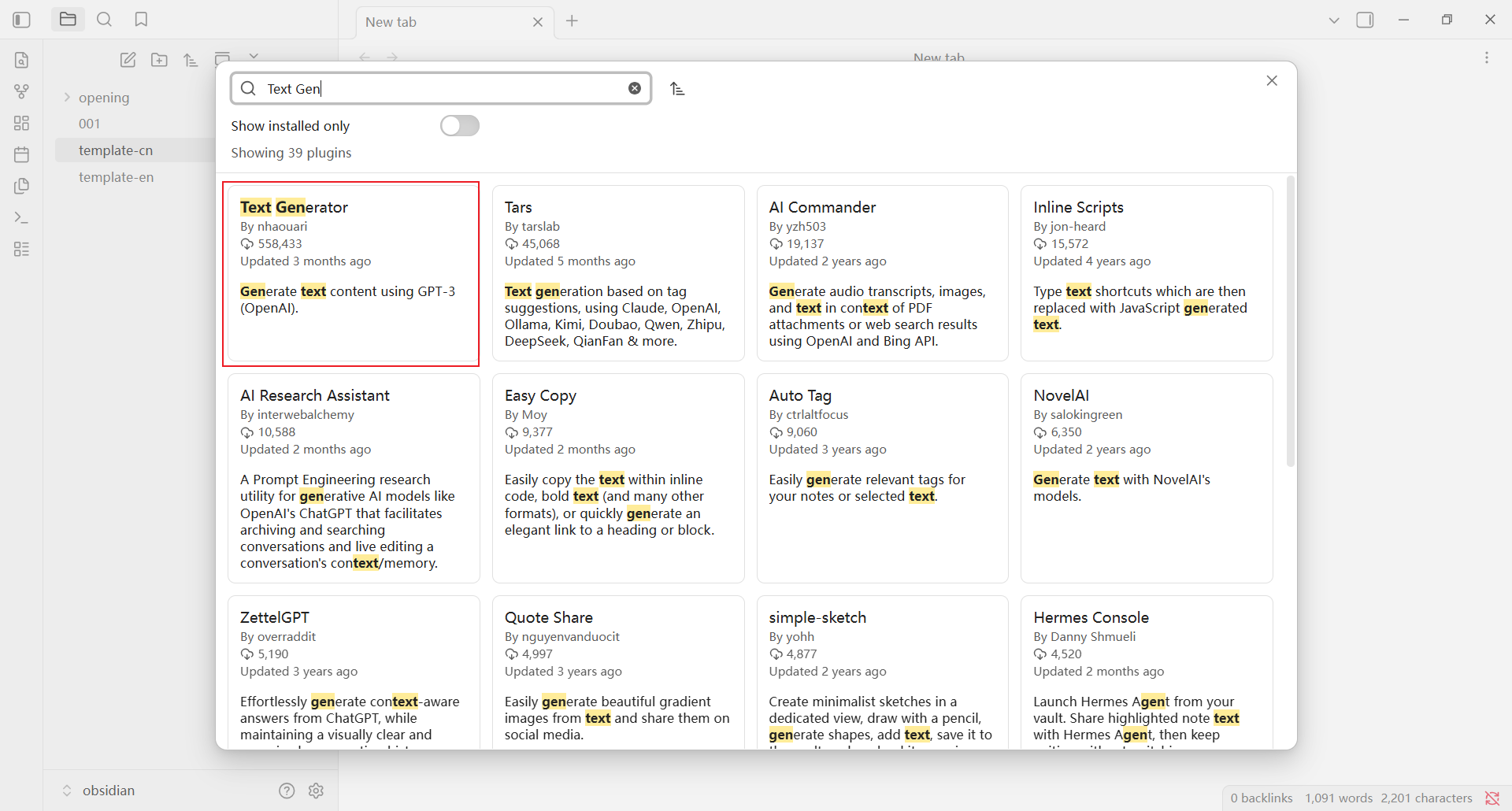
2. Install and enable the plugin
Click Browse to open the community plugin marketplace.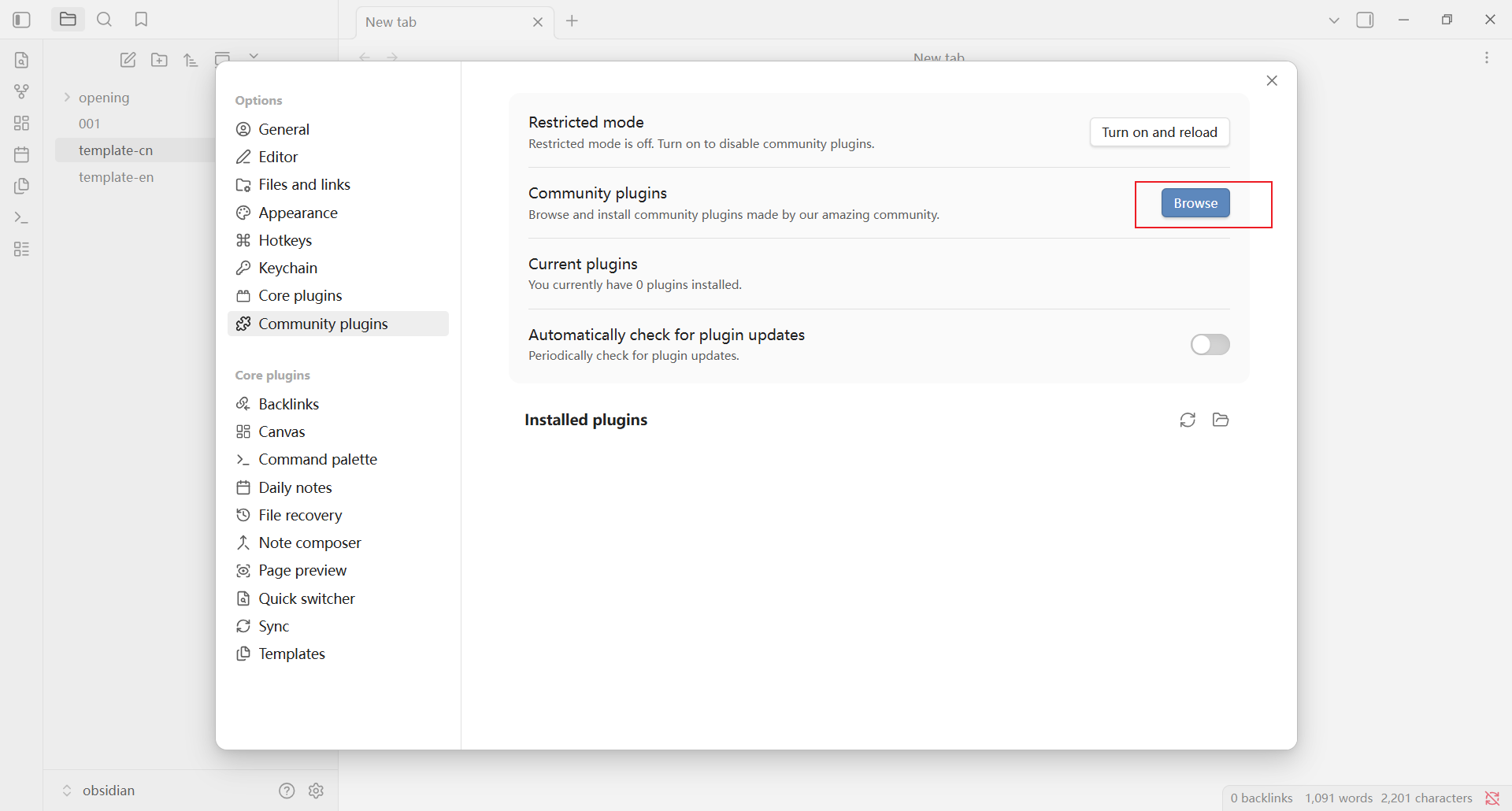
Text Generator, then click Text Generator in the search results.
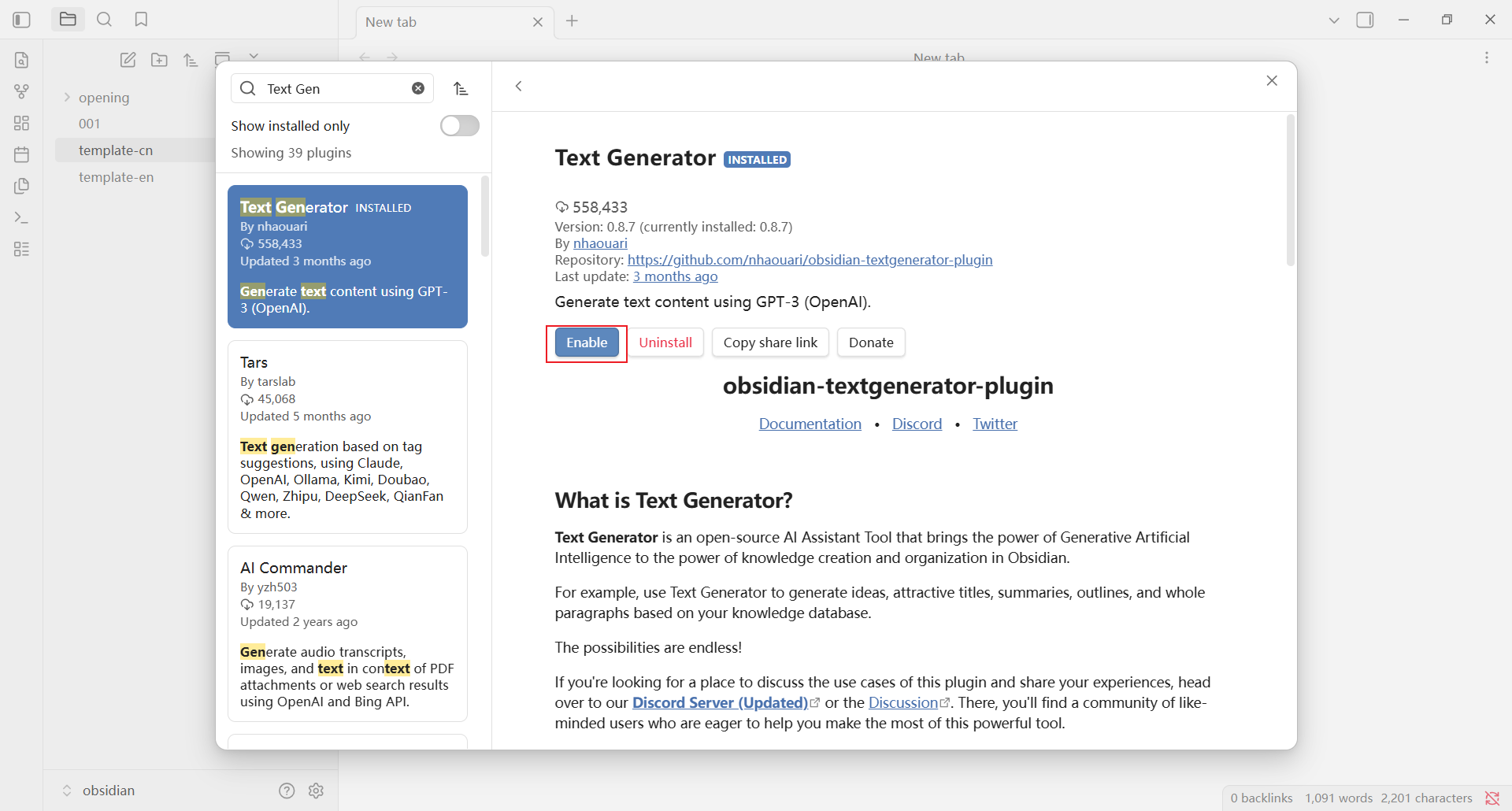
3. Open the plugin settings
Return to the Community plugins page, find Text Generator in the list of installed plugins, and click the settings button on the right.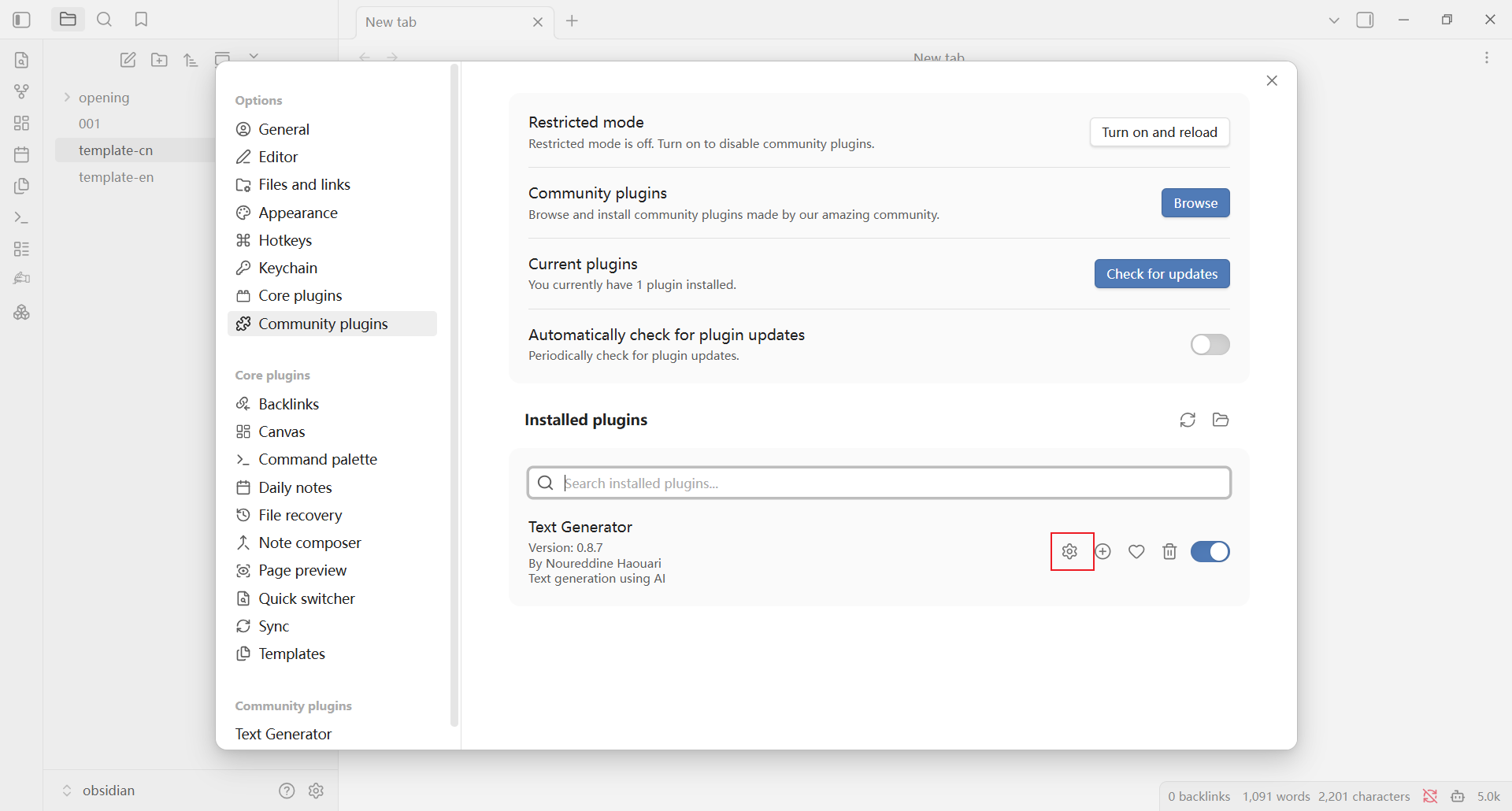
Configure AIHubMix
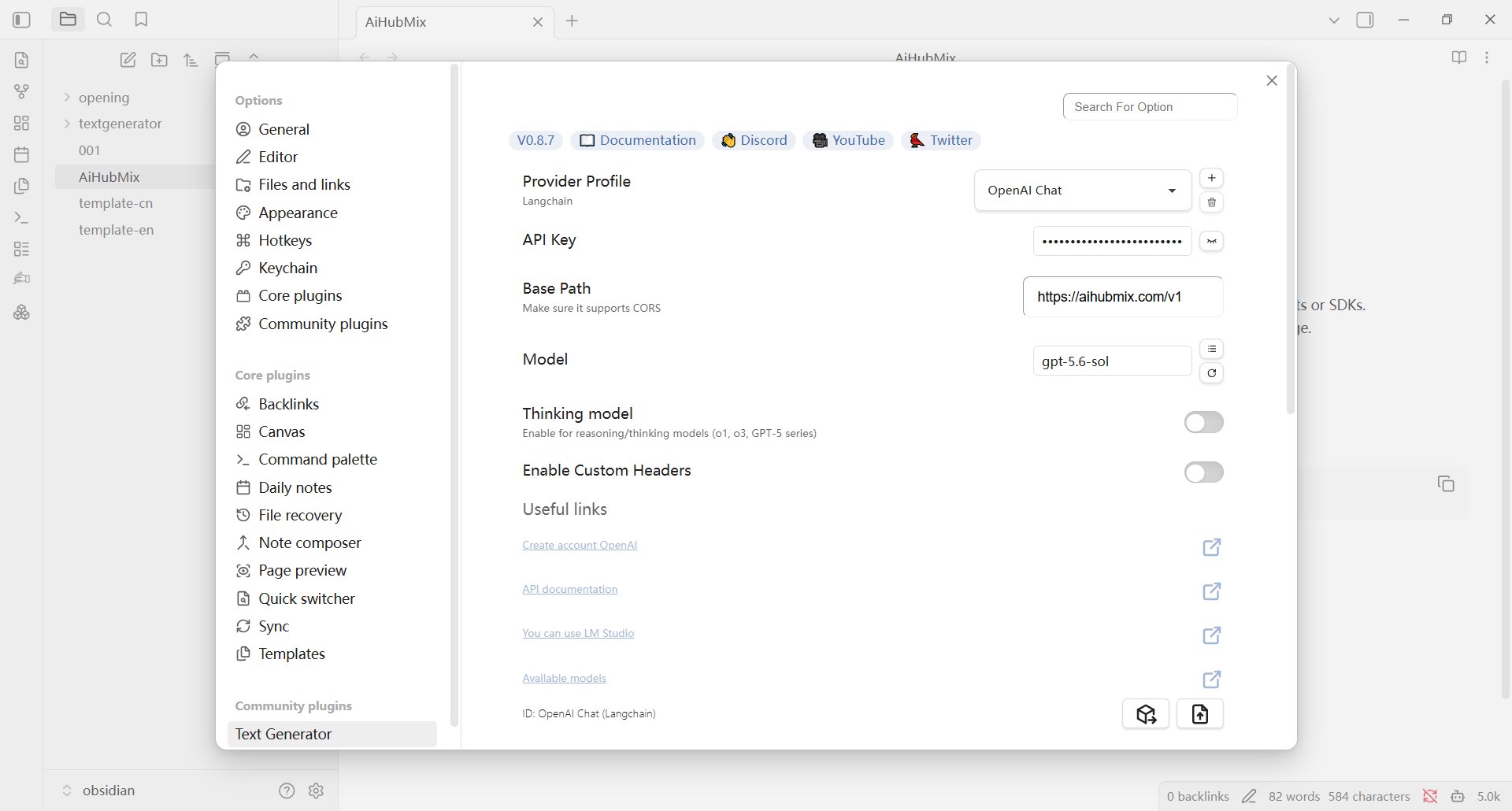
Enter the following on the Text Generator settings page:- Provider Profile: Select
OpenAI Chat. - API Key: Enter the API Key created in the AIHubMix Console.
- Base Path: Enter
https://aihubmix.com/v1. If the primary endpoint is temporarily unavailable, use the backup endpointhttps://api.inferera.com/v1. - Model: Enter the ID of a model supported by AIHubMix. You can find one in the model list.
Use Text Generator
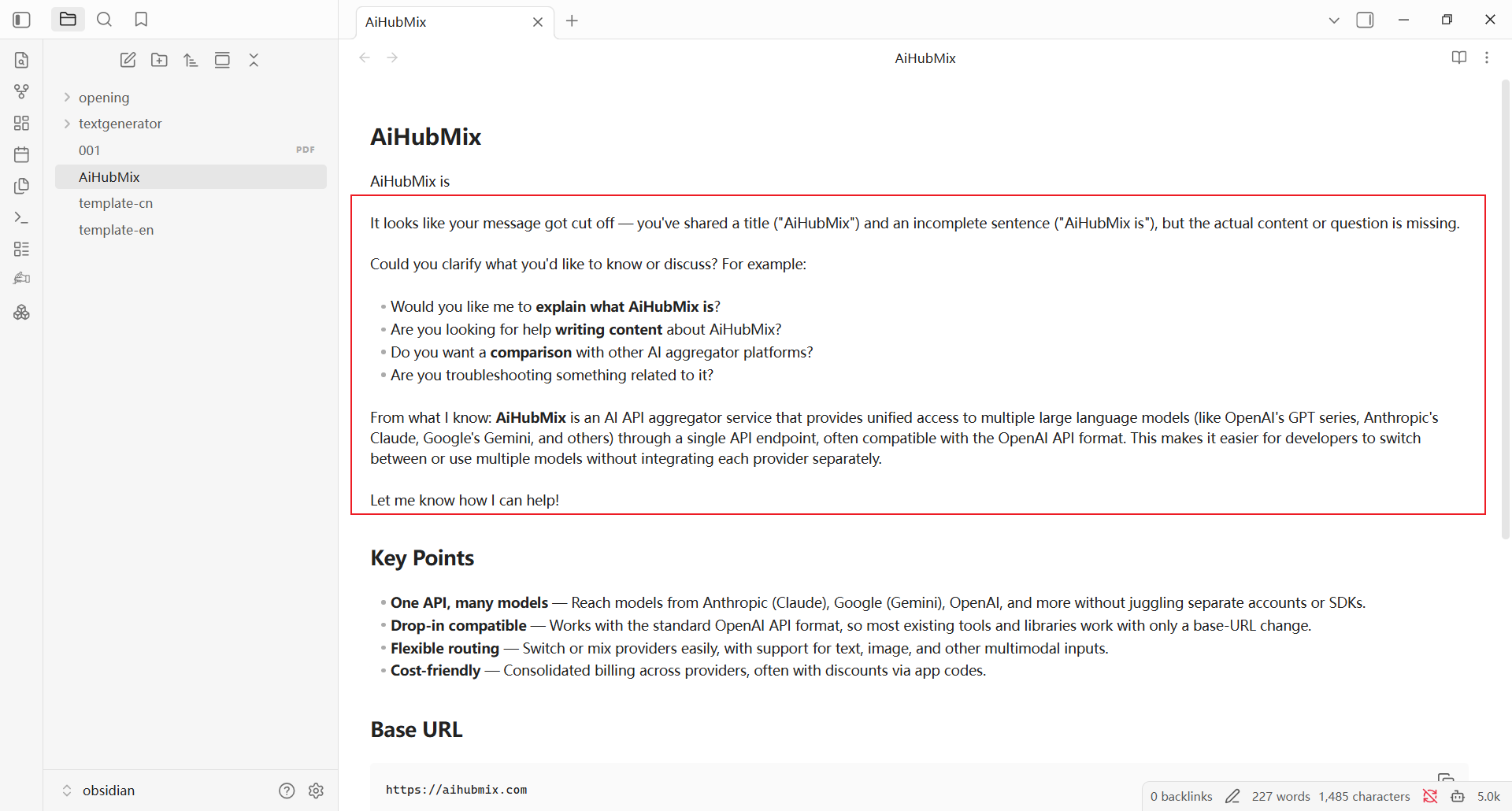
In a note, enter and select the text you want to process, then click Generate Text! in the left toolbar.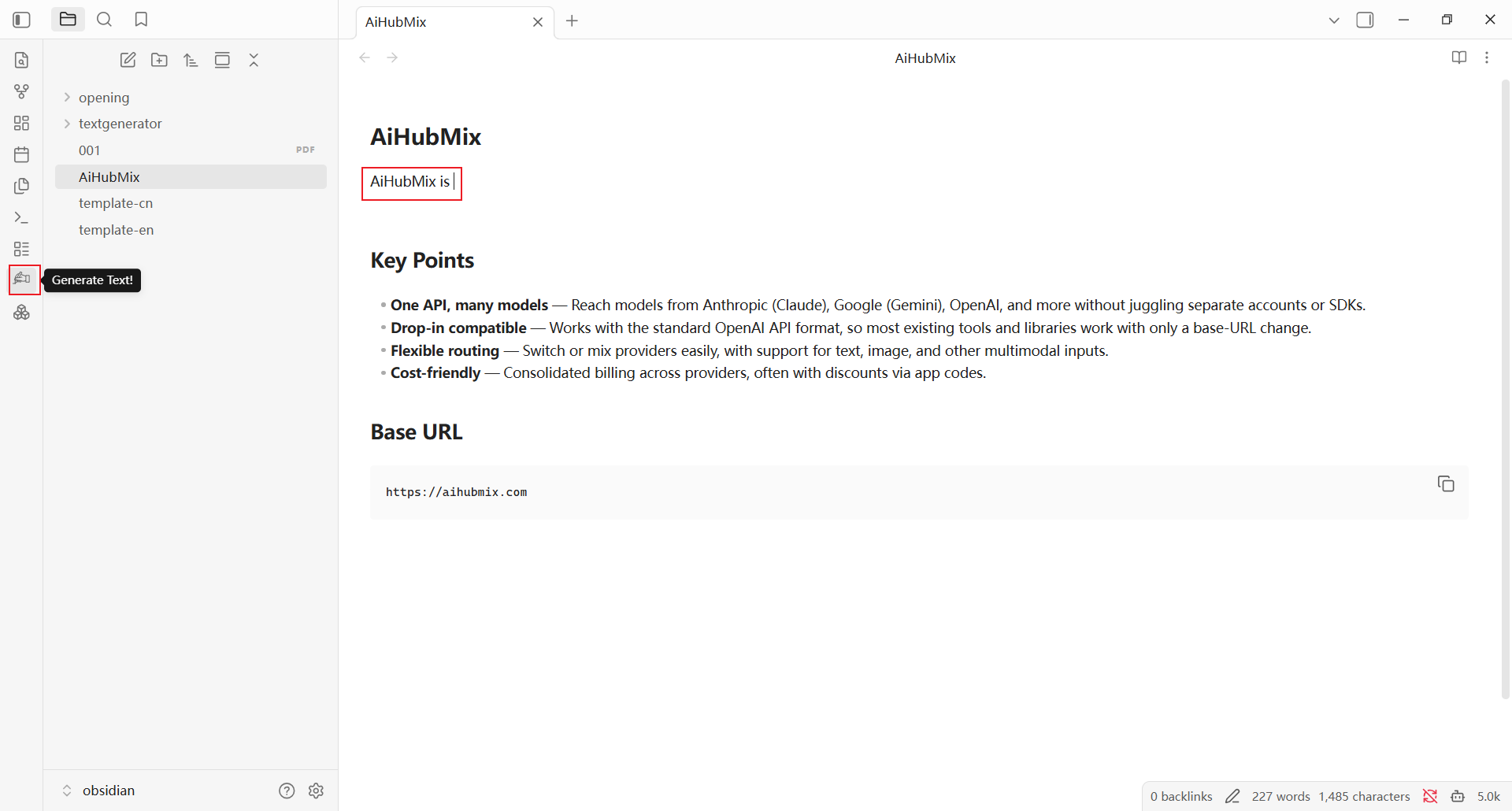
FAQ
What should I do if the Generate Text! button is missing from the left toolbar? Return to the Community plugins page and confirm that Text Generator is installed and enabled. What should I do if no content is generated? Check that the API Key, Base Path, and model ID are correct. If the primary endpoint is temporarily unavailable, change Base Path tohttps://api.inferera.com/v1.
Last updated: 2026-07-22