Applies to: Claude Desktop 1.3883.0 (Updated: April 23, 2026)
Level: Beginner — no command line required, fully click-based, no Anthropic account needed
Introduction
Claude Desktop (enterprise version known as Claude Cowork) supports connecting to third-party LLM gateways, letting you use the client without an Anthropic subscription. This guide walks you through configuring AIHubMix as the API provider for Claude Desktop, enabling:- No Anthropic account required — bypasses phone number / email registration restrictions
- Access to Claude, GPT, Gemini, DeepSeek, and more through a single AIHubMix key
- Pay-as-you-go billing, flexible and cost-controlled
Prerequisites
Before you begin, make sure you have:- Operating System: macOS 13.0 (Ventura) or later, or Windows 10 / 11
- AIHubMix Account: Register and top up at aihubmix.com
Step 1: Get Your AIHubMix API Key
- Visit aihubmix.com and log in
- Go to the console → API Keys page
- Click Create New Key, enter a name (e.g.
claude-desktop) - Copy the generated key (format:
sk-xxxxxxxxxxxxxxxx)
Security notice: The API Key is only shown once. Save it somewhere safe immediately.
Step 2: Download and Install Claude Desktop
- Visit the official download page: claude.ai/download
- Download the installer for your operating system
- Open the downloaded
.dmgfile - Drag
Claude.appinto theApplicationsfolder - Open Claude from Launchpad or the Applications folder
- Run the downloaded
.msixinstaller - Follow the on-screen prompts to complete installation
- Open Claude from the Start menu
Note: You do not need to log in to an Anthropic account after opening. Proceed directly to the next step.
Step 3: Enable Developer Mode and Configure AIHubMix
You need to enable Developer Mode before connecting a third-party API:- Open the Claude Desktop app
- Click Help in the top menu bar
- Select Troubleshooting
- Click Enable Developer mode
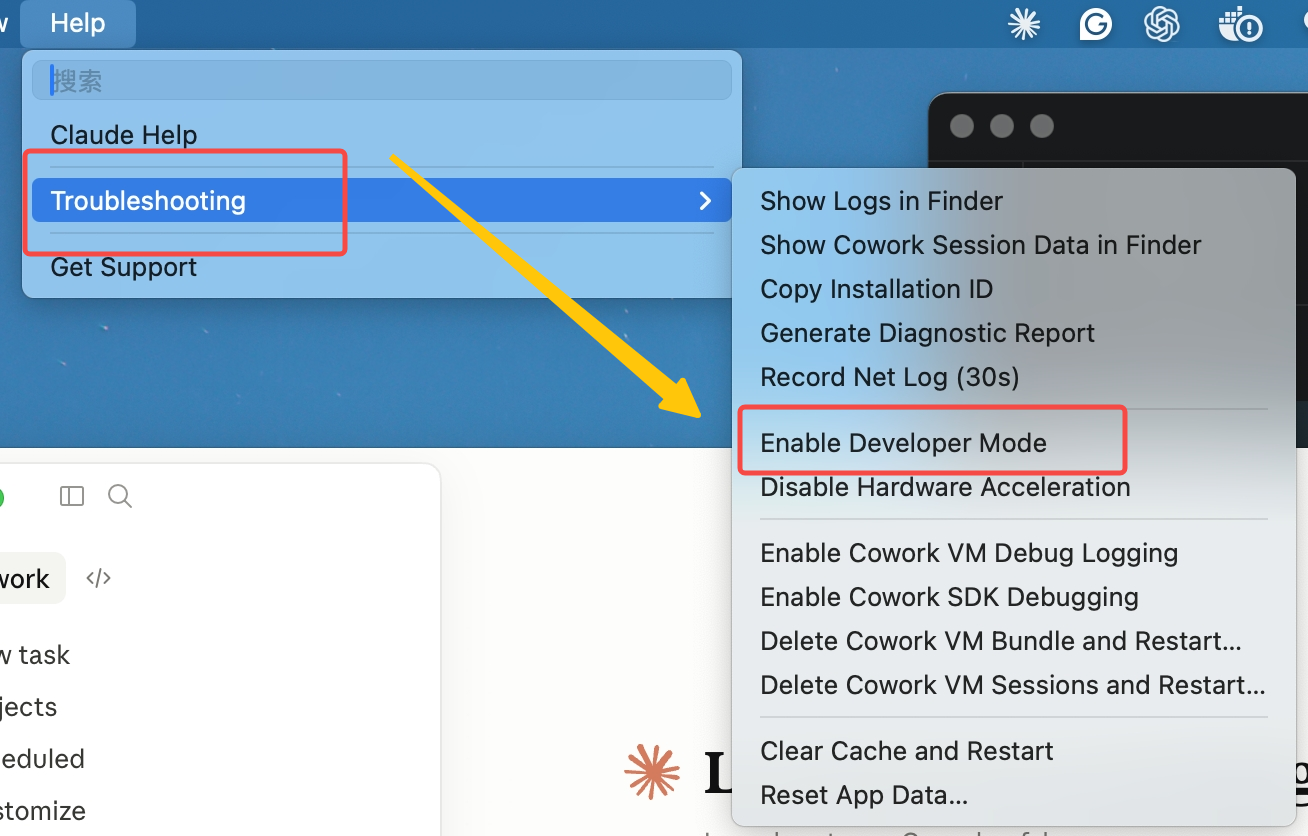
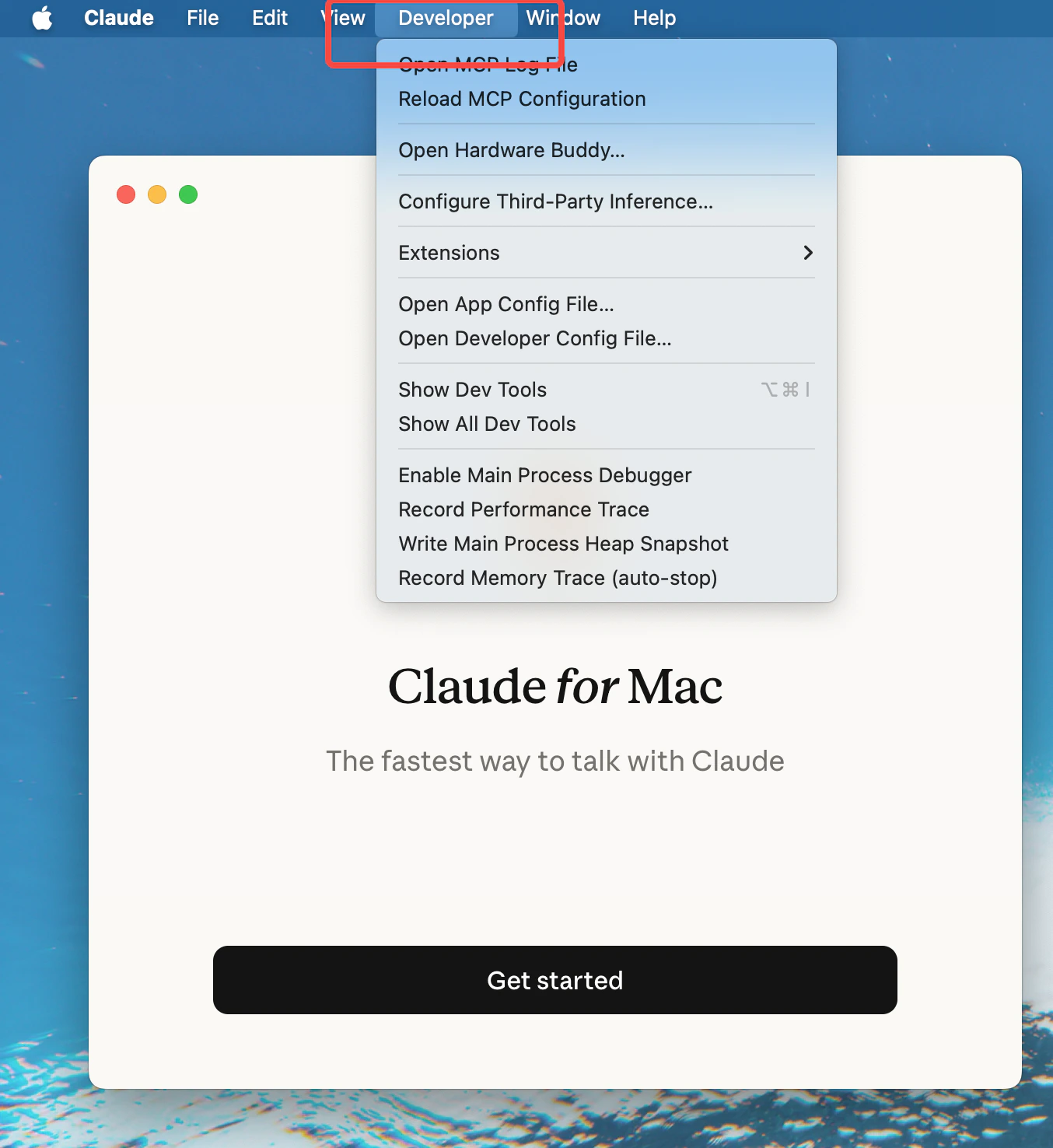
- Once enabled, a new Developer menu will appear in the top menu bar.
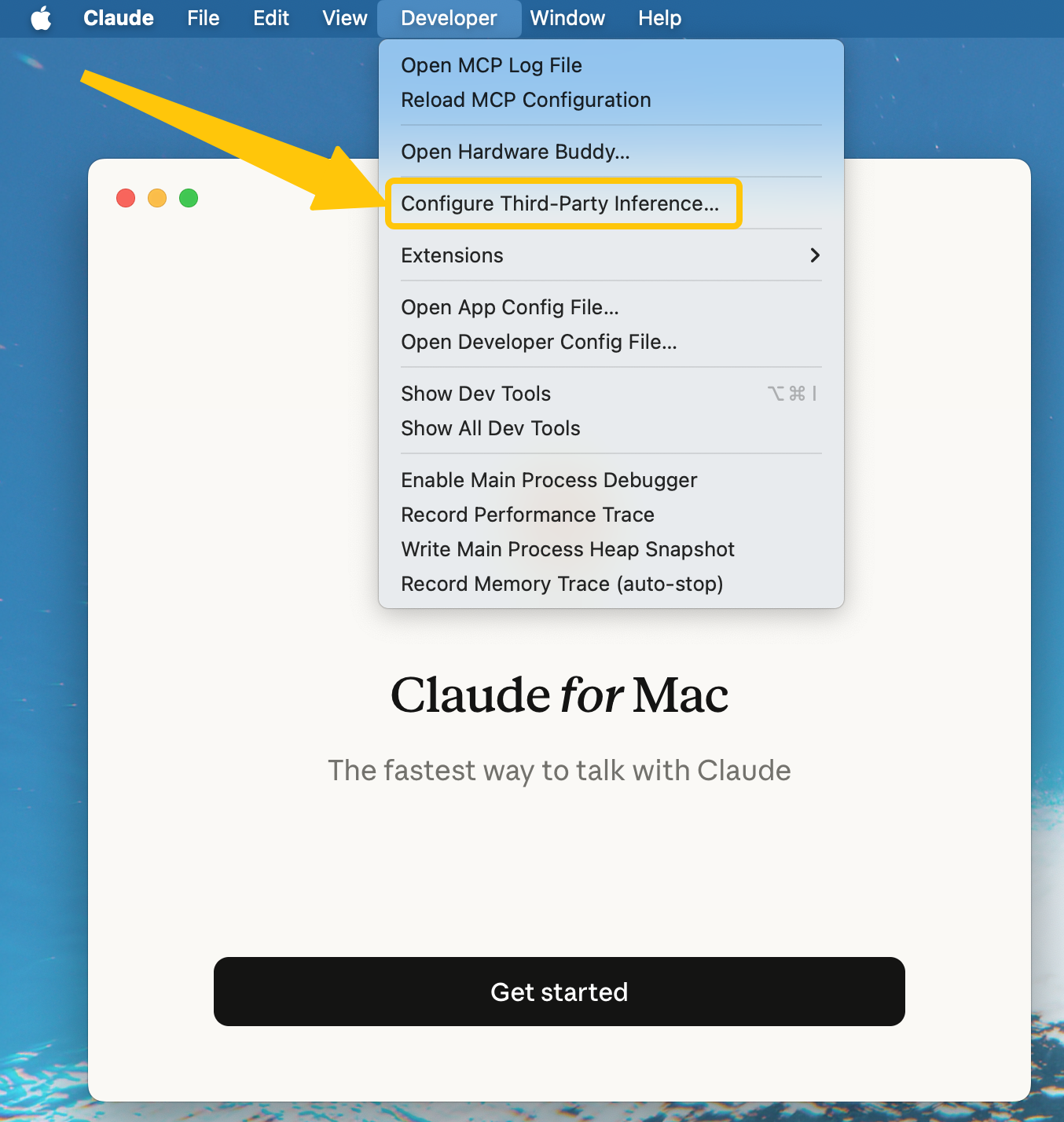
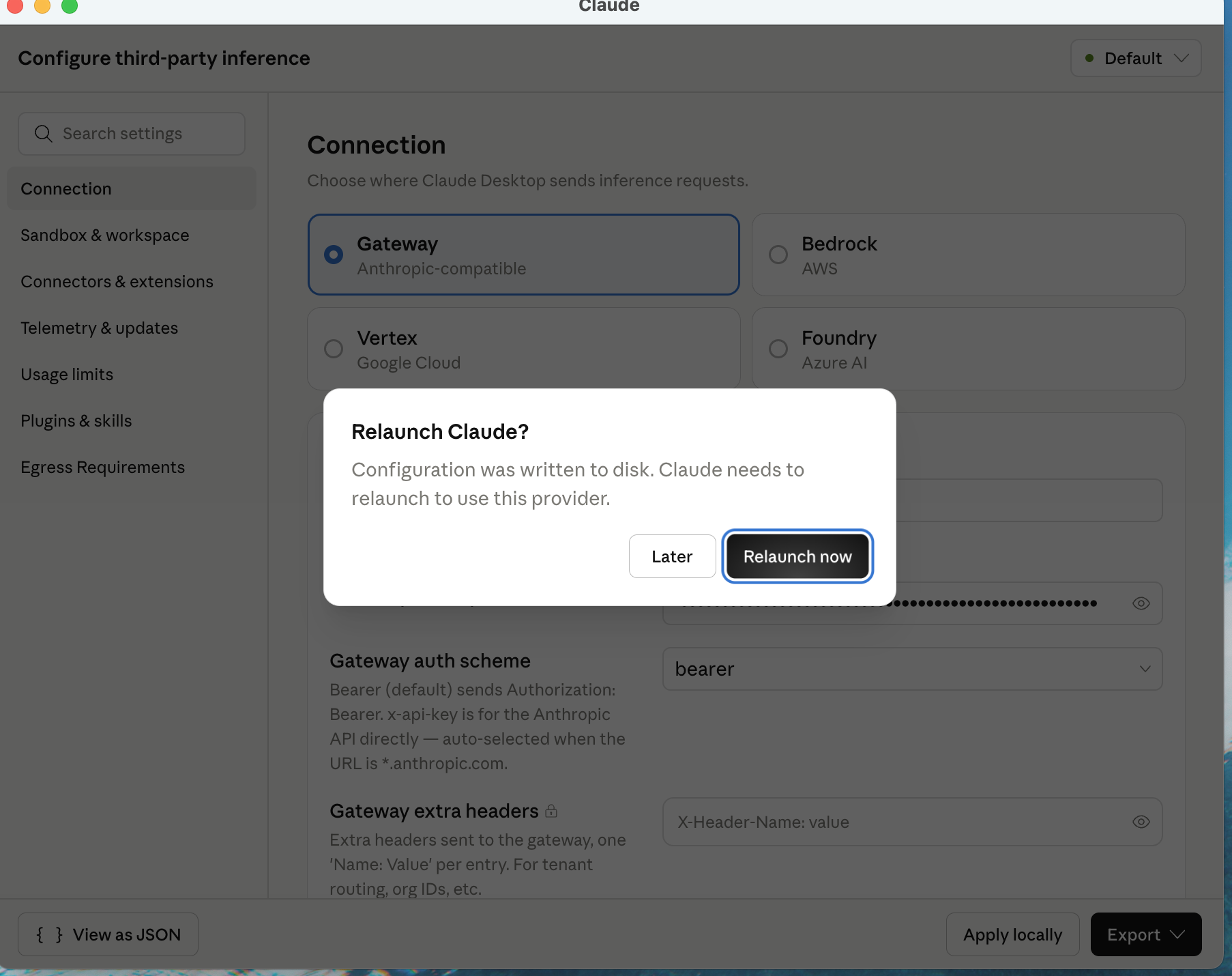
- Click Developer in the menu bar, then select Configure third-party inference
- Fill in the following fields in the configuration dialog:
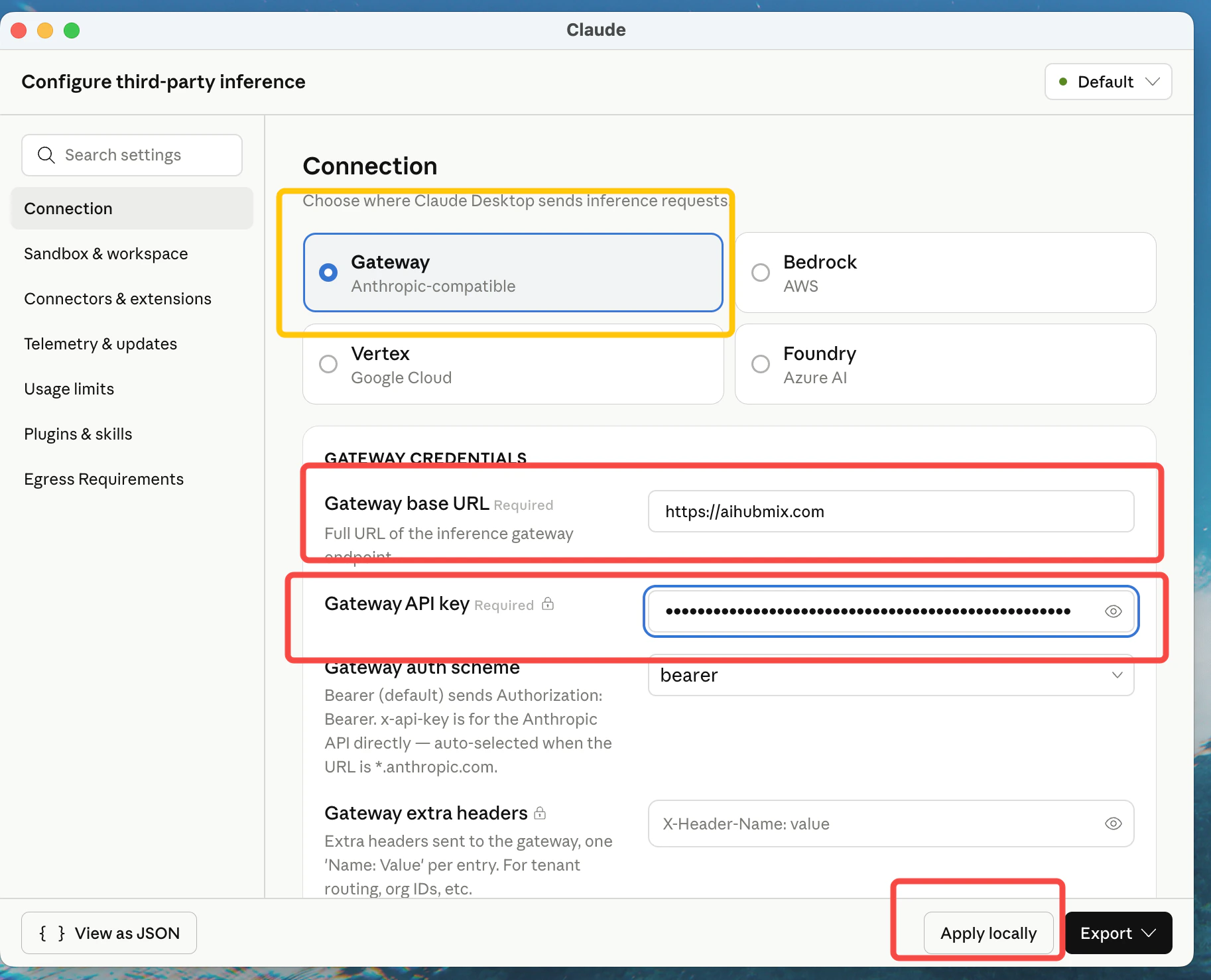
- Click Apply locally → Relaunch
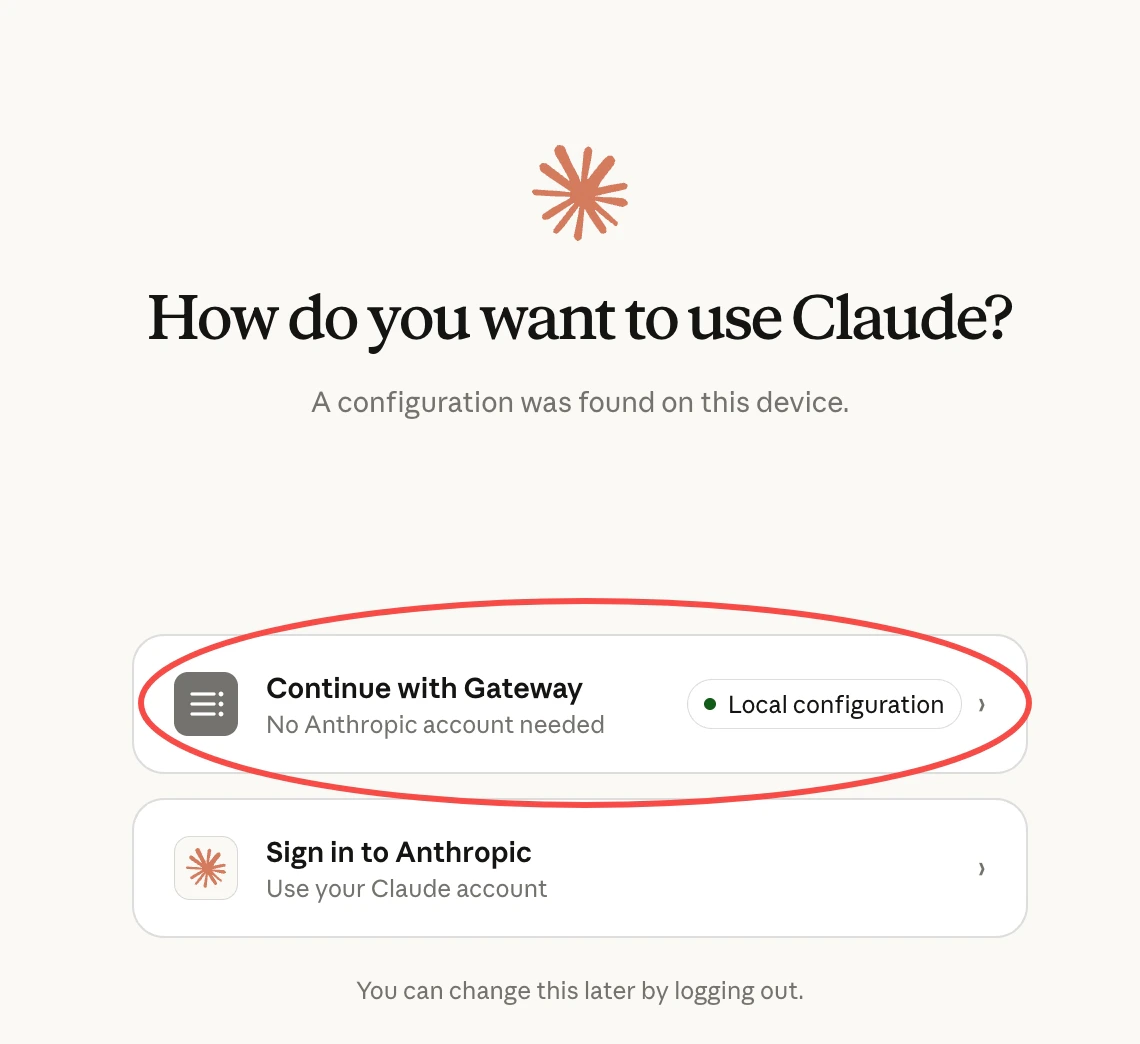
- After restarting, select Continue with Gateway on the screen below
Step 4: Configure Models and Verify
In Gateway mode, Claude Desktop constrains model names to Claude style — model names must start withclaude-, so you cannot enter real model names like gpt, gemini, or deepseek directly, or the dropdown will have no usable models. The fix is model-name mapping: the client uses a claude--prefixed alias, and you map that alias to a real model on your AIHubMix Key.
① Configure the mapping on your AIHubMix Key
Open the AIHubMix Key management page, create or edit a Key, and add “alias → real model” entries in the Model name mapping section:
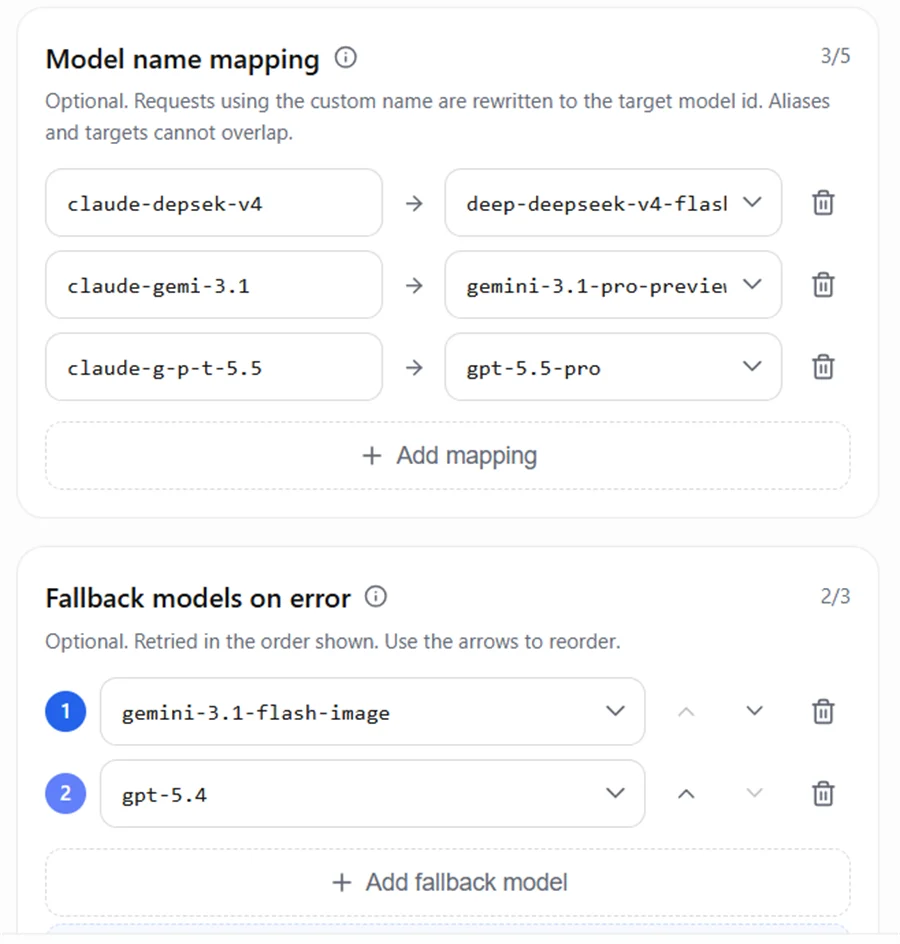
claude- aliases — the model names Claude Desktop sends to AIHubMix, not the real upstream model names:
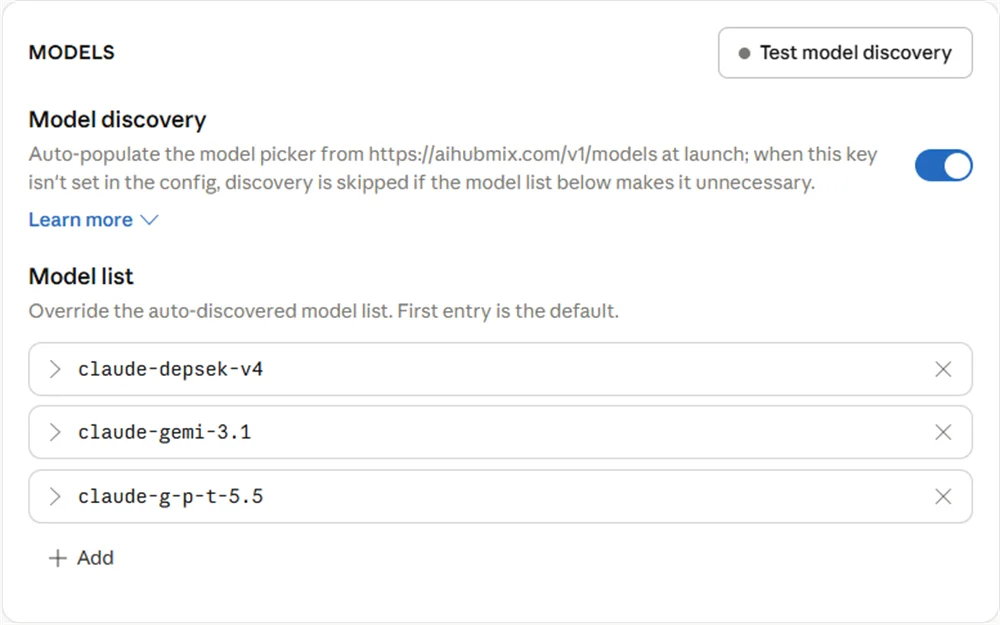
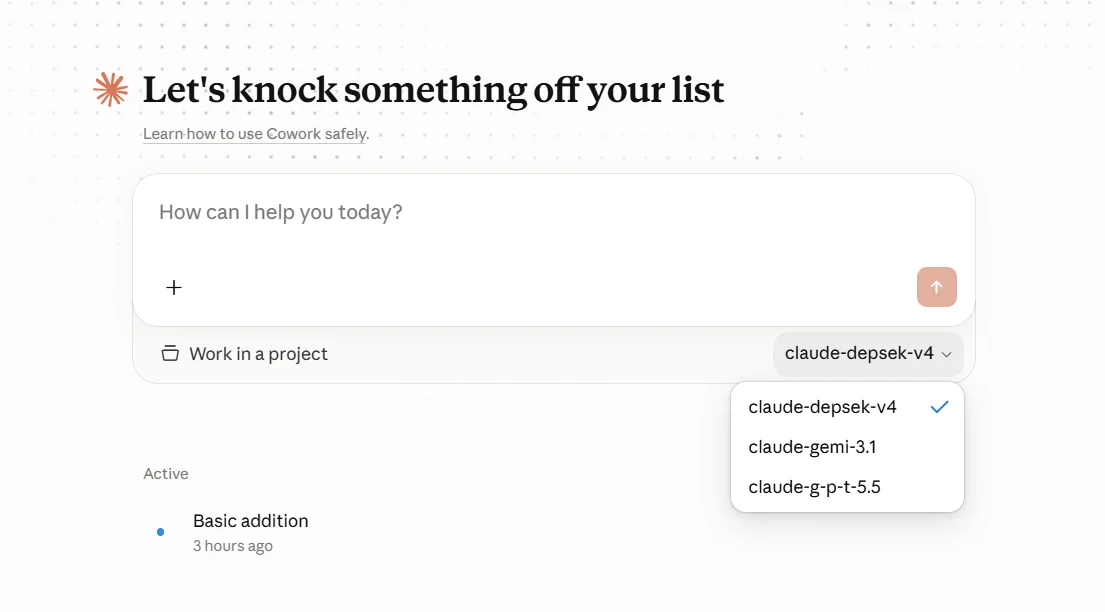
- Use a
claude-prefix for theModel ID. - Do not write real model family names like
gpt,gemini, ordeepseekdirectly; use aliases such asg-p-t,gemi,depsek. - The
Model IDmust match the left side of the AIHubMix mapping character for character, otherwise the request won’t hit the mapping.
For more — automatically switching to a backup model when the primary fails, billing by the final responding model, and so on — see Model Mapping and Fallback.
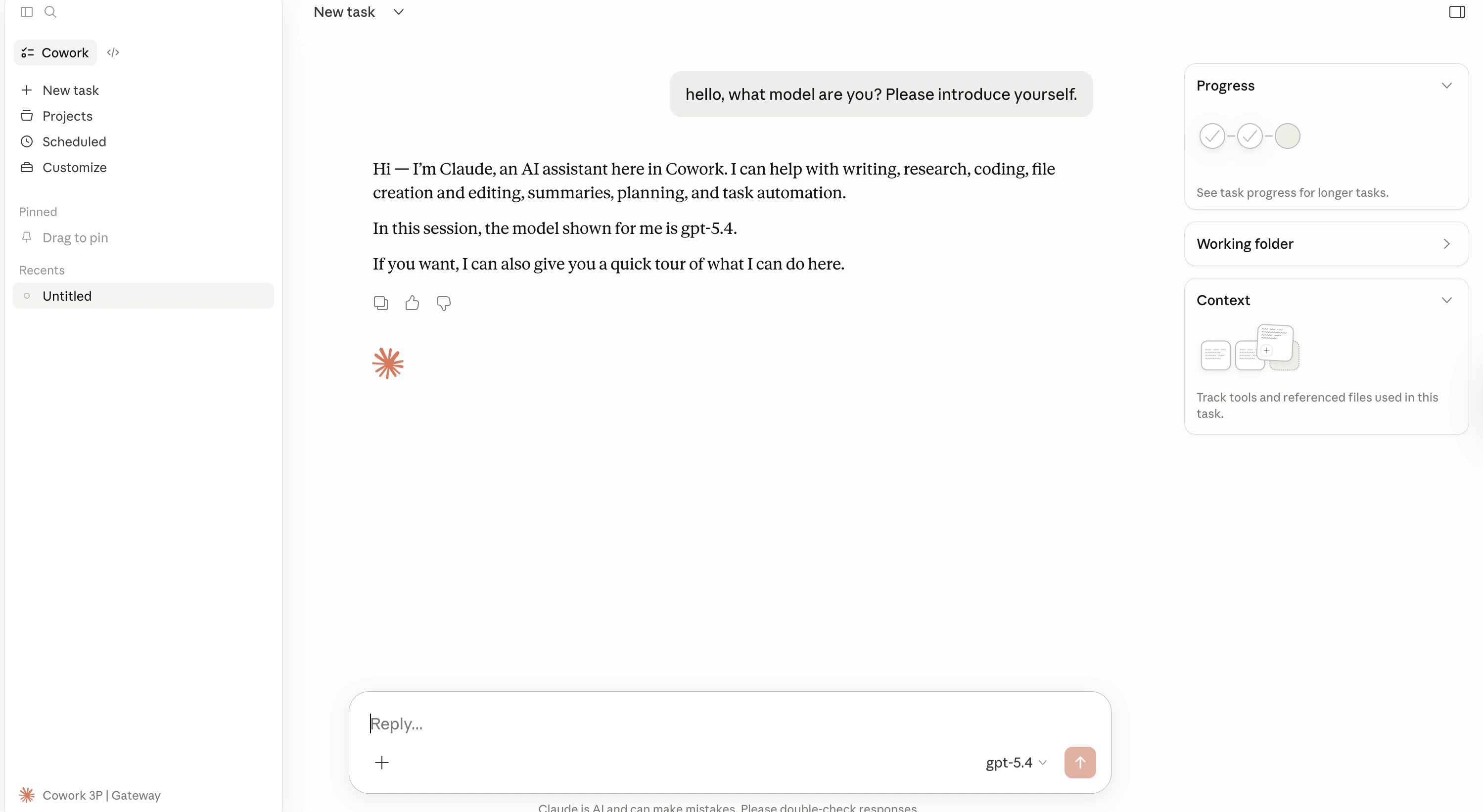
Note: The default model is Claude Opus 4.7, which has higher pricing and can lead to significant costs for everyday use. We recommend switching to another model. AIHubMix offers a wide range of cost-effective and free models — view the full list at aihubmix.com/models.Once configured, restart Claude Desktop and verify:
- The Cowork tab appears in the left navigation panel
- You can send messages and receive responses normally
- The model name shown in the bottom-right corner matches the model you configured
Troubleshooting
Error on Launch / Cannot Connect
Checklist:- Confirm the connection type is set to
gateway(notbedrock/vertex) - Check that the Base URL is
https://aihubmix.com(no trailing slash) - Verify the API Key was copied in full (must start with
sk-) - Make sure your AIHubMix account has sufficient balance
- macOS: Open Console.app, filter by
Claude - Windows: Open Event Viewer
Model Not Found Error
Make sure the model ID you entered is available on AIHubMix. You can query the available model list via API:Which Auth Scheme Should I Use?
AIHubMix uses thex-api-key authentication header. If you encounter a 401 error, try switching to bearer.
Advanced: Export Configuration File (Optional)
After completing setup, you can export the configuration for backup or team distribution: macOS — Click Export in the config UI to download a.mobileconfig fileWindows — Click Export in the config UI to download a
.reg registry file
Related Resources
- AIHubMix Documentation
- AIHubMix Claude Native API Reference
- Claude Desktop Official Third-Party Platform Guide
- Claude Desktop Download Page
Last updated: April 23, 2026 | Based on Anthropic official docs + AIHubMix API documentation