> ## Documentation Index
> Fetch the complete documentation index at: https://docs.aihubmix.com/llms.txt
> Use this file to discover all available pages before exploring further.
# Obsidian
> Text Generator Plugin needed.
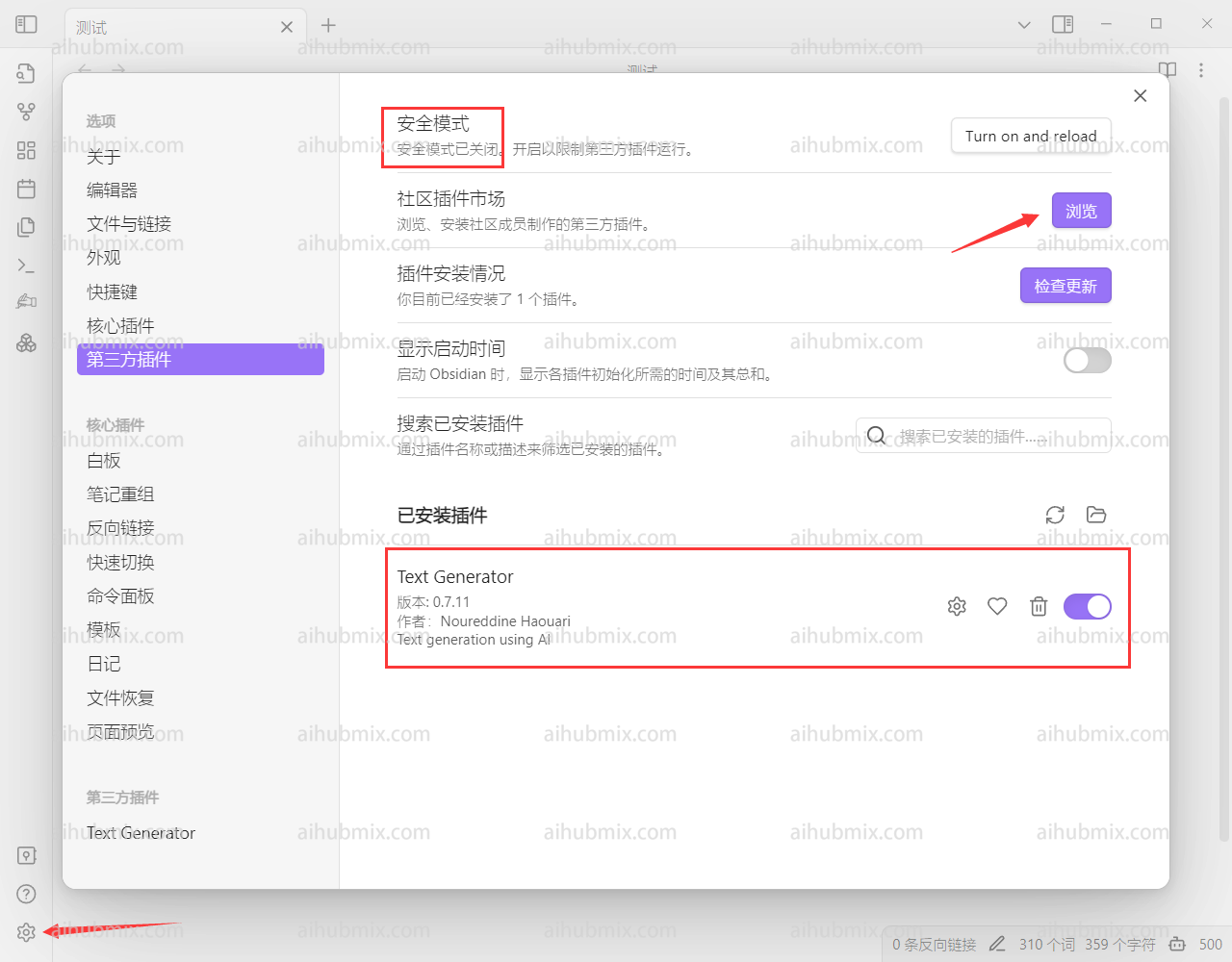
1. Go to Settings in the bottom left corner of the software, and select Community Plugins.\
After turning off safe mode, search for "text generator" in the community plugin market, install it, and enable it.\\
 2. Enter the settings page for the text generator.
3. Generate the API KEY from [our site’s Key](https://aihubmix.com/token).
4. Enter the following in the Base Path field:
```
https://aihubmix.com/v1
```
5. Finally, select the model you want to use.\\
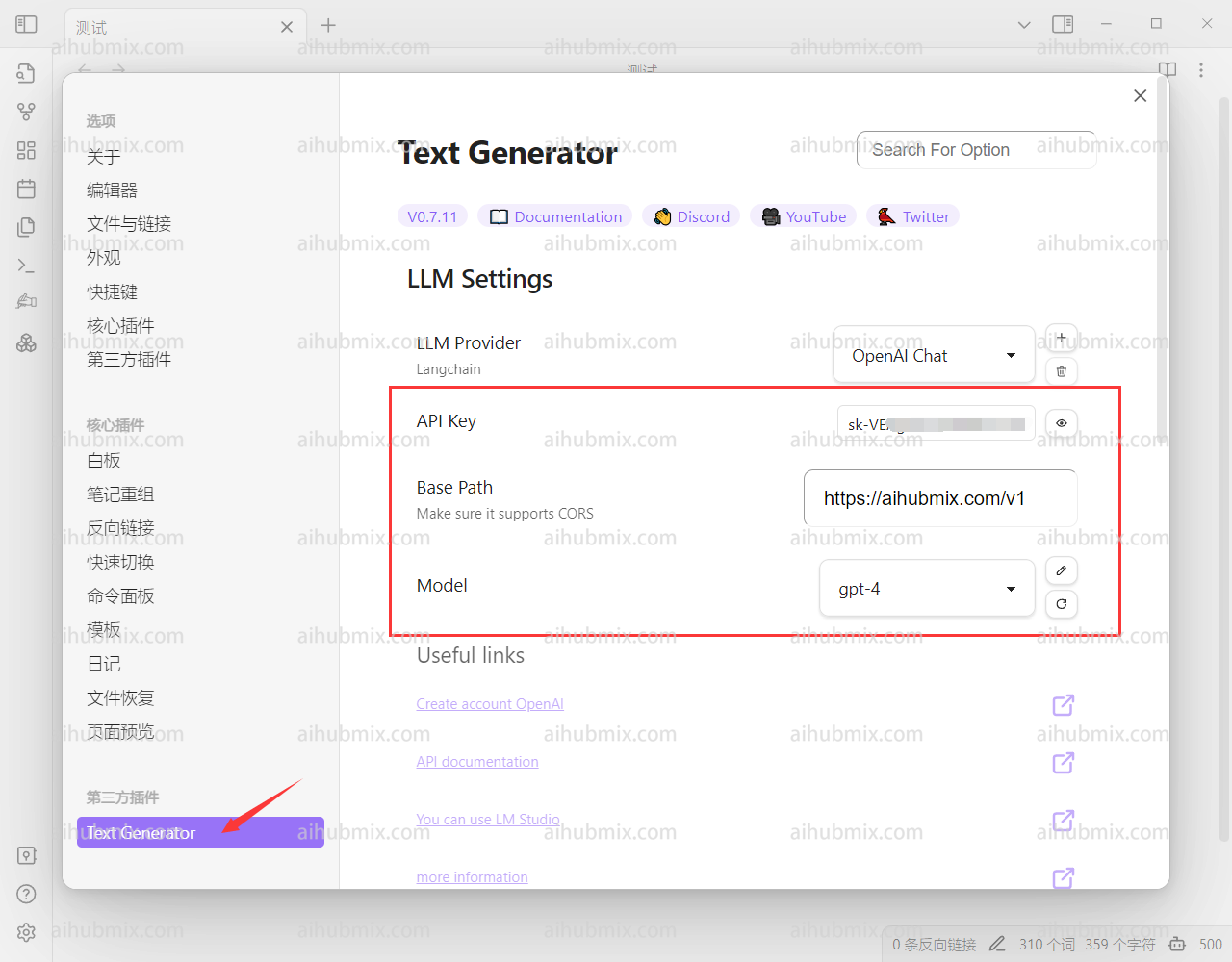
2. Enter the settings page for the text generator.
3. Generate the API KEY from [our site’s Key](https://aihubmix.com/token).
4. Enter the following in the Base Path field:
```
https://aihubmix.com/v1
```
5. Finally, select the model you want to use.\\
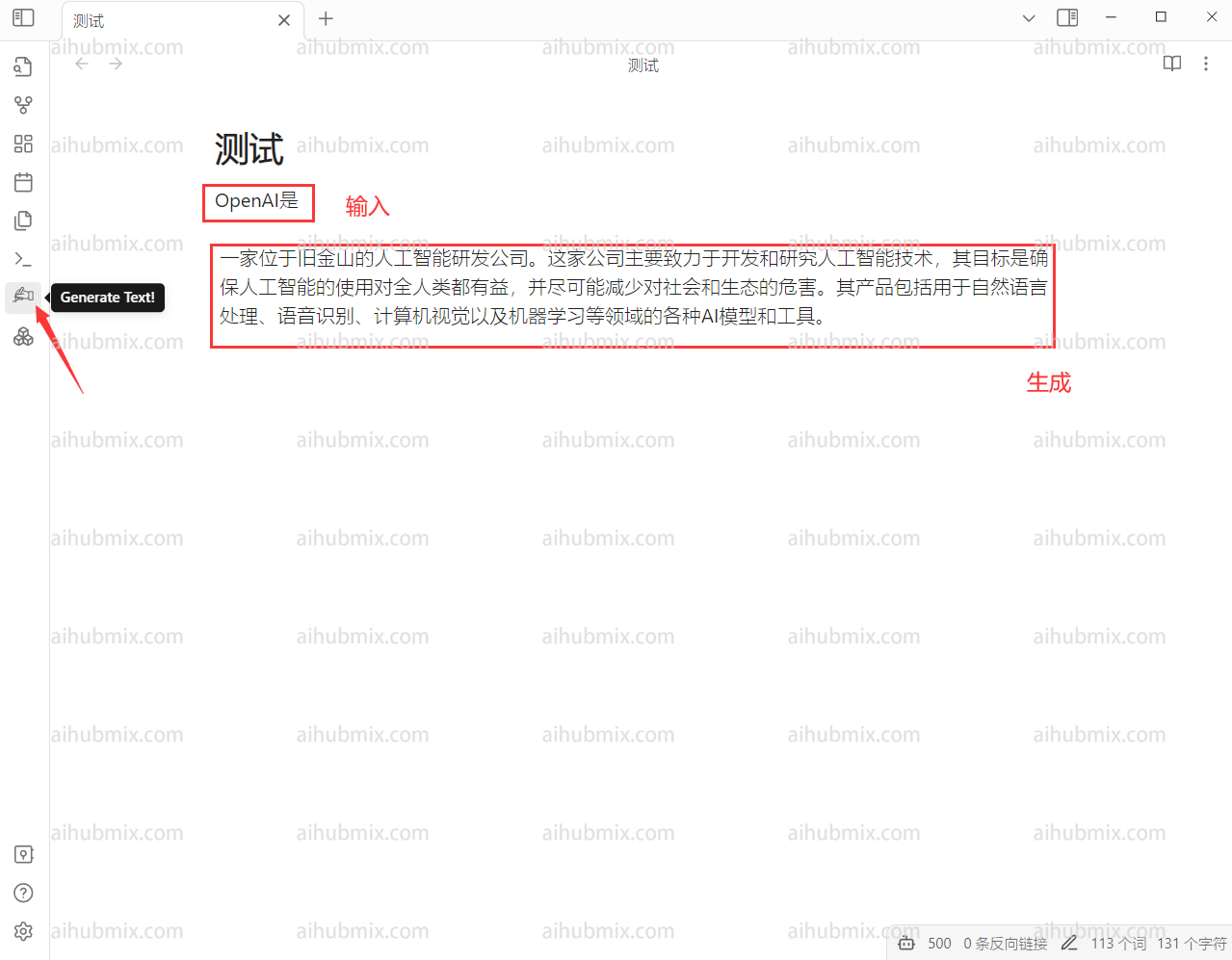
 6. When entering a piece of text, click the hand-shaped button on the left.\\
 ***
Last updated: 2026-06-01
***
Last updated: 2026-06-01