> ## Documentation Index
> Fetch the complete documentation index at: https://docs.aihubmix.com/llms.txt
> Use this file to discover all available pages before exploring further.
# Cline
> Cline is an intelligent coding assistant plugin designed for automated code generation, task breakdown, command execution, and file modification workflows. You can use AIHubMix as the provider to handle complex programming tasks.
Cline Website: [https://cline.bot/](https://cline.bot/)
***
## Prerequisites
* Obtain an **AIHubMix API Key**
Get it here: [https://console.aihubmix.com/token](https://console.aihubmix.com/token)
* Install **Visual Studio Code** or **IntelliJ IDEA**
***
## Using Cline in VS Code
### 1. Install Cline
Open VS Code, go to the Extensions Marketplace, search for **Cline**, and install it.
 ### 2. Model Configuration & API Key
After installation, click the **Cline icon** in the left sidebar to open the configuration panel, then select an **API Provider**.
### 2. Model Configuration & API Key
After installation, click the **Cline icon** in the left sidebar to open the configuration panel, then select an **API Provider**.
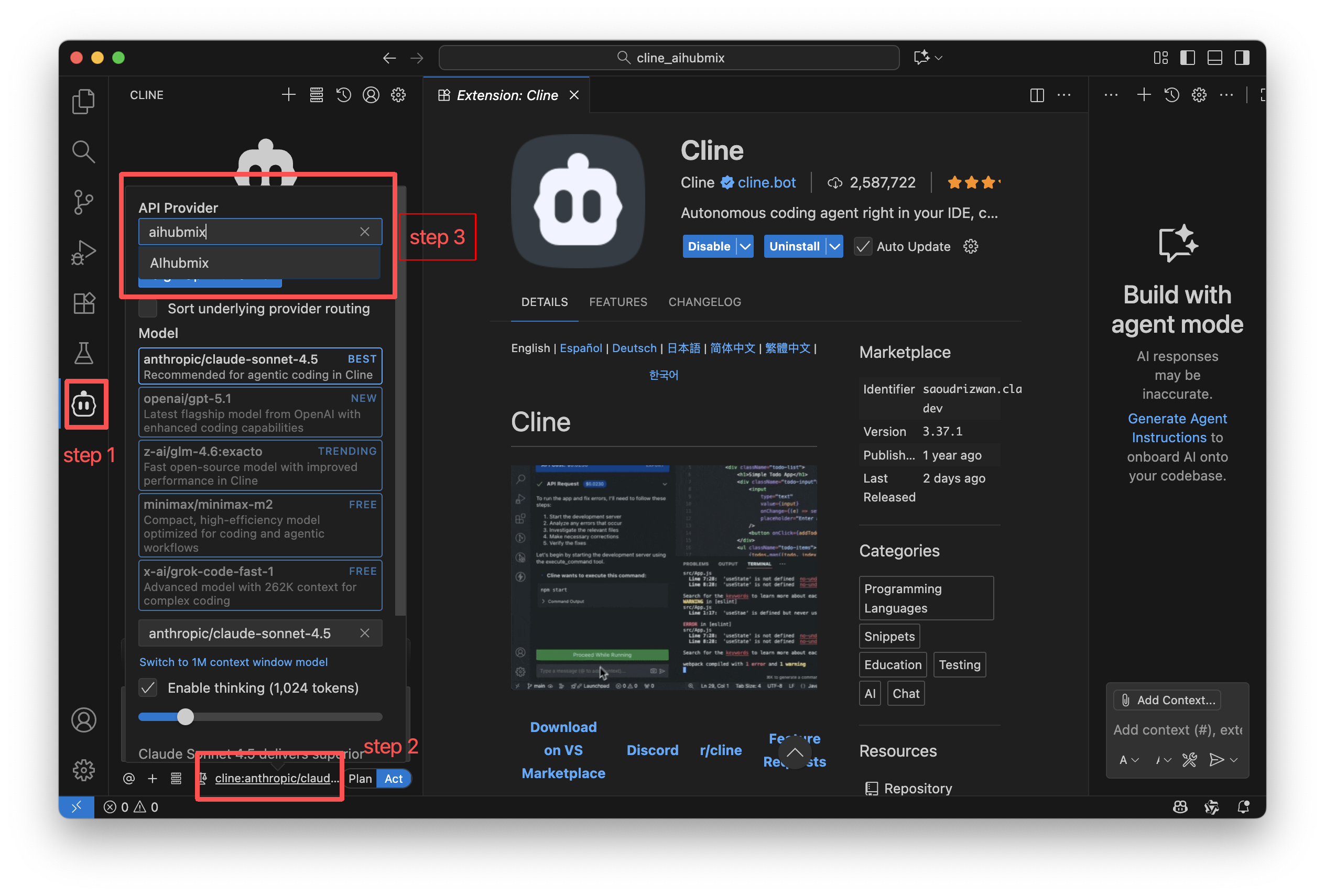 Switch the provider to **AIHubMix** and fill in the configuration fields.
| Setting | Description |
| :----------- | :-------------------------- |
| API Provider | Select **AIHubMix** |
| API Key | Enter your AIHubMix API Key |
| Model | Choose the model to use |
### 3. Using Cline
Above the input box, you can control Cline’s read/write and command execution permissions via **Auto-approve**.\
Enabling these permissions improves automation but may increase token usage, so it’s recommended to turn them on only after you fully understand Cline’s behavior.
Cline offers two working modes, which you can switch at the bottom of the chat panel:
* **Plan Mode**: Focuses on information gathering, problem decomposition, and task planning. It does *not* directly modify files.
* **Act Mode**: Executes changes, runs commands, and completes tasks based on the plan.
***
## Using Cline in IntelliJ IDEA
### 1. Install Cline
Open IntelliJ IDEA, go to the Plugins Marketplace, search for **Cline**, and install it.
Switch the provider to **AIHubMix** and fill in the configuration fields.
| Setting | Description |
| :----------- | :-------------------------- |
| API Provider | Select **AIHubMix** |
| API Key | Enter your AIHubMix API Key |
| Model | Choose the model to use |
### 3. Using Cline
Above the input box, you can control Cline’s read/write and command execution permissions via **Auto-approve**.\
Enabling these permissions improves automation but may increase token usage, so it’s recommended to turn them on only after you fully understand Cline’s behavior.
Cline offers two working modes, which you can switch at the bottom of the chat panel:
* **Plan Mode**: Focuses on information gathering, problem decomposition, and task planning. It does *not* directly modify files.
* **Act Mode**: Executes changes, runs commands, and completes tasks based on the plan.
***
## Using Cline in IntelliJ IDEA
### 1. Install Cline
Open IntelliJ IDEA, go to the Plugins Marketplace, search for **Cline**, and install it.
 ### 2. Mode Selection
On first launch, select **Bring my own API Key → Continue**.
### 2. Mode Selection
On first launch, select **Bring my own API Key → Continue**.
 ### 3. Model Configuration & API Key
After installation, click the **Cline icon** in the right sidebar to open the configuration page.
### 3. Model Configuration & API Key
After installation, click the **Cline icon** in the right sidebar to open the configuration page.
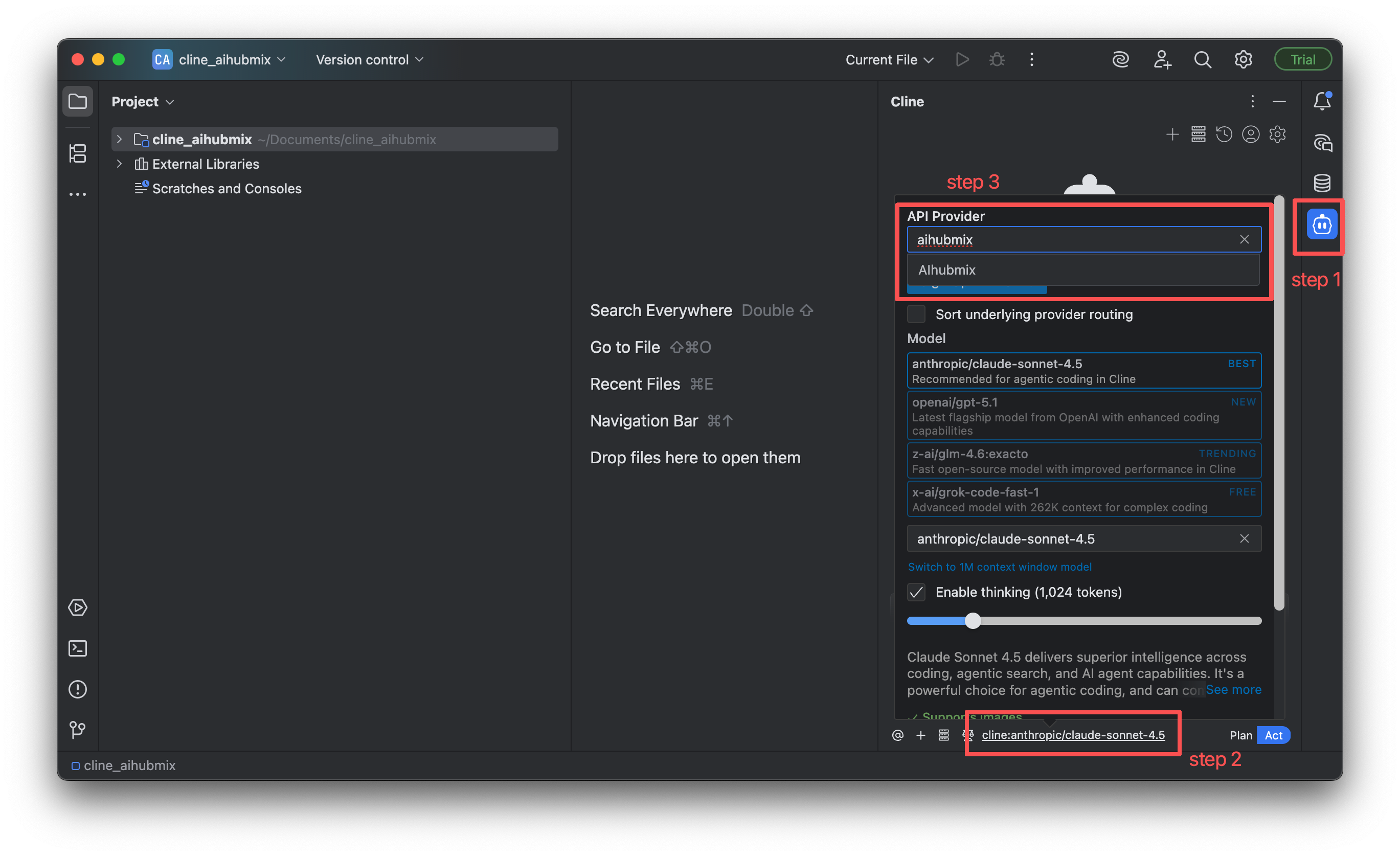 Switch the provider to **AIHubMix** and fill in the configuration fields.
| Setting | Description |
| :----------- | :-------------------------- |
| API Provider | Select **AIHubMix** |
| API Key | Enter your AIHubMix API Key |
| Model | Choose the model to use |
### 4. Using Cline
The usage in IntelliJ IDEA is almost the same as in VS Code:
* You can enable **Auto-approve** above the input box.
* You can switch between **Plan** and **Act** modes at the bottom of the interface.
***
## MCP (Model Context Protocol) Support
Cline supports installing MCP Client services via plugins.
> Supported MCPs can be found in the [Cline MCP Marketplace](https://cline.bot/mcp-marketplace)
Switch the provider to **AIHubMix** and fill in the configuration fields.
| Setting | Description |
| :----------- | :-------------------------- |
| API Provider | Select **AIHubMix** |
| API Key | Enter your AIHubMix API Key |
| Model | Choose the model to use |
### 4. Using Cline
The usage in IntelliJ IDEA is almost the same as in VS Code:
* You can enable **Auto-approve** above the input box.
* You can switch between **Plan** and **Act** modes at the bottom of the interface.
***
## MCP (Model Context Protocol) Support
Cline supports installing MCP Client services via plugins.
> Supported MCPs can be found in the [Cline MCP Marketplace](https://cline.bot/mcp-marketplace)
 ***
## Model Recommendations
Different stages of software development require different AI capabilities. Choosing the right model can improve efficiency in requirements analysis, coding, testing, and deployment.
### 1. Design & Architecture Phase
This phase relies more on abstract reasoning, system design, and domain knowledge. It’s better to choose models with strong reasoning and planning capabilities.
* o1
* gemini-2.5-pro
### 2. Development Phase
This phase requires stable performance in code generation, pattern understanding, function completion, and debugging suggestions. Choose models with strong, well-rounded coding capabilities.
* gemini-2.5-pro
* claude-sonnet-4-5
* gpt-5
* coding-glm-4.6(cost- effective)
* qwen3-coder-plus
### 3. Testing Phase
This phase focuses on edge cases, robustness, exception flows, and test case generation. It’s suitable to choose models that are good at code analysis and reasoning.
* claude-3-7-sonnet
* o3 / o4-mini
* gpt-5
### 4. Deployment & Review Phase
This phase benefits from models with large context windows that can understand entire codebases to perform audits, refactoring suggestions, or deployment verification.
* gemini-2.5-pro
* gpt-5
* o3 / o4-mini
***
Last updated: 2026-06-01
***
## Model Recommendations
Different stages of software development require different AI capabilities. Choosing the right model can improve efficiency in requirements analysis, coding, testing, and deployment.
### 1. Design & Architecture Phase
This phase relies more on abstract reasoning, system design, and domain knowledge. It’s better to choose models with strong reasoning and planning capabilities.
* o1
* gemini-2.5-pro
### 2. Development Phase
This phase requires stable performance in code generation, pattern understanding, function completion, and debugging suggestions. Choose models with strong, well-rounded coding capabilities.
* gemini-2.5-pro
* claude-sonnet-4-5
* gpt-5
* coding-glm-4.6(cost- effective)
* qwen3-coder-plus
### 3. Testing Phase
This phase focuses on edge cases, robustness, exception flows, and test case generation. It’s suitable to choose models that are good at code analysis and reasoning.
* claude-3-7-sonnet
* o3 / o4-mini
* gpt-5
### 4. Deployment & Review Phase
This phase benefits from models with large context windows that can understand entire codebases to perform audits, refactoring suggestions, or deployment verification.
* gemini-2.5-pro
* gpt-5
* o3 / o4-mini
***
Last updated: 2026-06-01