> ## Documentation Index
> Fetch the complete documentation index at: https://docs.aihubmix.com/llms.txt
> Use this file to discover all available pages before exploring further.
# Cherry Studio
> Connect AIHubMix in the Cherry Studio desktop client to call Claude, GPT, Gemini and more, and enable Claude prompt caching to cut cost and latency.
[**Download Cherry Studio AI**](https://easys.run/cherry-studio/)
## General Usage
1. Open **Settings** from the bottom-left corner of the app.
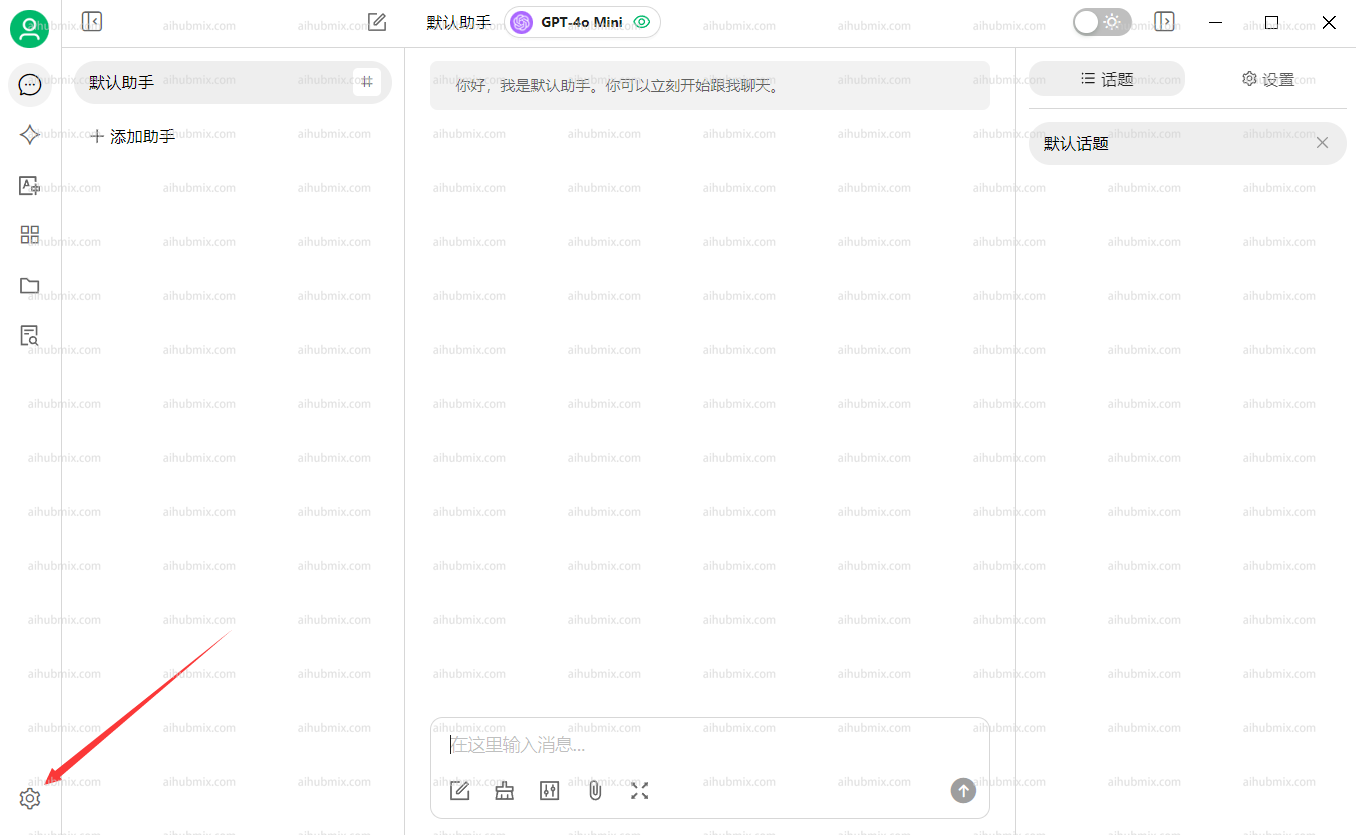 2. In the **Model Providers** section, select **AiHubMix** and click the button in the top-right corner to enable it.
3. In the **API Key** field, enter [the Key from this site](https://aihubmix.com/token).\
Leave the **API Base URL** unchanged.\
**Note: If the connection check fails, try disabling your VPN.**
2. In the **Model Providers** section, select **AiHubMix** and click the button in the top-right corner to enable it.
3. In the **API Key** field, enter [the Key from this site](https://aihubmix.com/token).\
Leave the **API Base URL** unchanged.\
**Note: If the connection check fails, try disabling your VPN.**
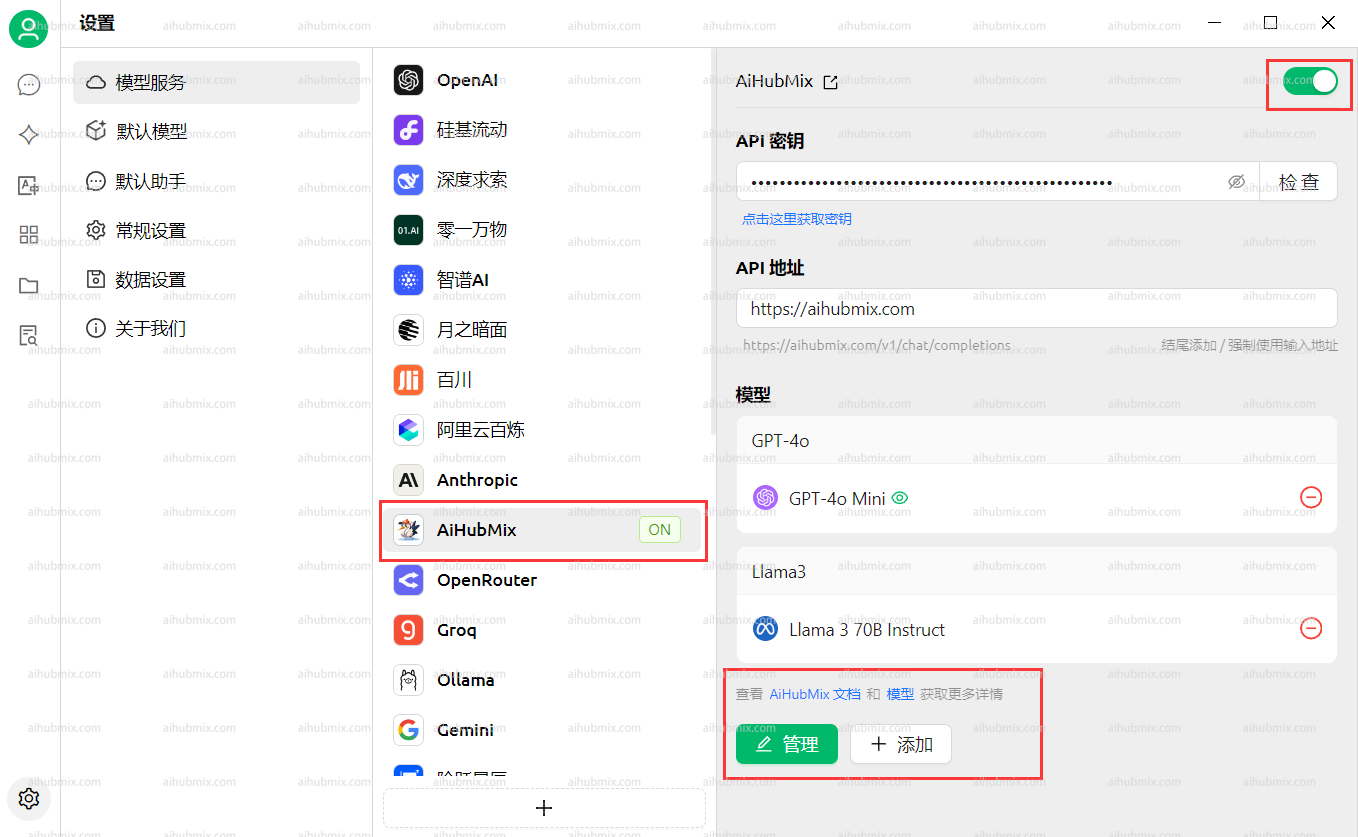 4. Click **Add Model** at the bottom.\
For the **Model ID**, go to the settings page on this website, select the model you want to use, and copy-paste its name.
4. Click **Add Model** at the bottom.\
For the **Model ID**, go to the settings page on this website, select the model you want to use, and copy-paste its name.
 ## FAQ
### The model indicates it cannot see images
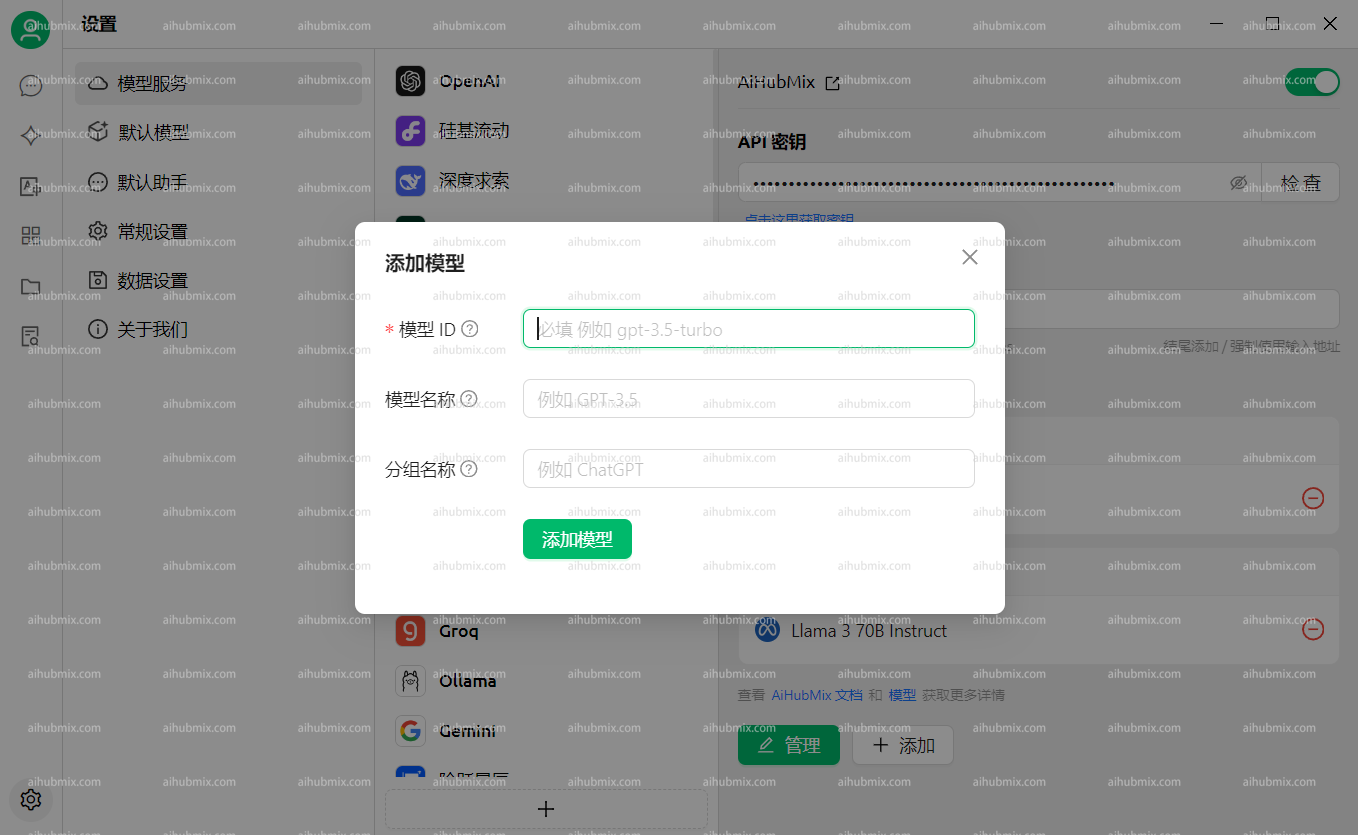
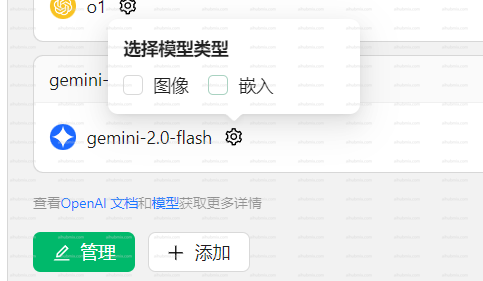
Some newer models may not recognize images after they are uploaded.\
In this case, you need to manually enable the **Image** option on the settings page.
## FAQ
### The model indicates it cannot see images
Some newer models may not recognize images after they are uploaded.\
In this case, you need to manually enable the **Image** option on the settings page.
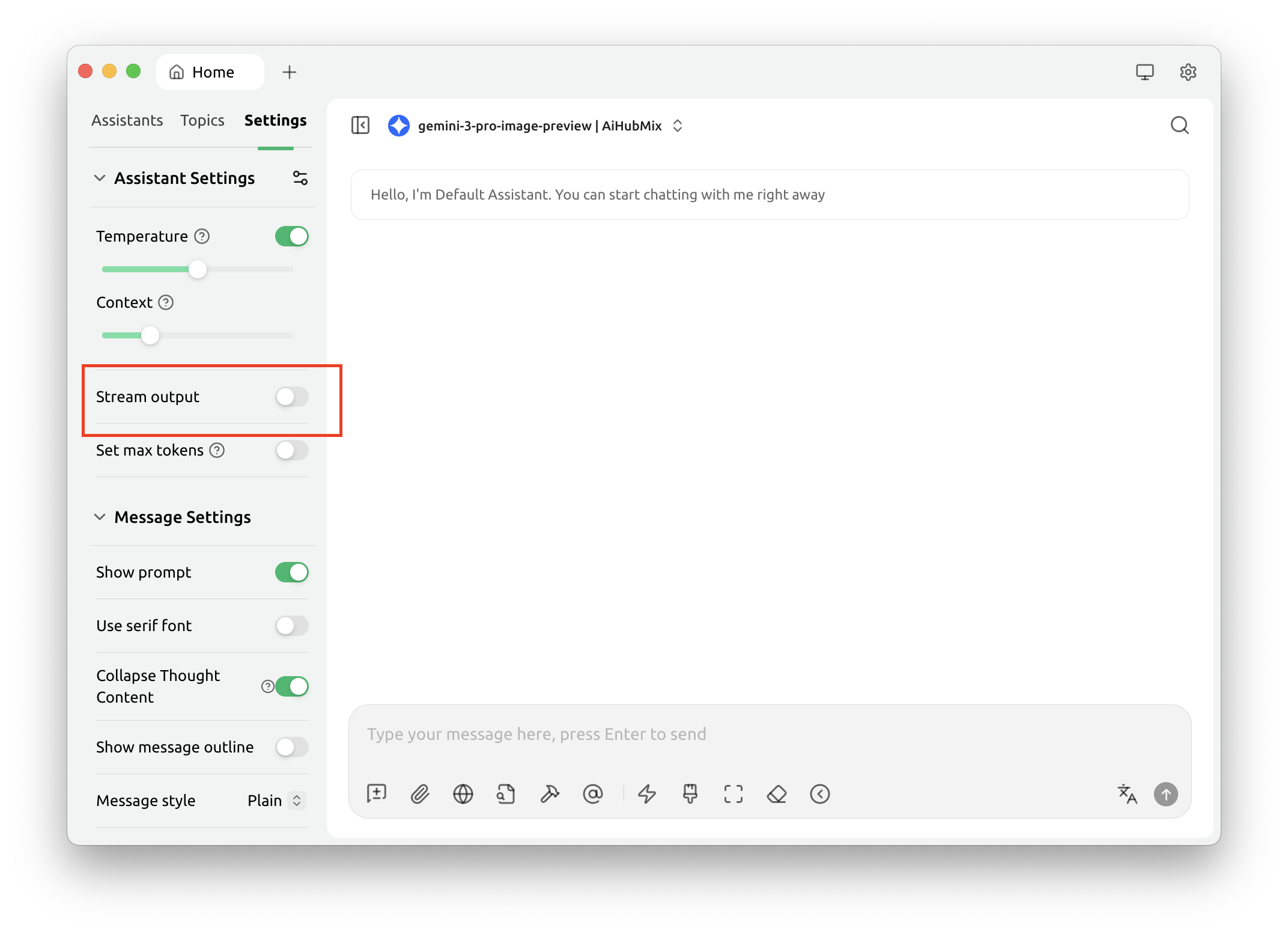
 The `gemini-3-pro-image-preview` model cannot return images when **streaming output** is enabled.\
Please disable streaming output when using this model.
The `gemini-3-pro-image-preview` model cannot return images when **streaming output** is enabled.\
Please disable streaming output when using this model.
 ### Calling Claude models returns `AI_APICallError`
Check whether the request URL shown in the error message is\
`https://aihubmix.com/anthropic/v1/messages`.
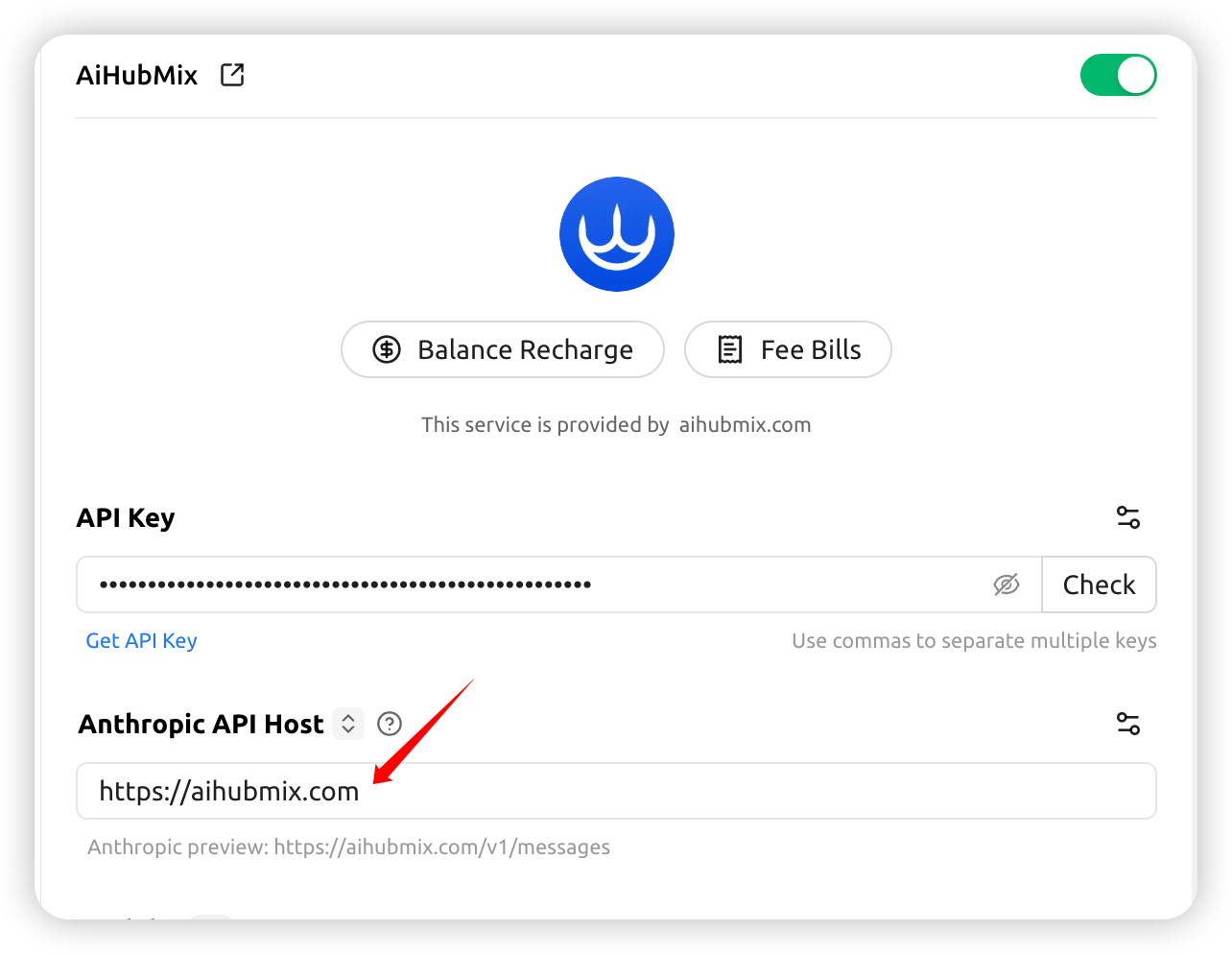
If so, go to **Settings** and change the **Anthropic API Host** to: `https://aihubmix.com`
### Calling Claude models returns `AI_APICallError`
Check whether the request URL shown in the error message is\
`https://aihubmix.com/anthropic/v1/messages`.
If so, go to **Settings** and change the **Anthropic API Host** to: `https://aihubmix.com`
 ## Enabling Claude prompt caching
In the Aihubmix provider's "API Settings" (the gear to the right of the provider name), configure "Cache Token Threshold", "Cache System Message", and "Cache Last N Messages" to automatically inject `cache_control` for Claude models. For what each option means and cache-hit tips, see [Claude Prompt Caching](../api/Claude-Cache).
***
Last updated: 2026-06-01
## Enabling Claude prompt caching
In the Aihubmix provider's "API Settings" (the gear to the right of the provider name), configure "Cache Token Threshold", "Cache System Message", and "Cache Last N Messages" to automatically inject `cache_control` for Claude models. For what each option means and cache-hit tips, see [Claude Prompt Caching](../api/Claude-Cache).
***
Last updated: 2026-06-01