> ## Documentation Index
> Fetch the complete documentation index at: https://docs.aihubmix.com/llms.txt
> Use this file to discover all available pages before exploring further.
# Claude Desktop × AIHubMix Setup Guide
> Use AIHubMix in Claude Desktop: drive the client without an Anthropic account login, entirely point-and-click, and call Claude, GPT, Gemini, DeepSeek and more through a single API key with flexible pay-as-you-go billing.
> Applies to: Claude Desktop 1.3883.0 (Updated: April 23, 2026)\
> Level: Beginner — no command line required, fully click-based, no Anthropic account needed
## Introduction
**Claude Desktop** (enterprise version known as Claude Cowork) supports connecting to third-party LLM gateways, letting you use the client without an Anthropic subscription.
This guide walks you through configuring AIHubMix as the API provider for Claude Desktop, enabling:
* No Anthropic account required — bypasses phone number / email registration restrictions
* Access to Claude, GPT, Gemini, DeepSeek, and more through a single AIHubMix key
* Pay-as-you-go billing, flexible and cost-controlled
***
## Prerequisites
Before you begin, make sure you have:
* **Operating System:** macOS 13.0 (Ventura) or later, or Windows 10 / 11
* **AIHubMix Account:** Register and top up at [aihubmix.com](https://aihubmix.com)
***
## Step 1: Get Your AIHubMix API Key
1. Visit [aihubmix.com](https://aihubmix.com) and log in
2. Go to the console → **API Keys** page
3. Click **Create New Key**, enter a name (e.g. `claude-desktop`)
4. Copy the generated key (format: `sk-xxxxxxxxxxxxxxxx`)
> **Security notice:** The API Key is only shown once. Save it somewhere safe immediately.
***
## Step 2: Download and Install Claude Desktop
1. Visit the official download page: [claude.ai/download](https://claude.ai/download)
2. Download the installer for your operating system
**macOS:**
* Open the downloaded `.dmg` file
* Drag `Claude.app` into the `Applications` folder
* Open Claude from Launchpad or the Applications folder
**Windows:**
* Run the downloaded `.msix` installer
* Follow the on-screen prompts to complete installation
* Open Claude from the Start menu
> **Note: You do not need to log in to an Anthropic account after opening. Proceed directly to the next step.**
***
## Step 3: Enable Developer Mode and Configure AIHubMix
You need to enable Developer Mode before connecting a third-party API:
1. Open the Claude Desktop app
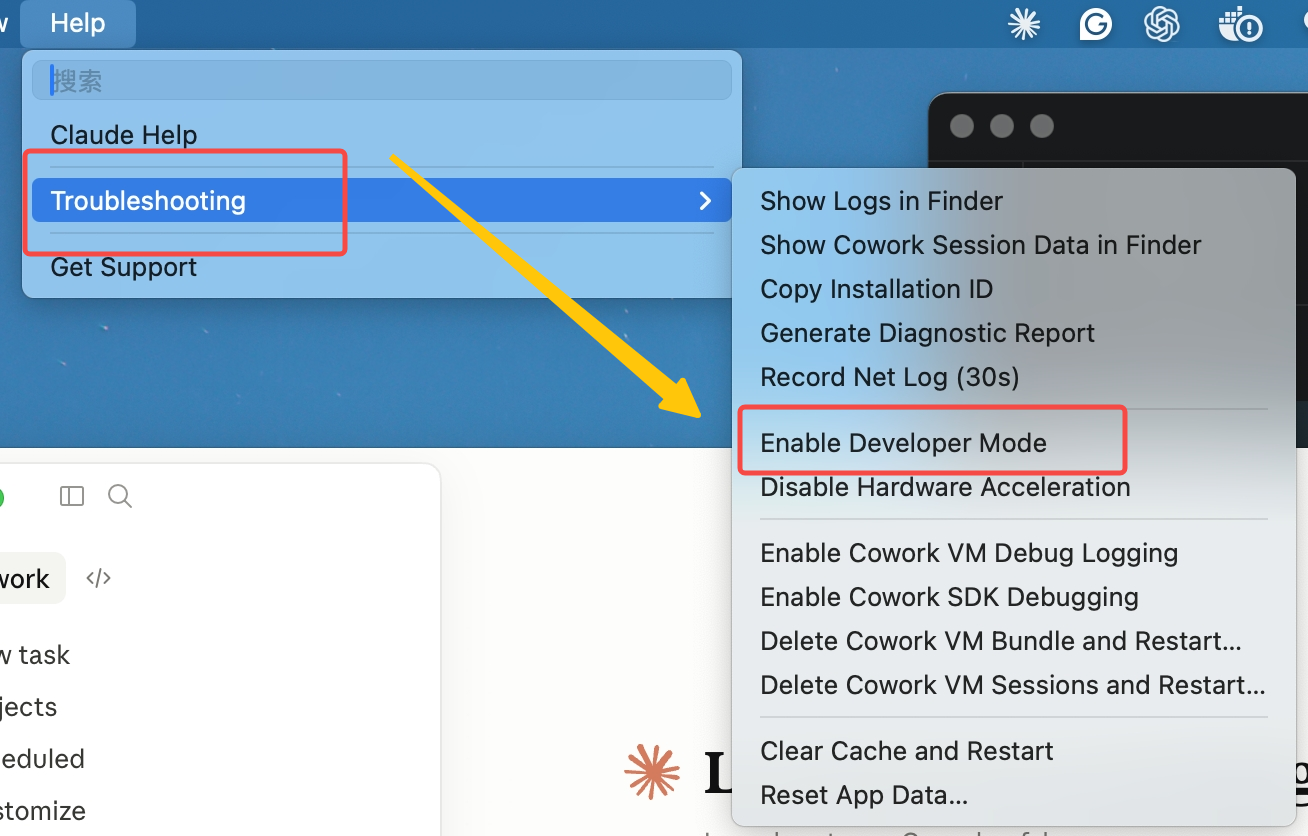
2. Click **Help** in the top menu bar
3. Select **Troubleshooting**
4. Click **Enable Developer mode**
 5. Once enabled, a new **Developer** menu will appear in the top menu bar.
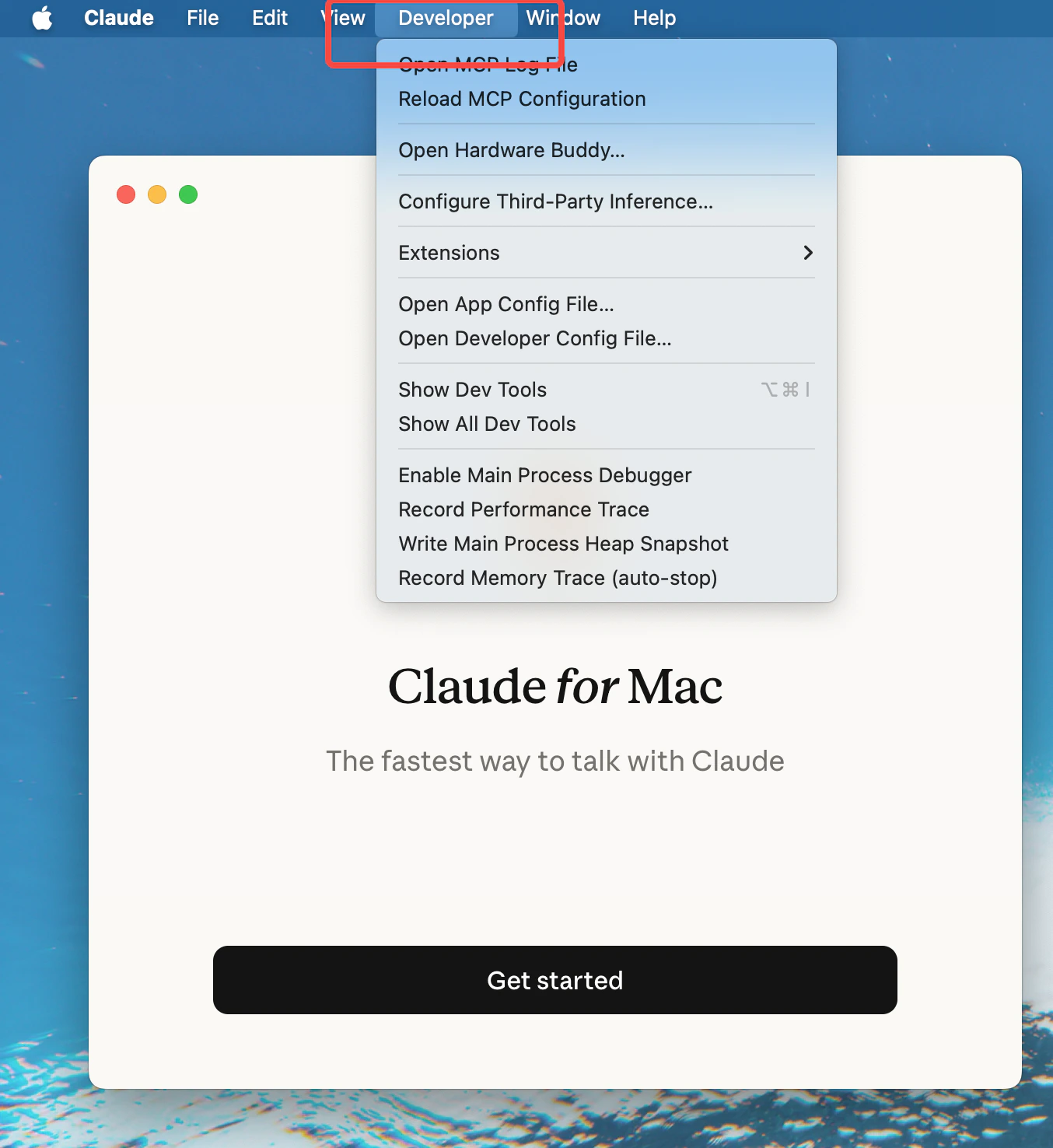 6. Click **Developer** in the menu bar, then select **Configure third-party inference**
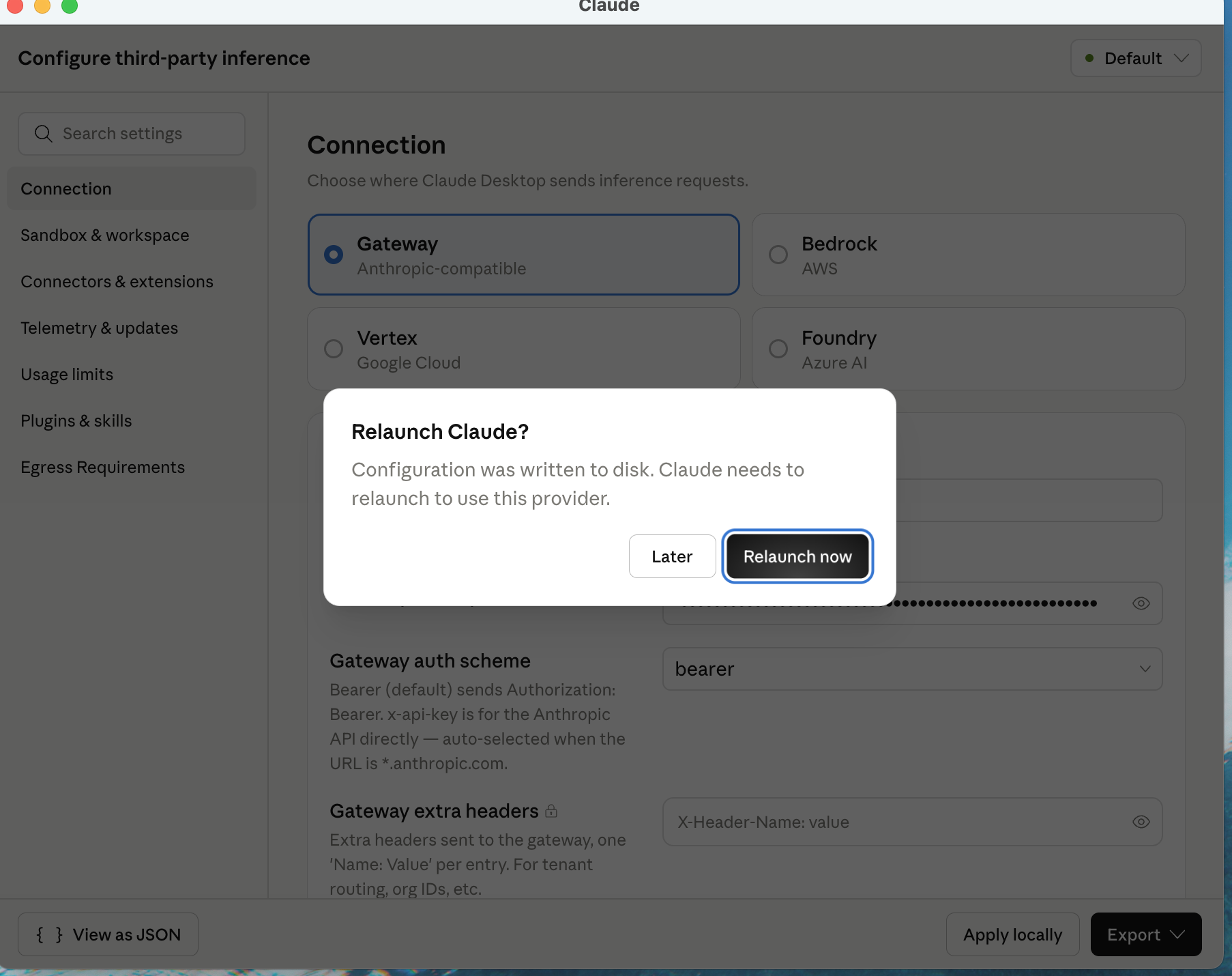
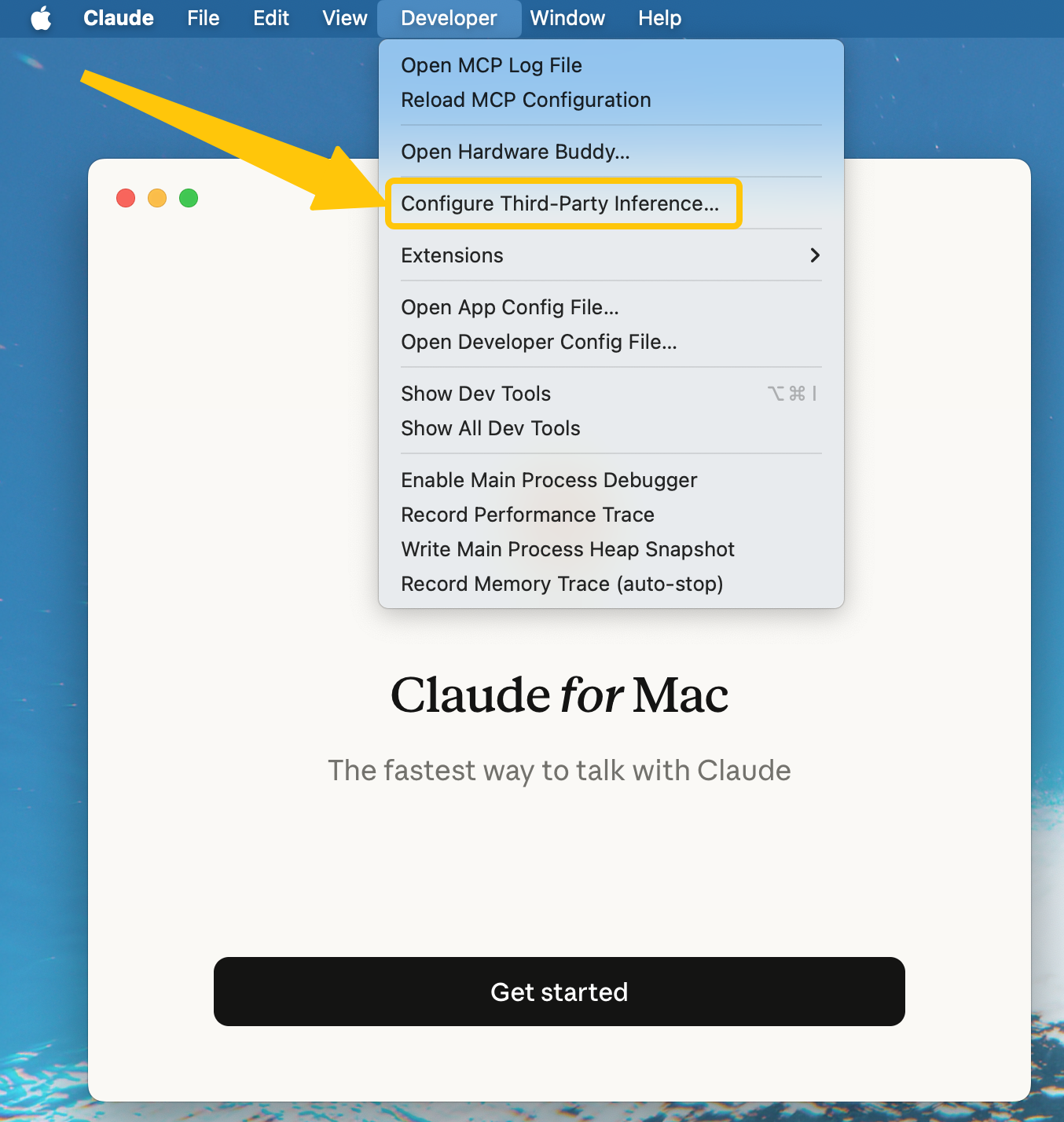 7. **Fill in the following fields in the configuration dialog:**
**Connection** — Gateway (Anthropic-compatible)
**Gateway Base URL** — AIHubMix service endpoint
```text theme={null}
https://aihubmix.com
```
**Gateway API Key** — Your AIHubMix API Key
```text theme={null}
sk-xxxxxxxxxxxxxxxx
```
7. **Fill in the following fields in the configuration dialog:**
**Connection** — Gateway (Anthropic-compatible)
**Gateway Base URL** — AIHubMix service endpoint
```text theme={null}
https://aihubmix.com
```
**Gateway API Key** — Your AIHubMix API Key
```text theme={null}
sk-xxxxxxxxxxxxxxxx
```
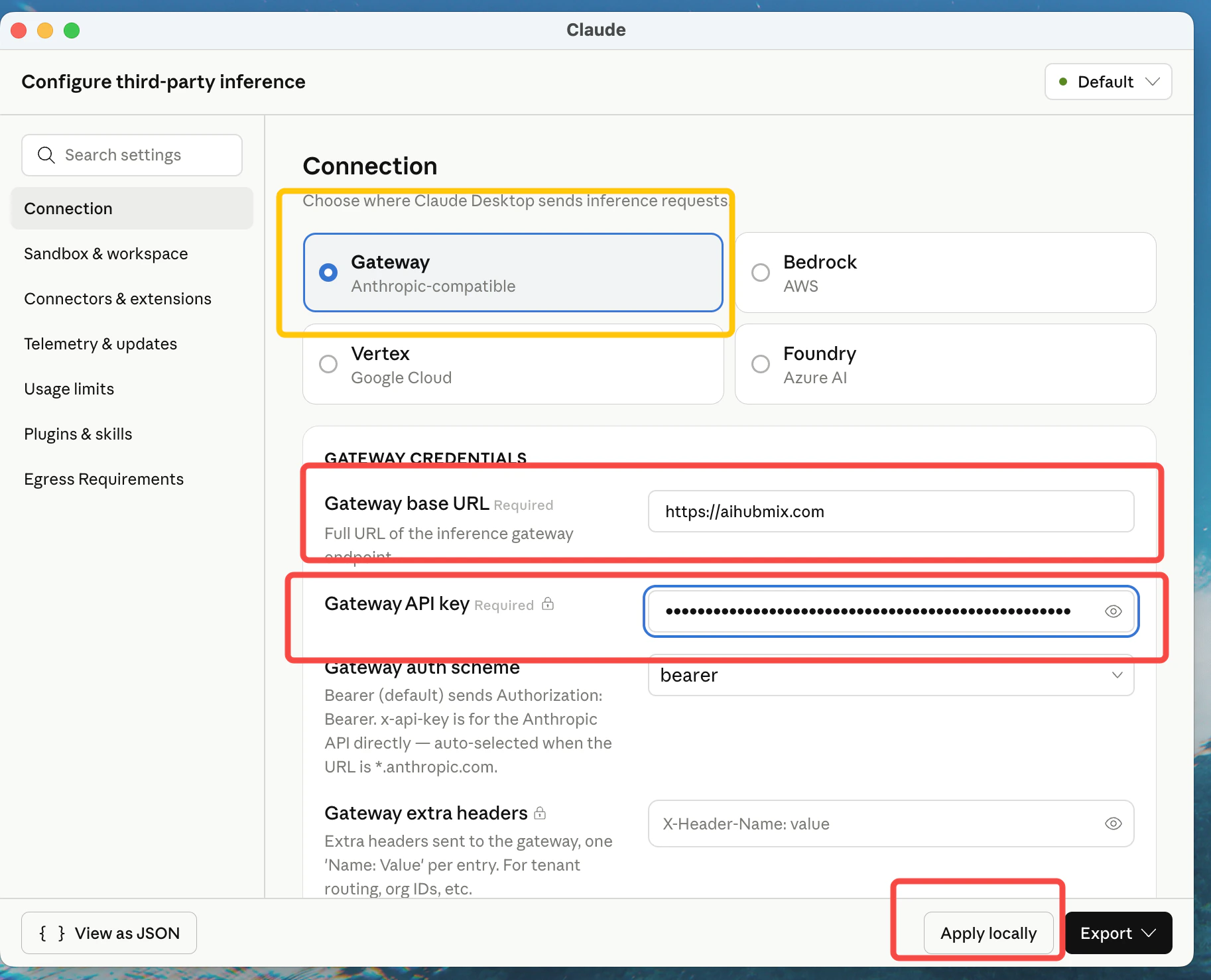 8. **Click Apply locally → Relaunch**
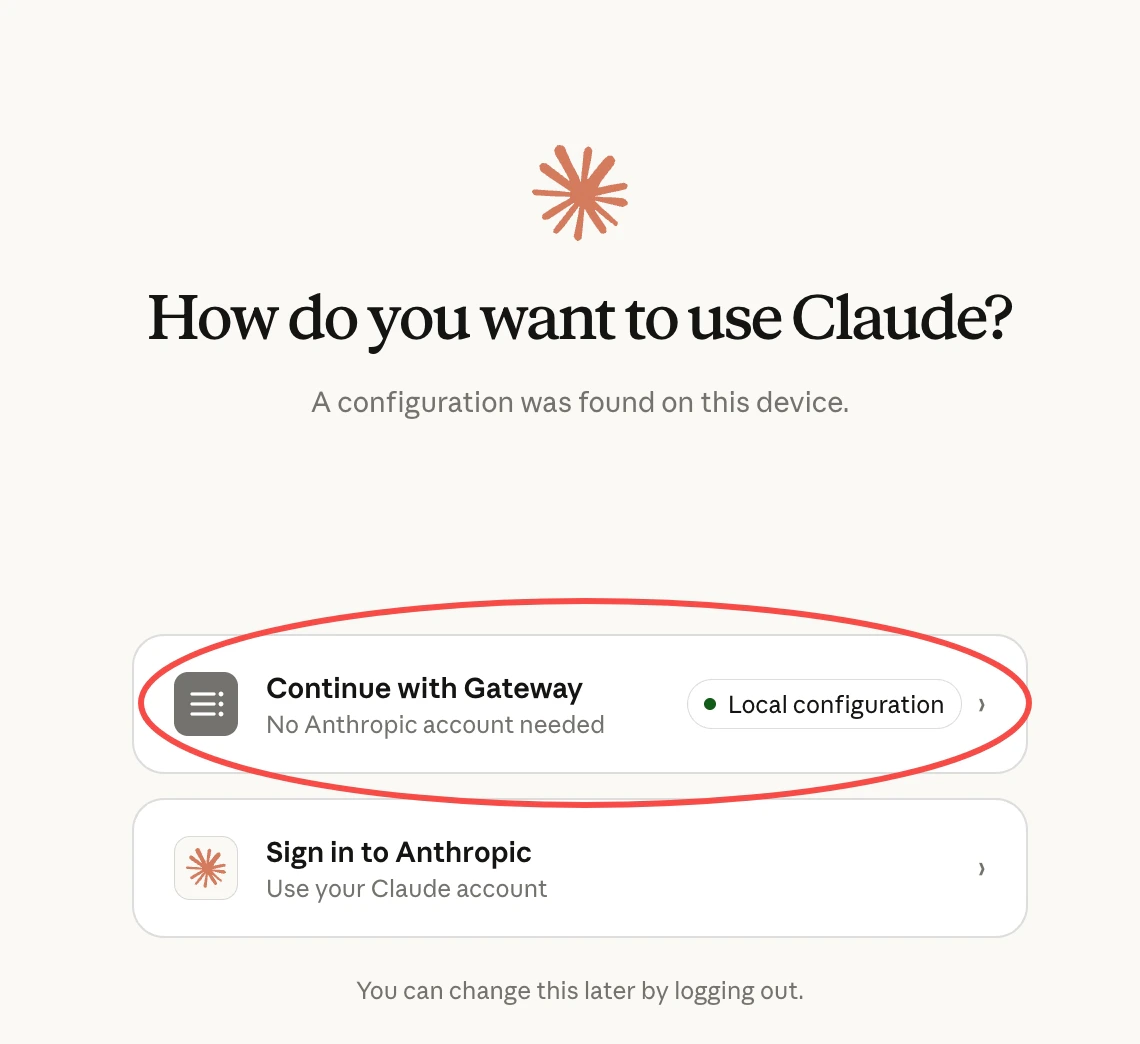
 9. After restarting, select **Continue with Gateway** on the screen below
 ***
## Step 4: Configure Models and Verify
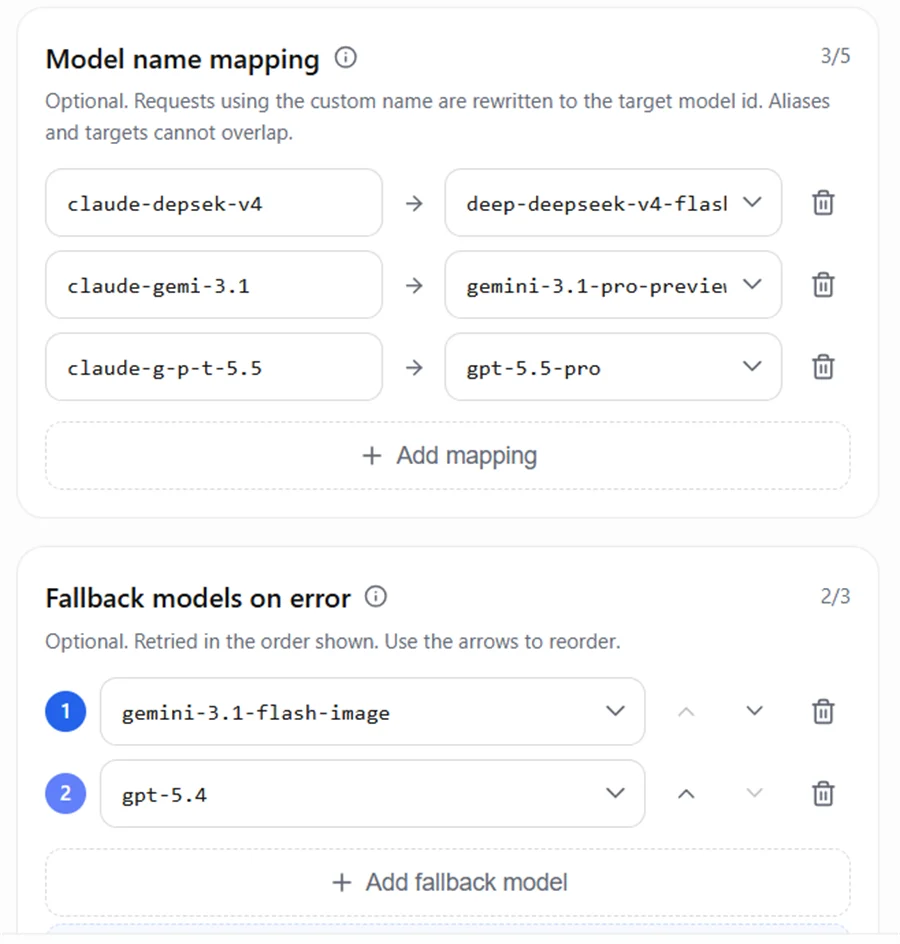
In Gateway mode, Claude Desktop constrains model names to Claude style — **model names must start with `claude-`**, so you cannot enter real model names like `gpt`, `gemini`, or `deepseek` directly, or the dropdown will have no usable models. The fix is **model-name mapping**: the client uses a `claude-`-prefixed alias, and you map that alias to a real model on your AIHubMix Key.
**① Configure the mapping on your AIHubMix Key**
Open the [AIHubMix Key management page](https://console.aihubmix.com/token), create or edit a Key, and add "alias → real model" entries in the `Model name mapping` section:
```text theme={null}
claude-g-p-t-5.5 -> gpt-5.5
claude-gemi-3.1 -> gemini-3.1-pro-preview
claude-depsek-v4 -> deepseek-v4-flash
```
***
## Step 4: Configure Models and Verify
In Gateway mode, Claude Desktop constrains model names to Claude style — **model names must start with `claude-`**, so you cannot enter real model names like `gpt`, `gemini`, or `deepseek` directly, or the dropdown will have no usable models. The fix is **model-name mapping**: the client uses a `claude-`-prefixed alias, and you map that alias to a real model on your AIHubMix Key.
**① Configure the mapping on your AIHubMix Key**
Open the [AIHubMix Key management page](https://console.aihubmix.com/token), create or edit a Key, and add "alias → real model" entries in the `Model name mapping` section:
```text theme={null}
claude-g-p-t-5.5 -> gpt-5.5
claude-gemi-3.1 -> gemini-3.1-pro-preview
claude-depsek-v4 -> deepseek-v4-flash
```
 **② Enter the aliases in Claude Desktop's Model list**
Here you enter the pre-mapping `claude-` aliases — the model names Claude Desktop sends to AIHubMix, not the real upstream model names:
**② Enter the aliases in Claude Desktop's Model list**
Here you enter the pre-mapping `claude-` aliases — the model names Claude Desktop sends to AIHubMix, not the real upstream model names:
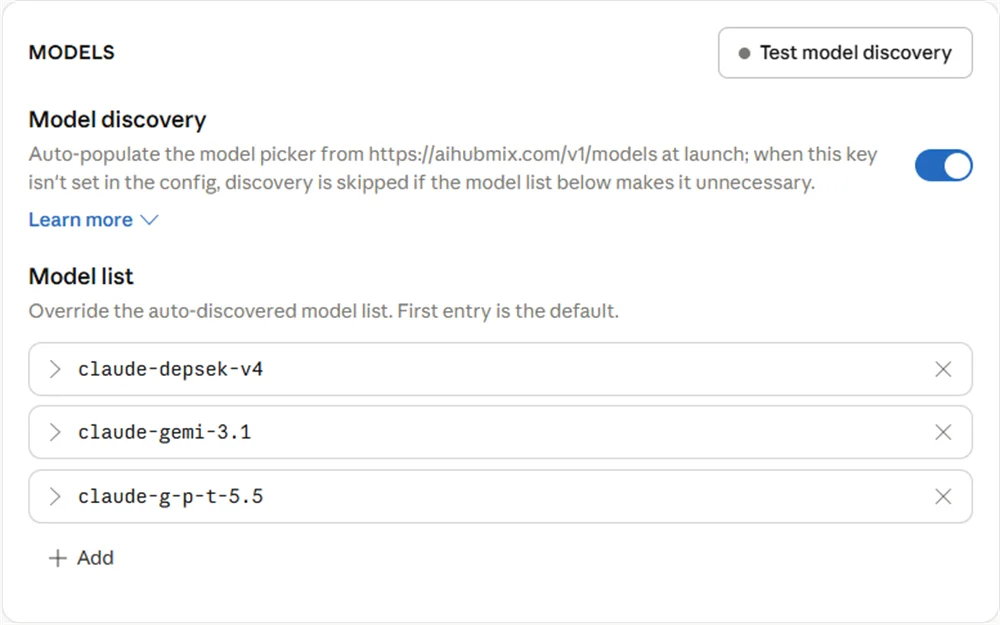 Once configured, these aliases appear in the Claude Desktop model dropdown for selection:
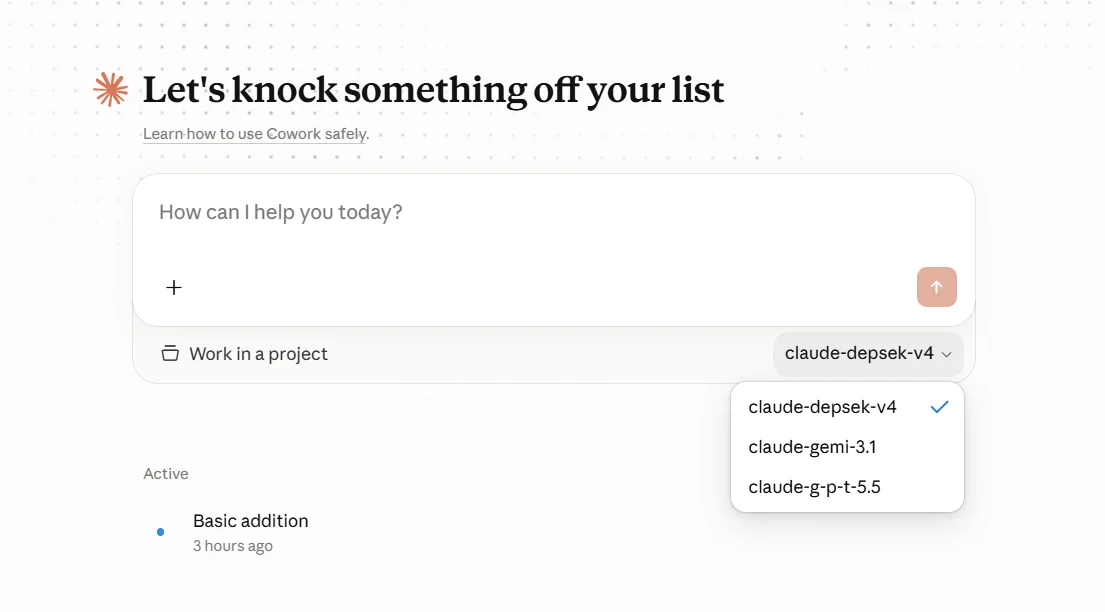 Naming tips:
* Use a `claude-` prefix for the `Model ID`.
* Do not write real model family names like `gpt`, `gemini`, or `deepseek` directly; use aliases such as `g-p-t`, `gemi`, `depsek`.
* The `Model ID` must match the left side of the AIHubMix mapping **character for character**, otherwise the request won't hit the mapping.
> For more — automatically switching to a backup model when the primary fails, billing by the final responding model, and so on — see [Model Mapping and Fallback](https://docs.aihubmix.com/en/api/Model-Mapping-Fallback).
> **Note: The default model is Claude Opus 4.7, which has higher pricing** and can lead to significant costs for everyday use. We recommend switching to another model. AIHubMix offers a wide range of cost-effective and free models — view the full list at [aihubmix.com/models](https://aihubmix.com/models).
Once configured, restart Claude Desktop and verify:
* The **Cowork** tab appears in the left navigation panel
* You can send messages and receive responses normally
* The model name shown in the bottom-right corner matches the model you configured
Naming tips:
* Use a `claude-` prefix for the `Model ID`.
* Do not write real model family names like `gpt`, `gemini`, or `deepseek` directly; use aliases such as `g-p-t`, `gemi`, `depsek`.
* The `Model ID` must match the left side of the AIHubMix mapping **character for character**, otherwise the request won't hit the mapping.
> For more — automatically switching to a backup model when the primary fails, billing by the final responding model, and so on — see [Model Mapping and Fallback](https://docs.aihubmix.com/en/api/Model-Mapping-Fallback).
> **Note: The default model is Claude Opus 4.7, which has higher pricing** and can lead to significant costs for everyday use. We recommend switching to another model. AIHubMix offers a wide range of cost-effective and free models — view the full list at [aihubmix.com/models](https://aihubmix.com/models).
Once configured, restart Claude Desktop and verify:
* The **Cowork** tab appears in the left navigation panel
* You can send messages and receive responses normally
* The model name shown in the bottom-right corner matches the model you configured
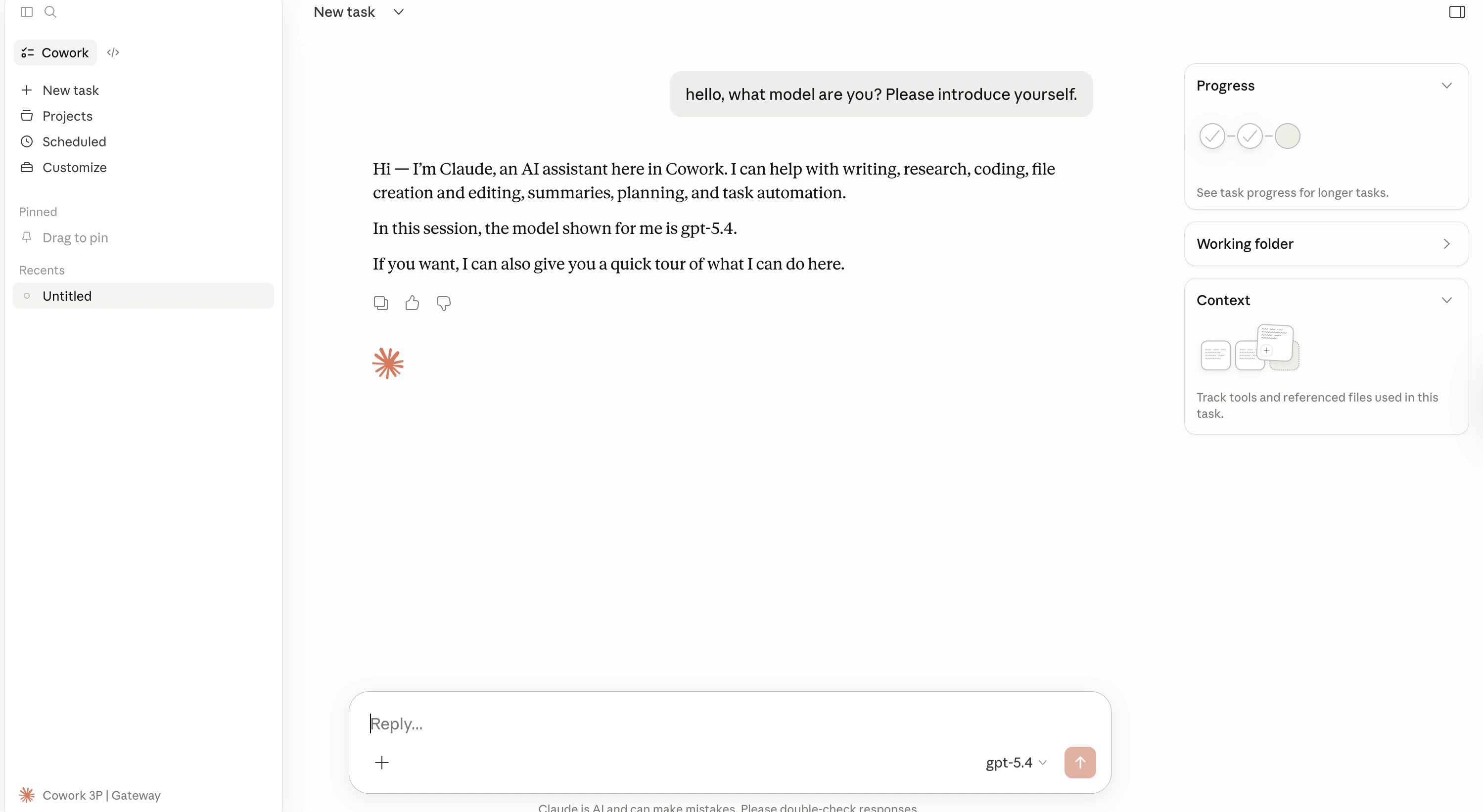 Congratulations! You're now using Claude Desktop with your own configured models, powered by AIHubMix.
***
## Troubleshooting
### Error on Launch / Cannot Connect
**Checklist:**
1. Confirm the connection type is set to `gateway` (not `bedrock` / `vertex`)
2. Check that the Base URL is `https://aihubmix.com` (no trailing slash)
3. Verify the API Key was copied in full (must start with `sk-`)
4. Make sure your AIHubMix account has sufficient balance
**View logs:**
* macOS: Open **Console.app**, filter by `Claude`
* Windows: Open **Event Viewer**
***
### Model Not Found Error
Make sure the model ID you entered is available on AIHubMix. You can query the available model list via API:
```bash theme={null}
curl https://aihubmix.com/v1/models \
-H "Authorization: Bearer sk-your-api-key"
```
***
### Which Auth Scheme Should I Use?
AIHubMix uses the `x-api-key` authentication header. If you encounter a 401 error, try switching to `bearer`.
***
## Advanced: Export Configuration File (Optional)
After completing setup, you can export the configuration for backup or team distribution:
**macOS** — Click **Export** in the config UI to download a `.mobileconfig` file\
**Windows** — Click **Export** in the config UI to download a `.reg` registry file
***
## Related Resources
* [AIHubMix Documentation](https://docs.aihubmix.com)
* [AIHubMix Claude Native API Reference](https://docs.aihubmix.com/en/api/Claude-Native)
* [Claude Desktop Official Third-Party Platform Guide](https://support.anthropic.com/en/articles/claude-cowork-with-third-party-platforms)
* [Claude Desktop Download Page](https://claude.ai/download)
***
*Last updated: April 23, 2026 | Based on Anthropic official docs + AIHubMix API documentation*
Congratulations! You're now using Claude Desktop with your own configured models, powered by AIHubMix.
***
## Troubleshooting
### Error on Launch / Cannot Connect
**Checklist:**
1. Confirm the connection type is set to `gateway` (not `bedrock` / `vertex`)
2. Check that the Base URL is `https://aihubmix.com` (no trailing slash)
3. Verify the API Key was copied in full (must start with `sk-`)
4. Make sure your AIHubMix account has sufficient balance
**View logs:**
* macOS: Open **Console.app**, filter by `Claude`
* Windows: Open **Event Viewer**
***
### Model Not Found Error
Make sure the model ID you entered is available on AIHubMix. You can query the available model list via API:
```bash theme={null}
curl https://aihubmix.com/v1/models \
-H "Authorization: Bearer sk-your-api-key"
```
***
### Which Auth Scheme Should I Use?
AIHubMix uses the `x-api-key` authentication header. If you encounter a 401 error, try switching to `bearer`.
***
## Advanced: Export Configuration File (Optional)
After completing setup, you can export the configuration for backup or team distribution:
**macOS** — Click **Export** in the config UI to download a `.mobileconfig` file\
**Windows** — Click **Export** in the config UI to download a `.reg` registry file
***
## Related Resources
* [AIHubMix Documentation](https://docs.aihubmix.com)
* [AIHubMix Claude Native API Reference](https://docs.aihubmix.com/en/api/Claude-Native)
* [Claude Desktop Official Third-Party Platform Guide](https://support.anthropic.com/en/articles/claude-cowork-with-third-party-platforms)
* [Claude Desktop Download Page](https://claude.ai/download)
***
*Last updated: April 23, 2026 | Based on Anthropic official docs + AIHubMix API documentation*