> ## Documentation Index
> Fetch the complete documentation index at: https://docs.aihubmix.com/llms.txt
> Use this file to discover all available pages before exploring further.
# Gemini Cli
Power your Gemini CLI with Aihubmix for stable and efficient Gemini model services.
## Quick Setup Guide:
### 1️⃣ Global npm Package Installation
Run in terminal
```shell theme={null}
npm install -g @google/gemini-cli
```
Ensure your Node.js version >= 18
For more detailed information, refer to:
1. [Official Repository](https://github.com/google-gemini/gemini-cli)
2. [Detailed Configuration](https://github.com/google-gemini/gemini-cli/blob/main/docs/cli/configuration.md)
### 2️⃣ Environment Variable Configuration
Add your Aihubmix API key and forwarding address to your system environment variables. You can generate the API key from the Aihubmix [「Keys」page](https://aihubmix.com/token).
For example, add to \~/.zshrc:
```shell theme={null}
export GOOGLE_GEMINI_BASE_URL="https://aihubmix.com/gemini"
export GEMINI_API_KEY="sk-***"
```
For Mac users, you can show hidden .zshrc file in your `username` directory using shortcut `⌘ + ⇧ + .`, then open it with the system "TextEdit" app to add the above content.
### 3️⃣ Apply Configuration
After adding the configuration, execute `source ~/.zshrc` in terminal and press Enter.
### 4️⃣ Terminal Launch
Enter in terminal:
```shell theme={null}
gemini
```
## Initialization Setup
### Choose Connection Method
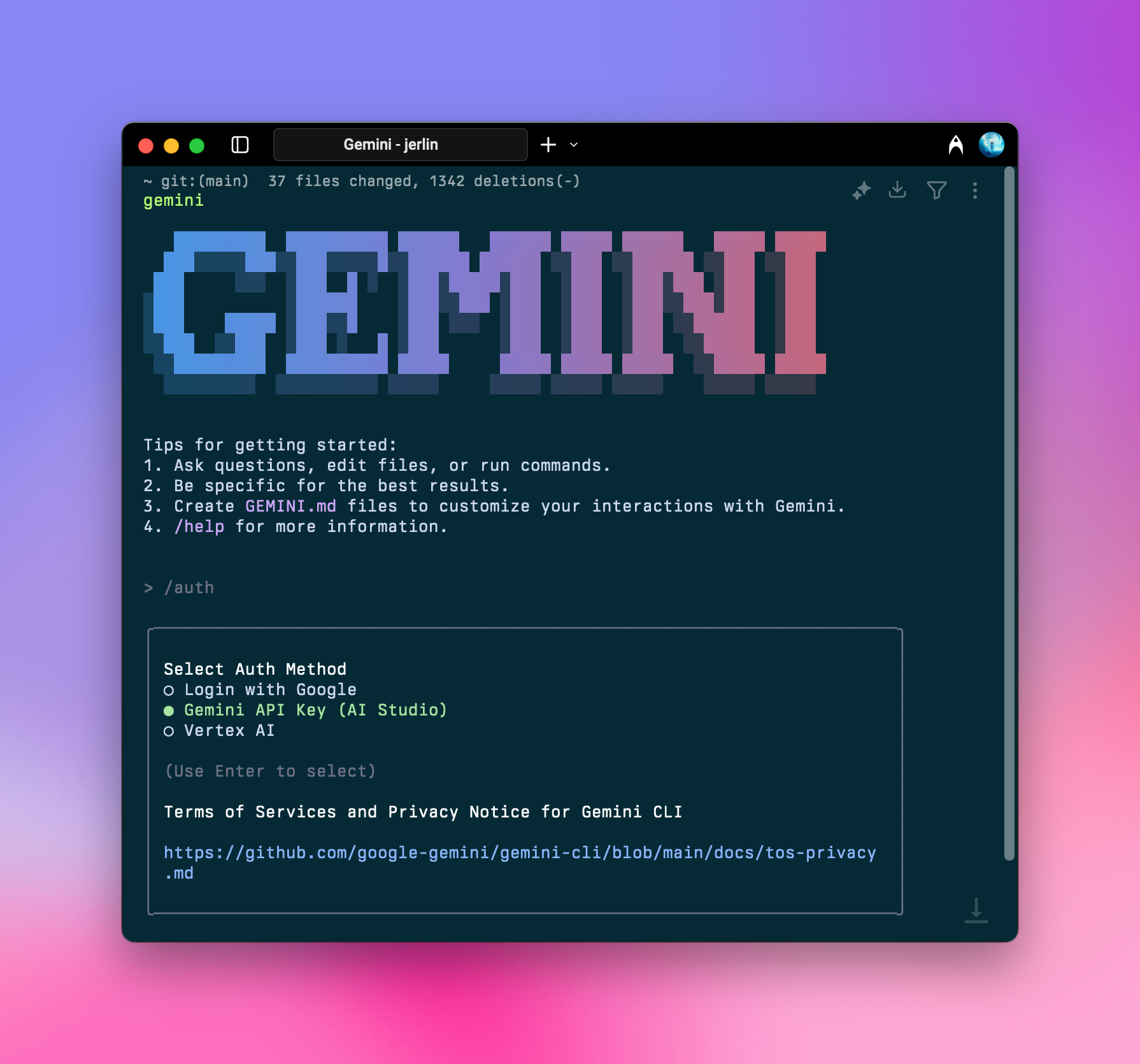 After launch, type `/auth` and press Enter, then select `Gemini API Key (AI Studio)`
```shell theme={null}
○ Login with Google
● Gemini API Key (AI Studio)
○ vertex AI
```
You can use the `/auth` command anytime to switch authorization methods.
### Launch Success
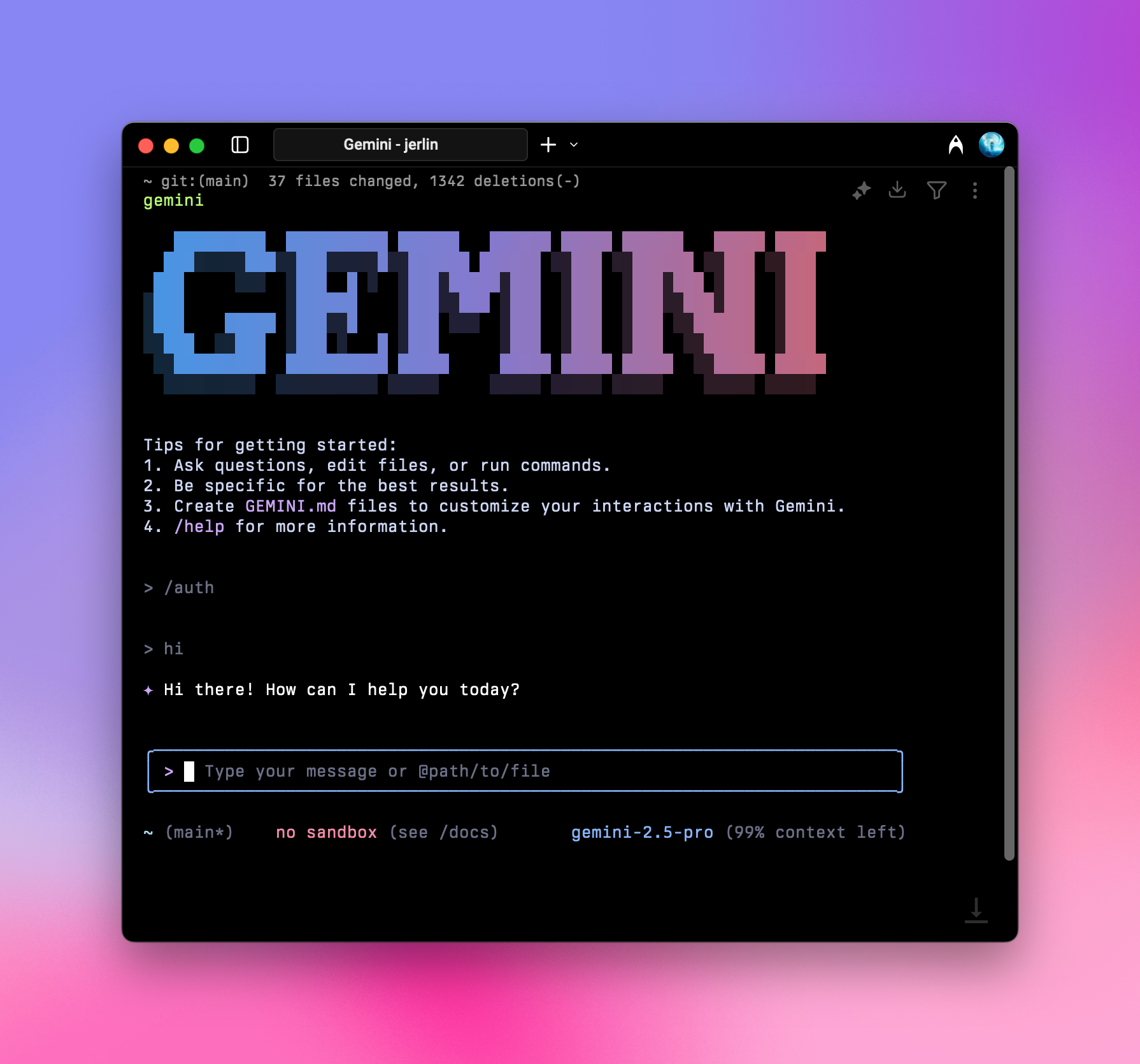
After completing the above initialization, you can use it normally.
After launch, type `/auth` and press Enter, then select `Gemini API Key (AI Studio)`
```shell theme={null}
○ Login with Google
● Gemini API Key (AI Studio)
○ vertex AI
```
You can use the `/auth` command anytime to switch authorization methods.
### Launch Success
After completing the above initialization, you can use it normally.
 ## Enjoy using it!
Last updated: 2026-06-01
## Enjoy using it!
Last updated: 2026-06-01