> ## Documentation Index
> Fetch the complete documentation index at: https://docs.aihubmix.com/llms.txt
> Use this file to discover all available pages before exploring further.
# Cherry Studio
> 在 Cherry Studio 桌面客户端中接入 AIHubMix,调用 Claude、GPT、Gemini 等模型,并为 Claude 开启提示词缓存以降本提速。
Cherry Studio 是一款**多模型桌面 AI 客户端**,支持同时接入多个 AI 服务商(OpenAI、Claude、Gemini、AIHubMix等),在一个界面里统一管理和使用。
项目简介:[https://docs.cherry-ai.com/](https://docs.cherry-ai.com/)
**核心功能:**
* 多模型自由切换,对比不同 AI 的回答
* 支持 MCP 扩展,接入外部工具和服务
* 内置知识库、助手管理、对话历史
* 支持 Markdown 渲染、代码高亮、文件上传
## [**Cherry Studio AI 下载地址**](https://easys.run/cherry-studio/)
## 配置AIHubMix Api Key
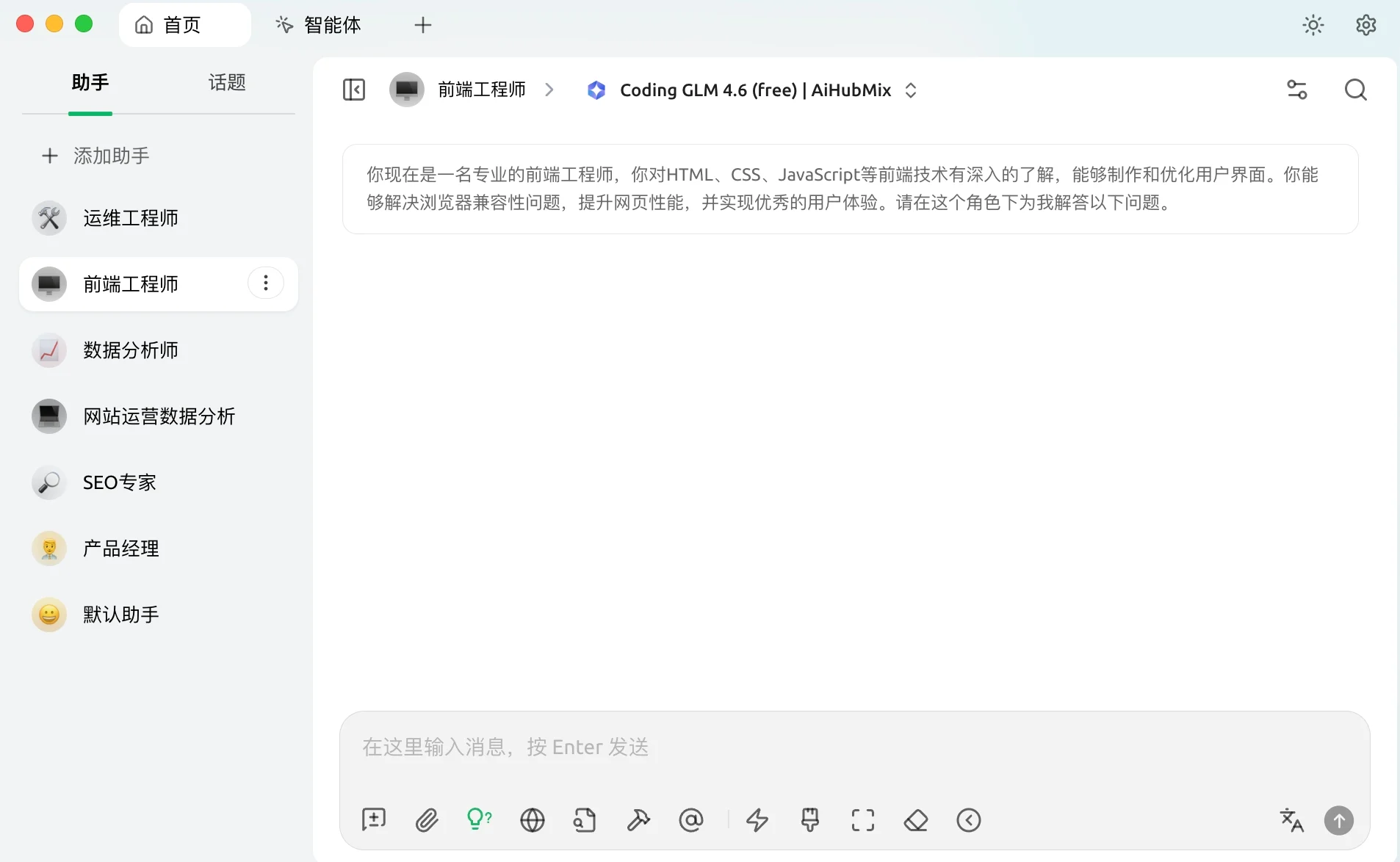
1. 应用右上角打开设置-模型服务
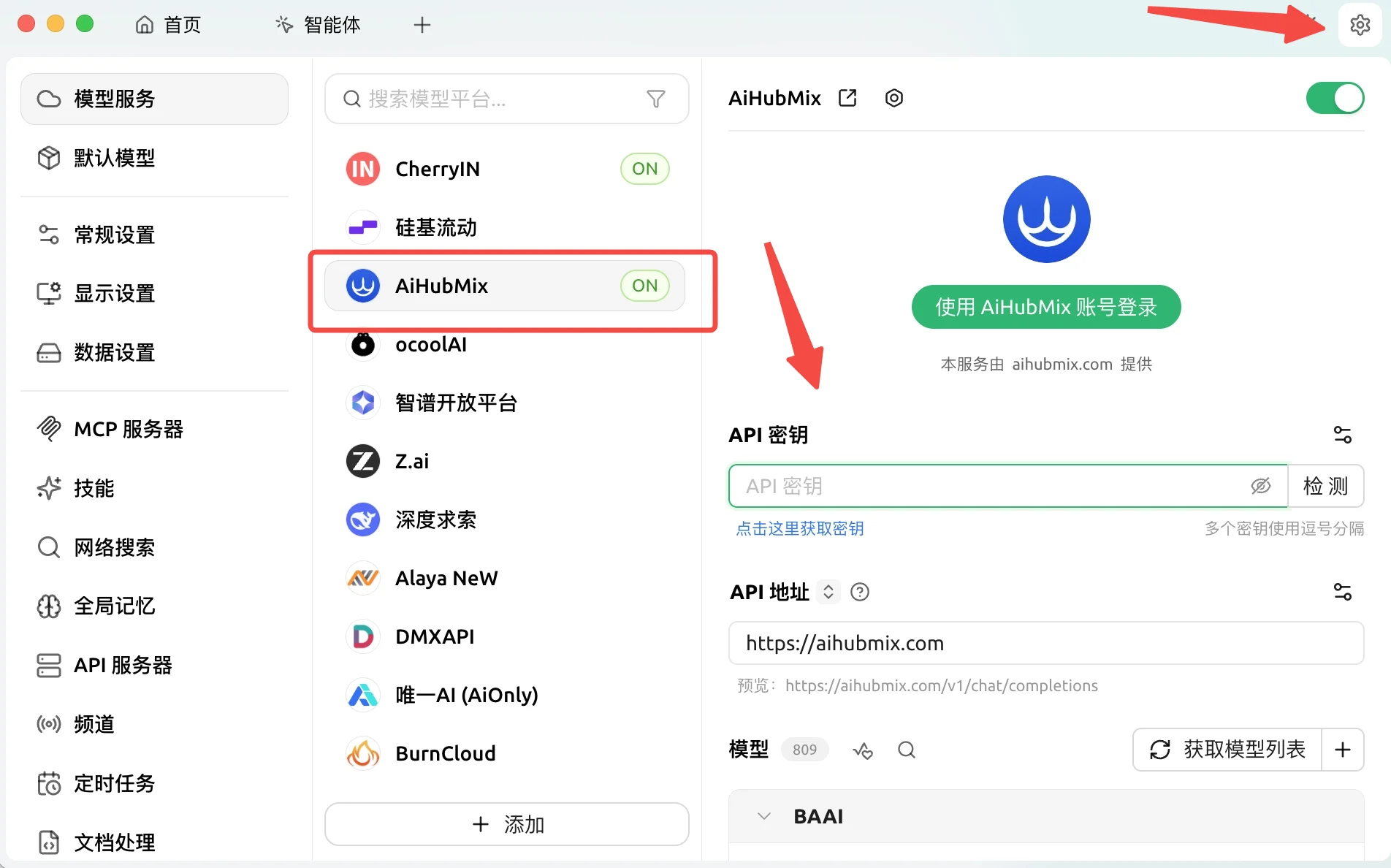 2. 在模型供应商界面选择我们的 AIHubMix—点击获取密钥—跳转链接—返回copy Api Key AIHubMix 提供包括 `GPT 5.5`、`Claude Opus 4.6`、`DeepSeek v4 Pro` 等主流大模型在内的 800+ 模型,另外还提供 26+ 免费模型。
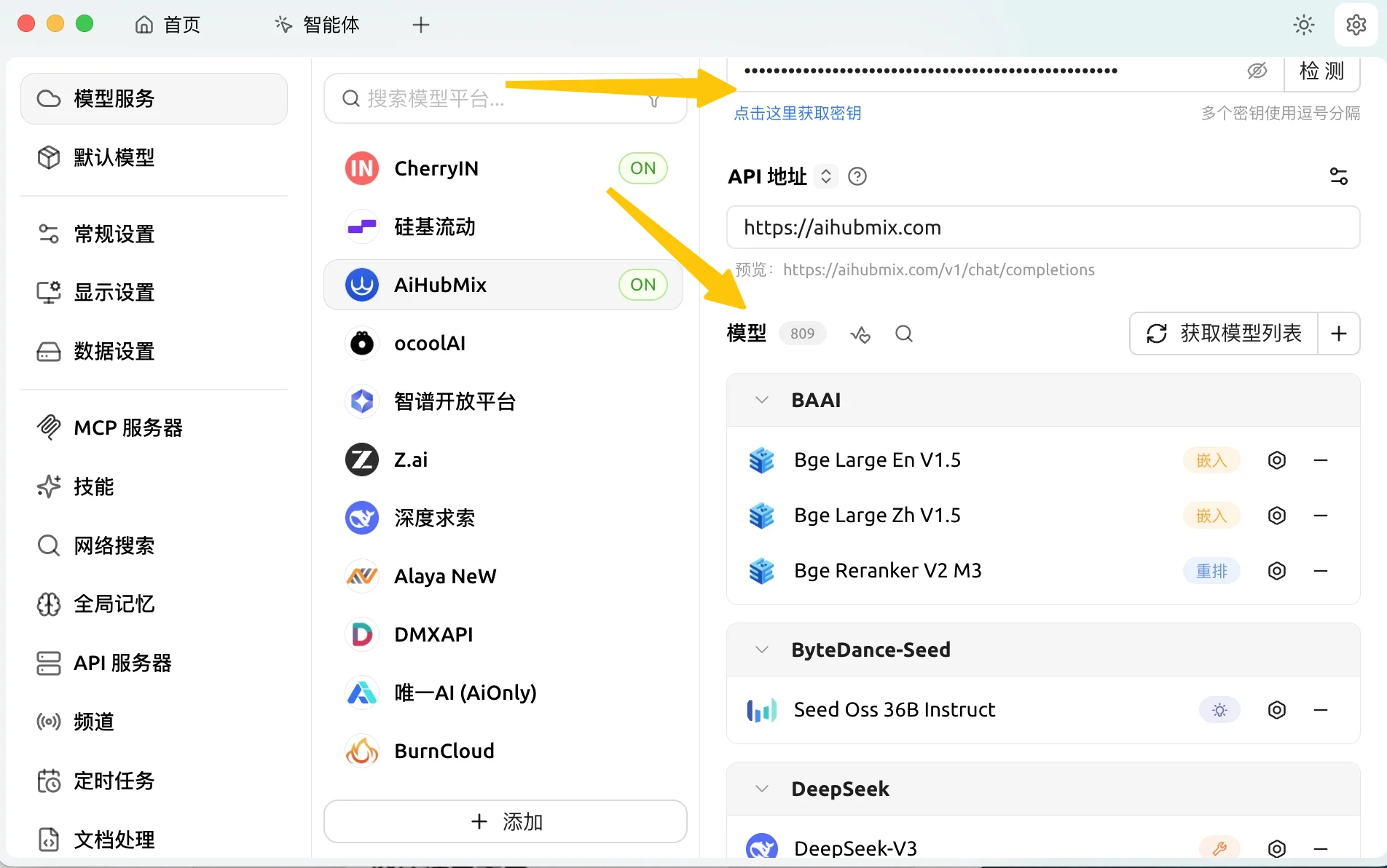 3. 模型选择两种方式 : 下拉选择模型
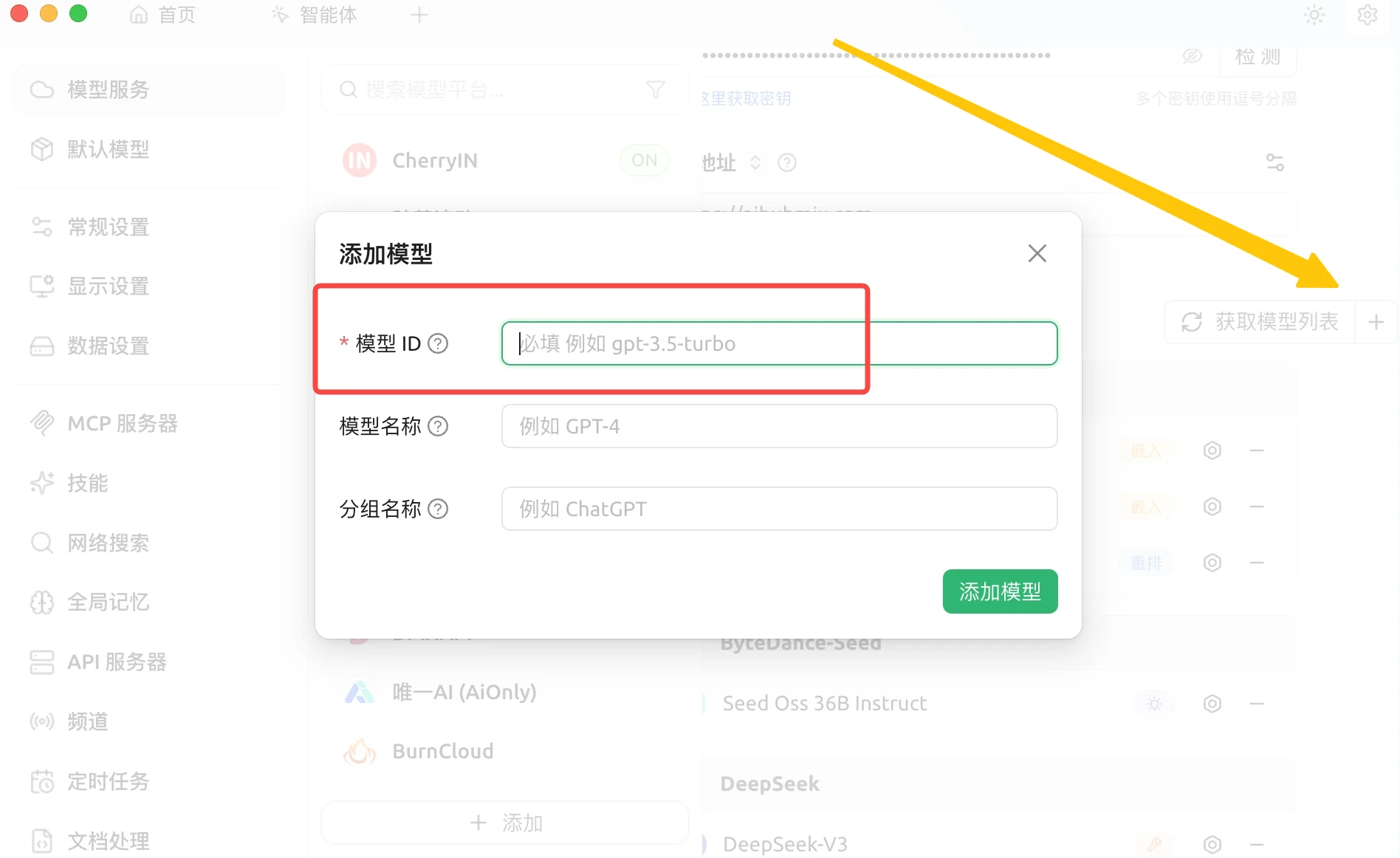
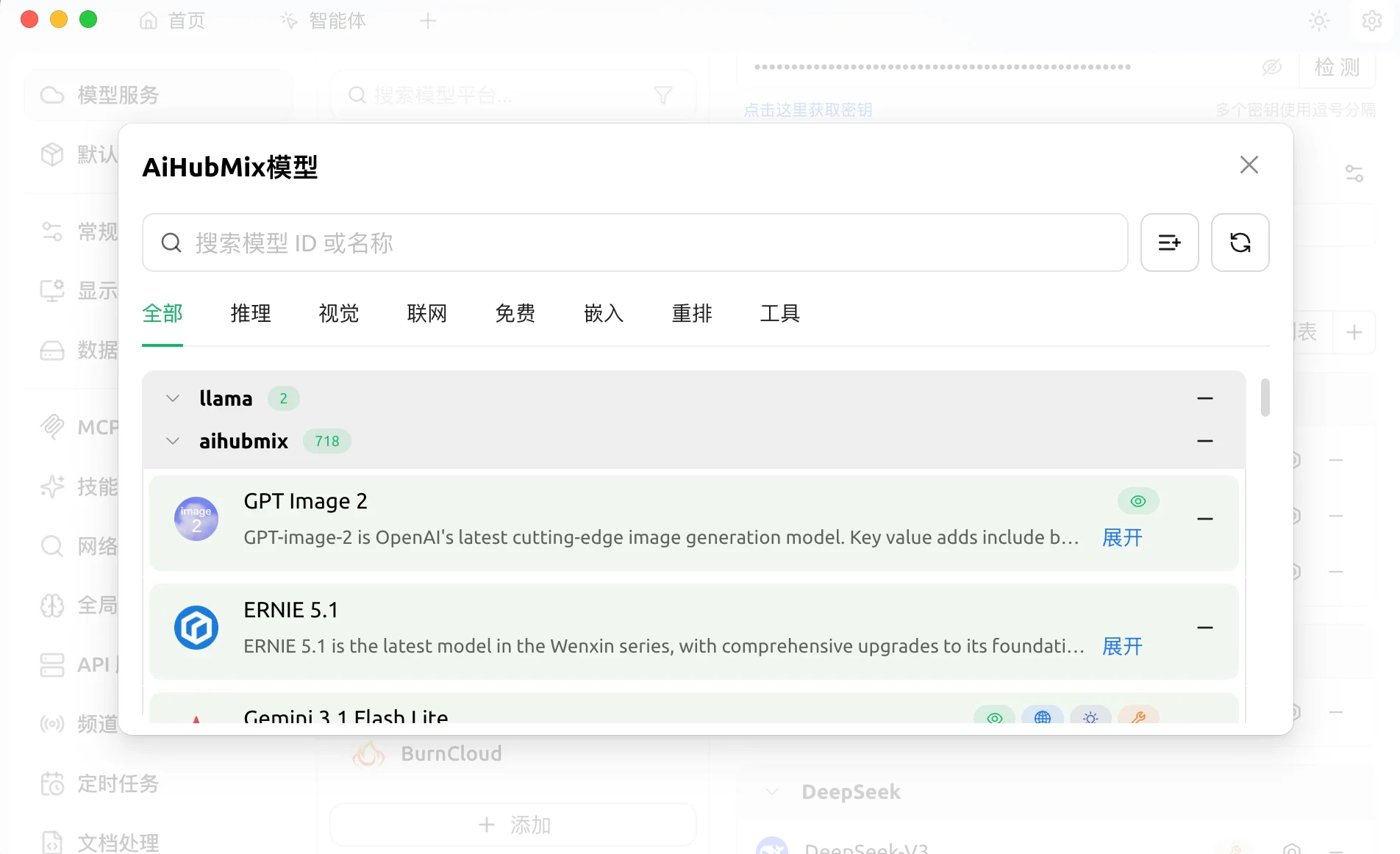 点击 “+” 添加模型,模型 ID 从本网站的设置界面选择想要使用的模型复制粘贴
 API 密钥一栏输入[本站的 Key](https://aihubmix.com/token),API 地址一栏不用修改。\
**注:如果检查不通过尝试关闭 vpn**
## 开始使用
API 密钥一栏输入[本站的 Key](https://aihubmix.com/token),API 地址一栏不用修改。\
**注:如果检查不通过尝试关闭 vpn**
## 开始使用
 ## 常见问题
### 模型提示看不到图片
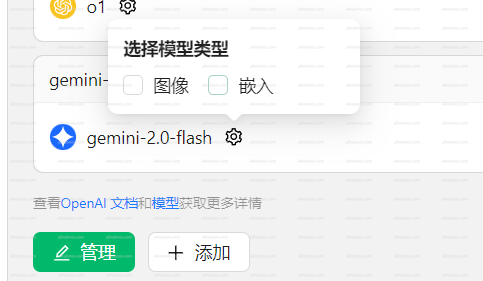
一些新模型可能遇到输入图片后模型看不到的问题。需要在设置页面手动勾选图像选项。
## 常见问题
### 模型提示看不到图片
一些新模型可能遇到输入图片后模型看不到的问题。需要在设置页面手动勾选图像选项。
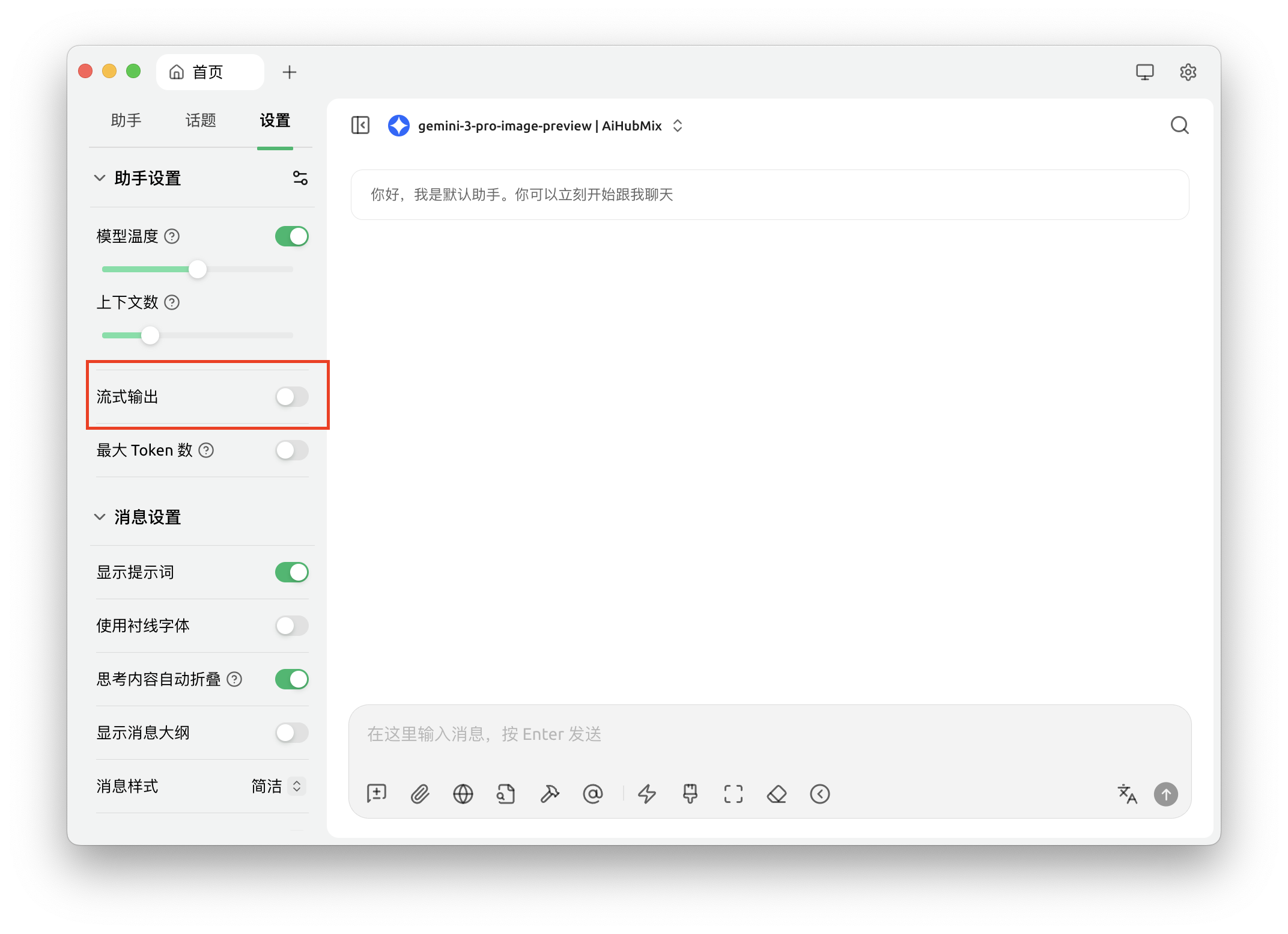
 gemini-3-pro-image-preview 模型在流式输出模式下无法返回图片,使用时请关闭流式输出。
 ### 调用 Claude 模型返回错误 AI\_APICallError
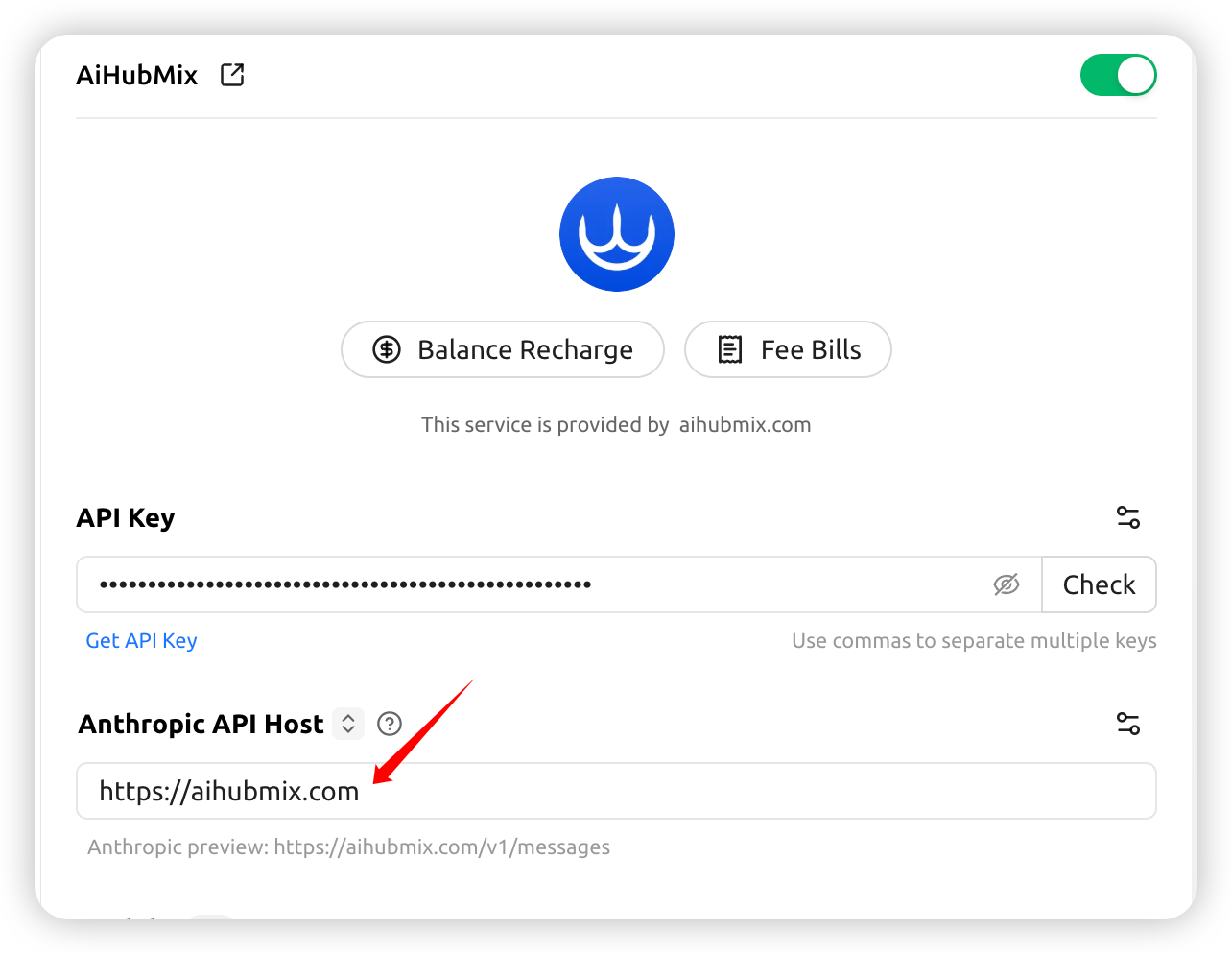
需要检查报错信息中的请求路径是否为`https://aihubmix.com/anthropic/v1/messages`,若是,则在设置中将 Anthropic API Host 修改为`https://aihubmix.com`
### 调用 Claude 模型返回错误 AI\_APICallError
需要检查报错信息中的请求路径是否为`https://aihubmix.com/anthropic/v1/messages`,若是,则在设置中将 Anthropic API Host 修改为`https://aihubmix.com`
 ## 启用 Claude 提示词缓存
在 Aihubmix 供应商的「API 设置」(供应商名称右侧齿轮)里,配置「缓存 Token 阈值」「缓存系统消息」「缓存最后 N 条消息」即可为 Claude 模型自动注入 `cache_control`。各项含义与命中要点见 [Claude 提示词缓存](../api/Claude-Cache)。
最新更新日期:2026年5月11日
## 启用 Claude 提示词缓存
在 Aihubmix 供应商的「API 设置」(供应商名称右侧齿轮)里,配置「缓存 Token 阈值」「缓存系统消息」「缓存最后 N 条消息」即可为 Claude 模型自动注入 `cache_control`。各项含义与命中要点见 [Claude 提示词缓存](../api/Claude-Cache)。
最新更新日期:2026年5月11日